
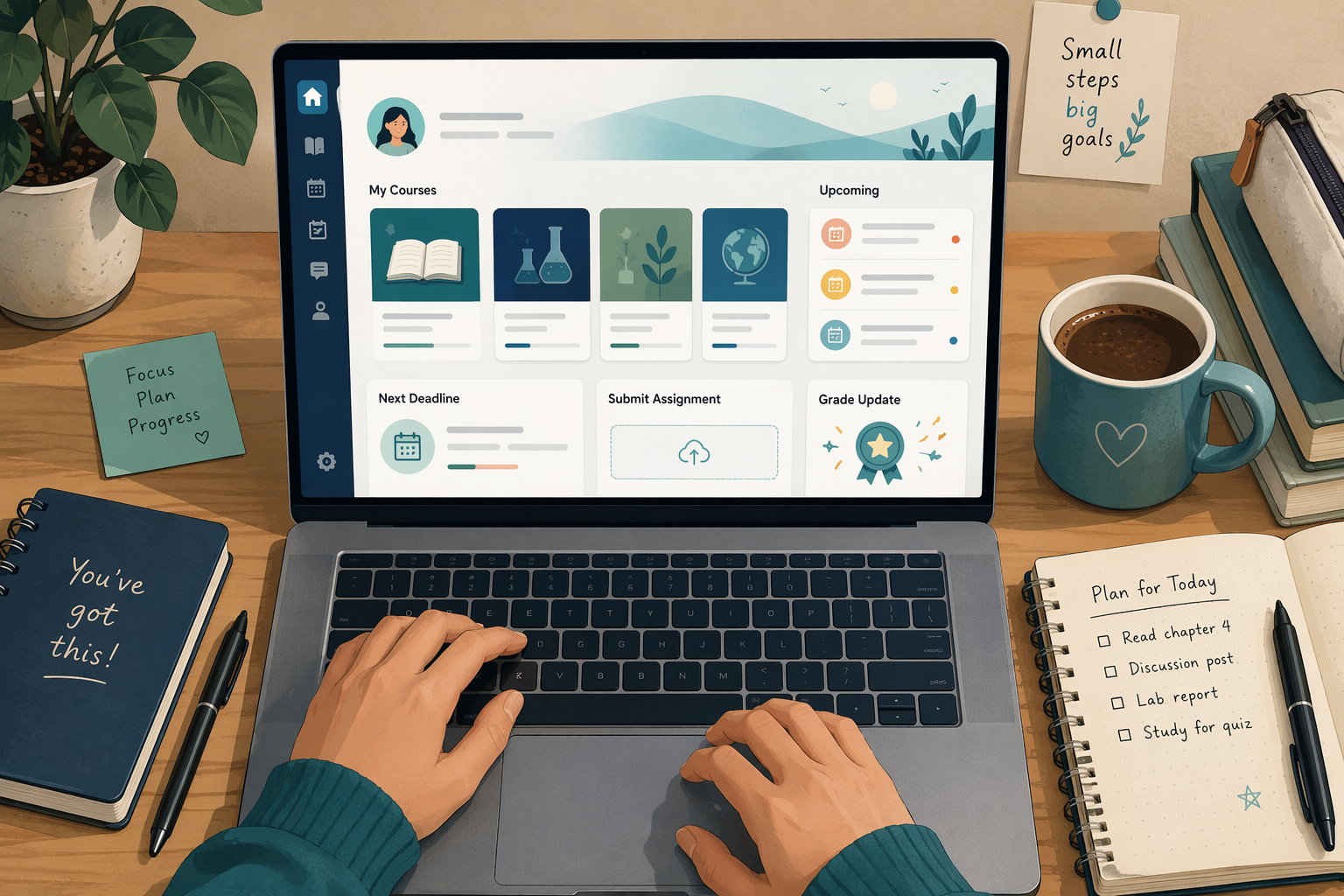
A Student's Guide to Learning Management Platforms
Learning management platforms (LMS) are the digital backbone of modern education, yet most students receive no guidance on using them. This guide explains what an LMS is, why schools rely on them, and how to navigate any platform effectively.
Updated:
A learning management platform is the school-run website or app where your course actually happens outside the classroom. It is where the syllabus lives, where assignments open and close, where files get submitted, where grades appear, where instructors post announcements, and where discussion boards or group spaces may sit. Your school may call it an LMS, a learning management system, a course portal, Canvas, Blackboard, Moodle, Brightspace, Google Classroom, or something else. The label changes. The daily job is usually the same.
That matters because students are often expected to understand the platform as if it were obvious. It is not obvious. A missed announcement, a hidden rubric comment, a due date that appears in one calendar view but not another, or a file type the submission box rejects can affect a grade even when the student knew the material. Learning management platforms are not just storage folders for class files. They are the official record of what your course expects from you.
Why Almost Every Course Now Has a Platform
Schools use learning management platforms because they give instructors one official place to distribute materials, collect work, communicate with students, and keep grade records. For students, that means the LMS is less like an optional app and more like campus infrastructure. You may not like the interface, but if your instructor uses it for grades or submissions, it becomes part of the course.
This is not limited to fully online programs. PCMag, citing Digital Learning Compass data, reported that 30% of students at U.S. degree-granting institutions were enrolled in at least one online course, and nearly half of that group was enrolled entirely online.[1] Hybrid classes, snow-day plans, dual enrollment, lab sections, asynchronous modules, and simple “check Canvas before class” routines have pushed LMS use into ordinary school life.
The market is also concentrated enough that learning the pattern pays off. As of the most recent comprehensive market report cited by PCMag, from 2023, 87% of U.S. and Canadian higher-education institutions and 91% of student enrollments relied on four platforms: Canvas, Blackboard, Moodle, and D2L Brightspace.[1] Wikipedia’s summary of the same higher-ed LMS market placed Canvas at about 41% institutional market share in U.S. higher education, with Blackboard around 17%, Moodle around 16%, and D2L Brightspace around 16%.[2]
Those numbers are useful for one reason: most students are not facing a completely random universe of platforms. If you understand how one major LMS organizes a course, you can usually transfer that knowledge to another. Menus move. Icons change. The core loop stays familiar.
The Major Platforms You Are Most Likely to See
Canvas is especially common in U.S. higher education, which is why many students use “Canvas” as a stand-in for the whole LMS category. OnlineDegree.com describes Canvas as having more than 6 million users and reports satisfaction above 90%, while also noting that its SpeedGrader feature can cut grading time by about 50%.[3] That satisfaction number should not be treated as a pure student vote; platform satisfaction data often includes educators and administrators as well as students. Still, Canvas’s reach explains why it shows up so often in college orientation materials.
Moodle is different because it is open-source and widely adapted around the world. The available comparisons describe Moodle as serving more than 200 million users worldwide, supporting more than 2,000 plugins, and offering support across more than 160 languages.[3][4] That flexibility is useful for institutions, but it also means one Moodle site can feel very different from another.
Blackboard has been around long enough that many students, instructors, and universities have inherited it through older systems. iSpring’s 2026 comparison describes Blackboard as supporting more than 100 million learners and highlights features such as an AI Design Assistant and Ally translation support across more than 75 languages.[4] D2L Brightspace is another major higher-ed platform, and PCMag notes its ability to integrate with more than 1,800 technologies.[1] Google Classroom, more common in K-12 and simpler school setups, is described by PCMag as free, widely used, and more limited than full-featured LMS platforms, with more than 70 million users.[1]
You may also see Schoology or a regional platform, especially outside U.S. higher education. The practical question stays the same: where does your instructor post required course information, collect graded work, and send official updates? That is the platform you have to treat as authoritative.
What to Check First in Any LMS
When you open a course shell for the first time, do not start by clicking randomly through every tab. Start by finding the places that affect deadlines, grades, and communication. The names vary, but the student workflow is usually built from the same parts.
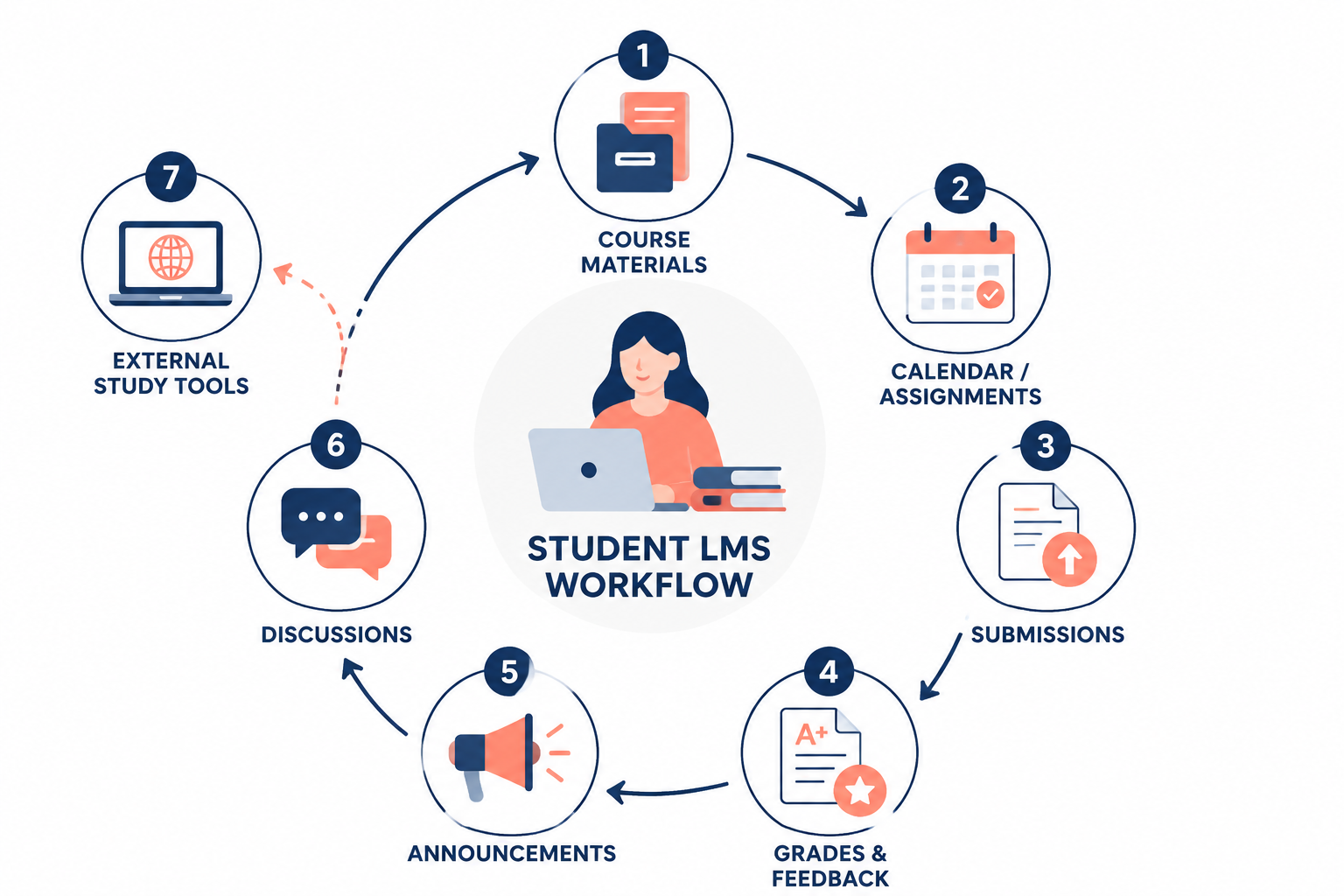
| LMS area | What you are looking for | Why it matters |
|---|---|---|
| Course materials | Syllabus, modules, readings, lecture slides, links, recordings | This tells you what to study and where the instructor expects you to start |
| Assignments and calendar | Due dates, availability windows, late policies, rubric links | This is where deadline confusion usually begins |
| Submissions | Upload boxes, text-entry fields, quiz attempts, file-type rules | This is the official path for turning in graded work |
| Grades and feedback | Scores, rubrics, comments, attached markup, missing flags | A number alone may not show what you need to fix next time |
| Announcements and messages | Instructor updates, schedule changes, clarifications | Some course changes never appear anywhere else |
| Discussions or collaboration spaces | Prompts, replies, group pages, peer responses | Participation may be graded even when it feels informal |
| External tools | Linked textbooks, proctoring tools, flashcards, planners, cloud docs | These may support the course, but they are not always the official record |
Find the Course Materials Before You Need Them
The syllabus is still the first document to open, even if the LMS has a dashboard full of colorful tiles and checklist widgets. Look for the grading breakdown, late-work policy, instructor contact rules, textbook information, exam format, and any note about where assignments are posted. Some instructors put everything in Modules. Others use Files, Pages, Weekly Folders, Content, or Lessons. The exact menu name is less important than finding the instructor’s chosen path through the course.
A useful habit is to identify the “source of truth” for each class during the first week. In one course, the Modules page may be the real course map. In another, the calendar may list deadlines but the actual instructions may live inside assignment pages. In another, the instructor may post weekly announcements with changes that do not get copied into the syllabus. Once you know the source of truth, you stop treating the LMS as a maze and start treating it as a set of checkpoints.
Treat Due Dates as More Than Calendar Squares
LMS calendars are helpful, but they can also hide important details. A calendar entry may show that an essay is due Friday, while the assignment page says the file must be a PDF, the rubric requires a separate reflection, and the upload box closes at a specific time. Some platforms also separate a due date from an availability window. That means an assignment can be visible before it is open, due before it is locked, or missing from a calendar if the instructor created it in a nonstandard way.
For any graded task, open the assignment page itself. Check the due date, submission format, number of attempts, time limit if it is a quiz, attached rubric, and whether the instructor added comments in the description. If the platform has a “to-do” list, use it as a reminder, not as the only version of the course.
Students who manage several courses often move deadlines into a separate planner. That can work well as long as the LMS remains the official source. A planner can help you compare workloads across classes, while the LMS tells you the exact rule for each submission. If you want a broader setup, a comparison of online assignment planner tools can help you decide whether a dedicated planner is worth adding. MyStudyLife is one example students still consider for school scheduling, though it should be layered around the LMS rather than treated as a replacement; this MyStudyLife review looks at that tradeoff in more detail.
Submit Work Like the Upload Is Part of the Assignment
Submitting work is where the LMS becomes less forgiving. The platform may accept only certain file types. It may require a cloud-file link instead of an upload. It may ask for a text entry. It may send a similarity report through a connected tool. It may allow multiple attempts, or it may lock after one. The safest time to discover those rules is not five minutes before the deadline.
- Open the submission box early, even if you are not ready to submit.
- Check accepted file types and whether the instructor requires a specific naming format.
- Confirm whether the platform allows resubmission before the deadline.
- Wait for the confirmation screen, receipt, or submission timestamp.
- Reopen the assignment afterward if possible and verify that the correct file appears.
The last step is not paranoia. It is basic self-defense. A document with the right title can still be the wrong version. A cloud link can point to a private file. A browser upload can fail silently if the connection drops. If a grade dispute happens later, the timestamp and confirmation matter more than the fact that you remember trying.
Read Grades and Feedback Separately
The gradebook is not always a clean picture of your standing in the course. Some instructors weight categories. Some leave ungraded work blank. Some enter zeros for missing work immediately, while others wait. Some hide totals until the end. A displayed percentage can be useful, but it may not mean what you think unless you know how the course calculates grades.
Feedback can be even easier to miss. Comments may appear in a sidebar, inside a rubric, attached to an annotated file, under a submission details button, or in a separate grading tool. A student can see “84” and never see the sentence explaining that the thesis was strong but the sources were thin. That sentence is often the part that helps on the next assignment.
If a grade looks wrong, first check whether the assignment has rubric feedback, submission comments, or an attached marked-up document. Then check the syllabus grading policy. Emailing “Why did I get this grade?” is usually less effective than writing, “I saw the rubric score for evidence, but I could not find comments on which source was missing. Could you point me to the feedback location?”
Do Not Treat Announcements as Optional
Announcements are where instructors often fix the course while it is already moving. A due date shifts. A reading changes. A quiz opens late. A classroom is moved. A lecture recording is posted. Because announcements can feel like email clutter, they are easy to ignore until one of them contains the exception that applies to the next deadline.
Check your notification settings in the first week. Decide whether announcements should go to email, phone push notifications, or both. If your school email is the official channel, make sure it is actually on your phone or in your daily routine. The platform cannot help you if its alerts are going to an inbox you never open.
Use Discussions and Group Spaces Carefully
Discussion boards can look informal, but they often carry participation points, reply deadlines, or rubric requirements. Read the prompt for required word count, citation rules, number of replies, and whether replies must be posted on different days. In group spaces, check whether the instructor can see internal activity, submitted drafts, or only the final file. Do not assume a chatty group page automatically counts as completed participation.
For group projects, the LMS is useful because it creates a shared record. If instructions are scattered across texts, screenshots, and hallway conversations, move the final version back into the course space or a shared document linked from it. When something goes wrong, the official platform is easier to reference than a half-remembered group chat.
The LMS Is Required; Study Tools Are Optional
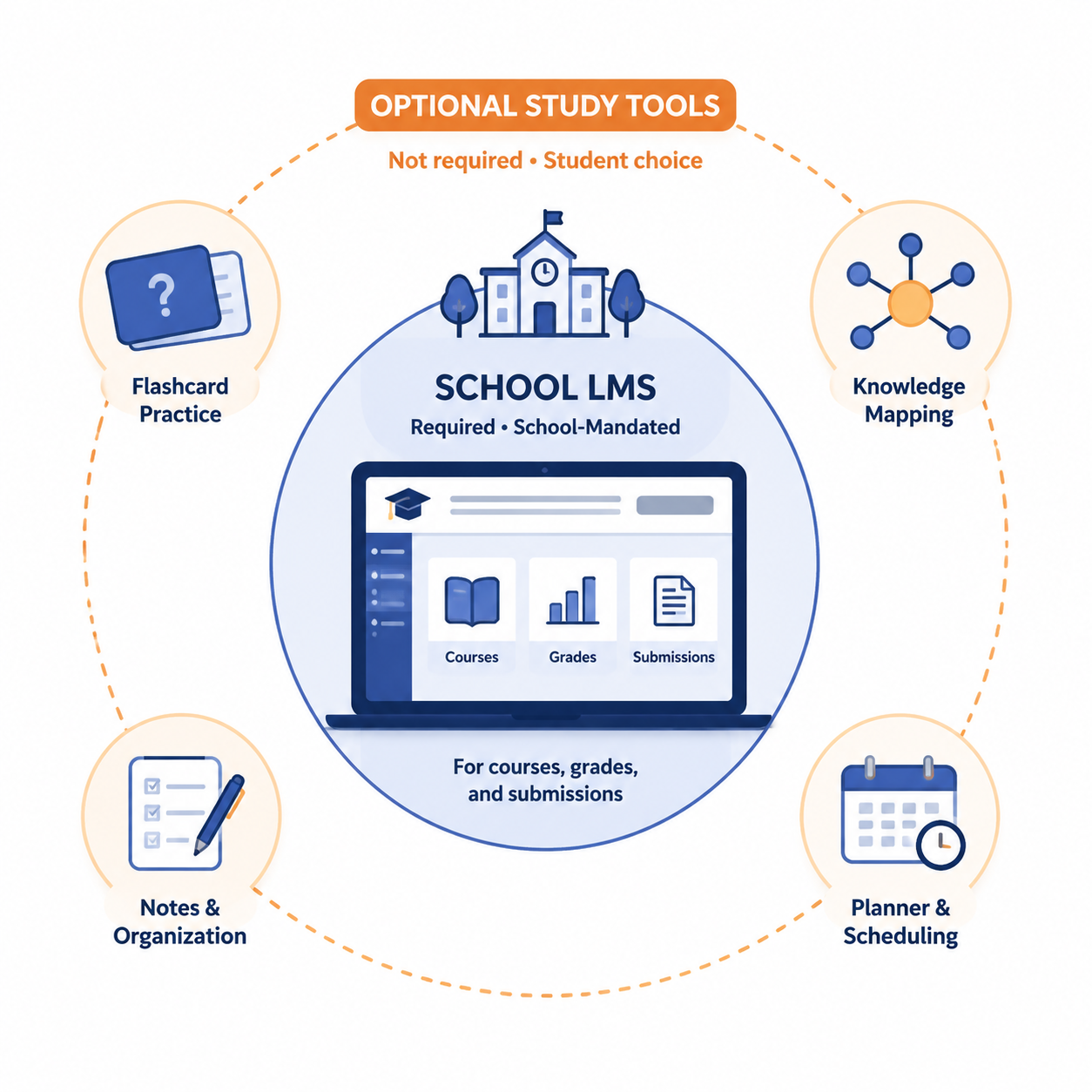
A learning management platform is not the same thing as Quizlet, Anki, RemNote, Notion, a calendar app, or a digital notebook. Those tools can be useful, but they do not replace the school-operated course hub. The difference is authority. The LMS is where the instructor posts official course requirements, collects graded submissions, records grades, and sends course updates. A study tool helps you learn, plan, memorize, summarize, or organize.
Quizlet is the clearest boundary case because so many students use it for school. PCMag, citing CNBC, reported that half of U.S. high school students and one-third of U.S. college students use Quizlet.[1] That scale makes Quizlet important in student life, but it does not make it an LMS. A flashcard deck can help you prepare for a biology exam. It cannot tell you whether your instructor changed the lab-report deadline, whether your essay uploaded correctly, or whether a rubric comment explains your score. For a closer look at where flashcards help and where they stop, see this Quizlet flashcards app review.
The best setup is usually layered. The LMS remains the required hub. A planner can make deadlines easier to compare across classes. A flashcard app can handle recall practice. A notes app can hold summaries, lecture notes, and project planning. A cloud drive can store drafts. If those tools do not point back to the LMS, though, the system starts to drift. You may remember studying Chapter 6 and still miss the actual Chapter 6 quiz because the due date lived only in the course portal.
If you are building that setup from scratch, think of it as an ecosystem around the LMS rather than a replacement for it. A cohesive online learning toolkit should reduce the number of places you check, not create five more places where a deadline might be hiding.
A Simple Weekly LMS Routine
You do not need to master every feature in your school’s LMS. You need a routine that catches the parts with consequences. Once or twice a week, open each course and check the same locations in the same order.
- Open announcements first, because they may change the rest of the week.
- Check modules, content, or weekly folders for new readings, slides, recordings, or instructions.
- Open each upcoming assignment page, not just the calendar entry.
- Move confirmed deadlines into your planner only after checking submission details.
- Review recent grades for comments, rubric notes, and missing-work flags.
- Check discussions or group spaces for reply deadlines and project updates.
This routine is boring in the best possible way. It prevents the platform from becoming a place you visit only when something is already late. It also helps you notice patterns: the instructor who hides key instructions in announcements, the course where rubrics matter more than assignment descriptions, the class where the calendar is reliable, and the class where it is not.
What the Growth of LMS Platforms Does and Does Not Prove
The LMS industry is large because schools, universities, and companies keep investing in digital course infrastructure. Wikipedia, citing Grand View Research, reports that the global LMS market was valued at $24.05 billion in 2024 and projected to grow at a 19.9% compound annual growth rate through 2030.[2] That number explains why the platforms keep adding integrations, analytics, AI tools, accessibility features, mobile apps, and vendor partnerships.
It does not prove that every student experience is smooth. Adoption is not the same as clarity. A school can have a powerful LMS and still give students almost no instruction on how grades are weighted, where feedback appears, or which notification settings matter. A platform can support accessibility and translation features and still depend on an instructor setting up the course clearly. Vendor claims, reviewer rankings, and satisfaction scores can point to useful features, but they do not remove the student’s need to understand the daily workflow.
That is the realistic standard. You do not have to love Canvas, Blackboard, Moodle, Brightspace, Google Classroom, or whatever your school uses. You do not have to explore every menu. You need to know where the course materials are, how deadlines are shown, how submissions are confirmed, where feedback hides, how instructors communicate, and which outside tools belong outside the official course hub.
References
- The Best LMS Learning Management Systems, PCMag, January 2018.
- Learning management system, Wikipedia.
- 2026 Best LMS Software — Ease of Use Rankings, OnlineDegree.com, 2026.
- Blackboard vs Moodle vs Canvas: Big Comparison for 2026, iSpring, 2026.
Comments
Join the discussion with an anonymous comment.