
Which Cornell Notes Template Should You Use? A Guide to Matching Template Style to Subject Type
Not all Cornell notes templates are the same. This guide helps college and high school students choose the best printable PDF template for their specific classes — whether they need a graph-paper note area for science diagrams or a wide cue column for humanities discussions.
Why Template Choice Matters Beyond Aesthetics
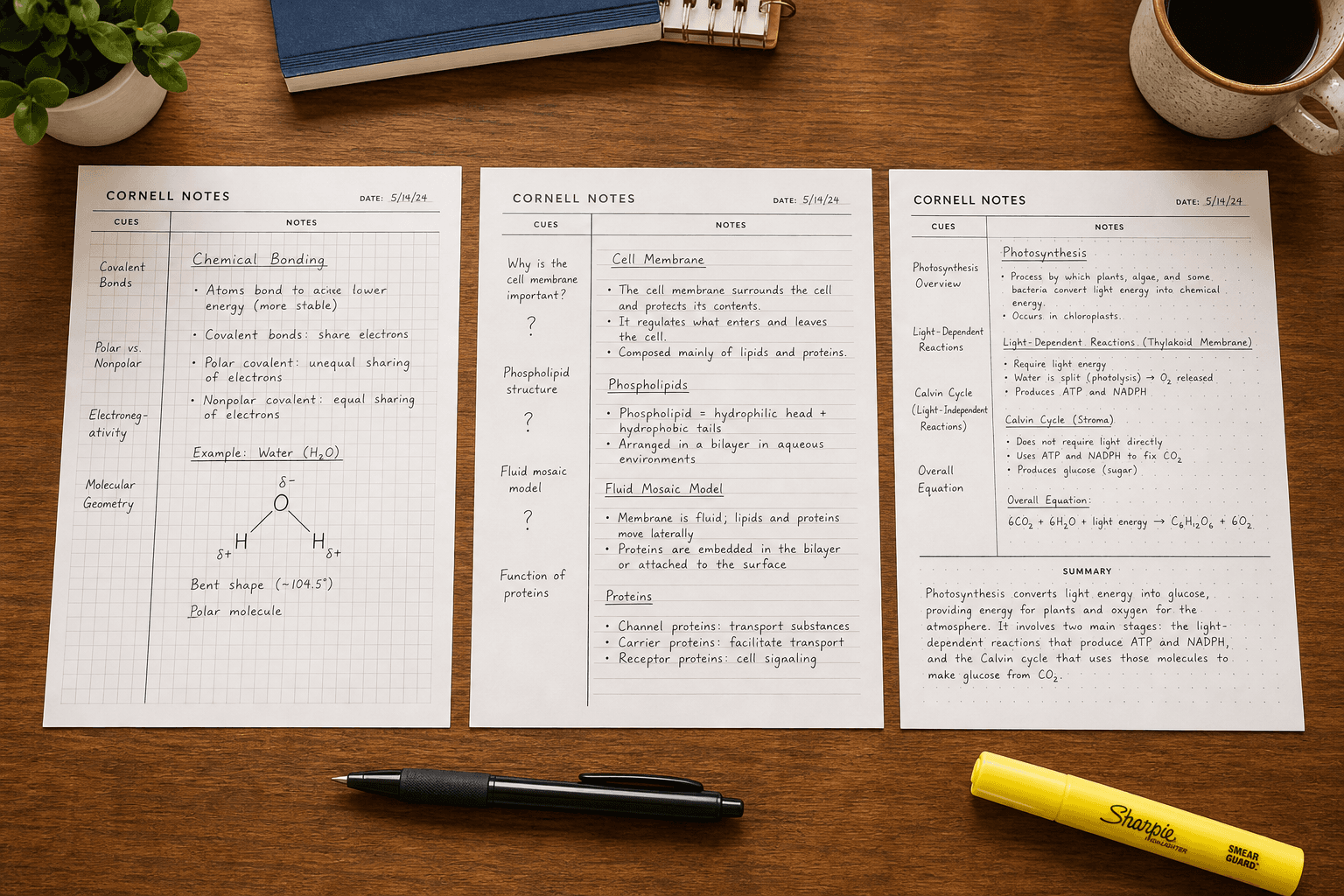
If you have ever printed a generic Cornell notes template only to find yourself drawing graph lines by hand for a chemistry diagram or cramming discussion questions into a narrow cue column, you already know the problem: one template does not fit all classes. The layout of the page — the width of the cue column, the ruling style of the note area, the depth of the summary section — directly affects how well you can capture, organize, and later review different types of content.
This is not just a matter of preference. A 2026 randomized controlled trial by Yıldırım, published in PMC, tested four note-taking methods with 134 participants over five weeks. At the four-week retention test, students using the Cornell method scored significantly higher (adjusted mean 15.0) than those using unstructured sentence-based notes (adjusted mean 12.4, p < 0.05). The study concluded that the structure of note-taking may be more consequential for learning outcomes than the medium itself. But that structure is not uniform — and choosing the wrong variant of the Cornell format can undermine the very benefits the method is designed to deliver.
Most free template collections — from Printabulls, TemplateLab, and InkPx — offer 15 or more designs, but almost none of them label templates by recommended subject use. That leaves students to guess which format will work for their biology lecture, their history seminar, or their Spanish class. This guide fills that gap by providing a subject-based selection framework so you can match the template to the task.
The Anatomy of a Cornell Notes Template: How Dimensions Vary
Every Cornell notes template divides the page into three sections: the cue column on the left, the note-taking area on the right, and the summary section at the bottom. Walter Pauk, the Cornell education professor who developed the system in the 1950s, originally recommended that the note-taking column be roughly twice the width of the cue column, with about two inches reserved at the bottom for a summary.
In practice, templates vary these dimensions considerably:
- Cue column width: ranges from about 2 inches to 2.5 inches. A narrower column works for short keywords and dates; a wider column accommodates full questions and thematic phrases.
- Note area ruling: available as ruled (lined), blank, dotted (dot grid), or graph (grid). Each style supports a different type of content.
- Summary section depth: typically 2 to 3 inches, or about 5 to 7 lines of text. Some templates allocate more space here for language learners or conceptual synthesis.
The key insight is that these dimensions are not arbitrary. A template designed for a fast-paced lecture hall looks different from one designed for a problem-set-heavy calculus class. Recognizing which dimension matters most for your subject is the first step toward choosing the right template.
Subject-Specific Template Recommendations
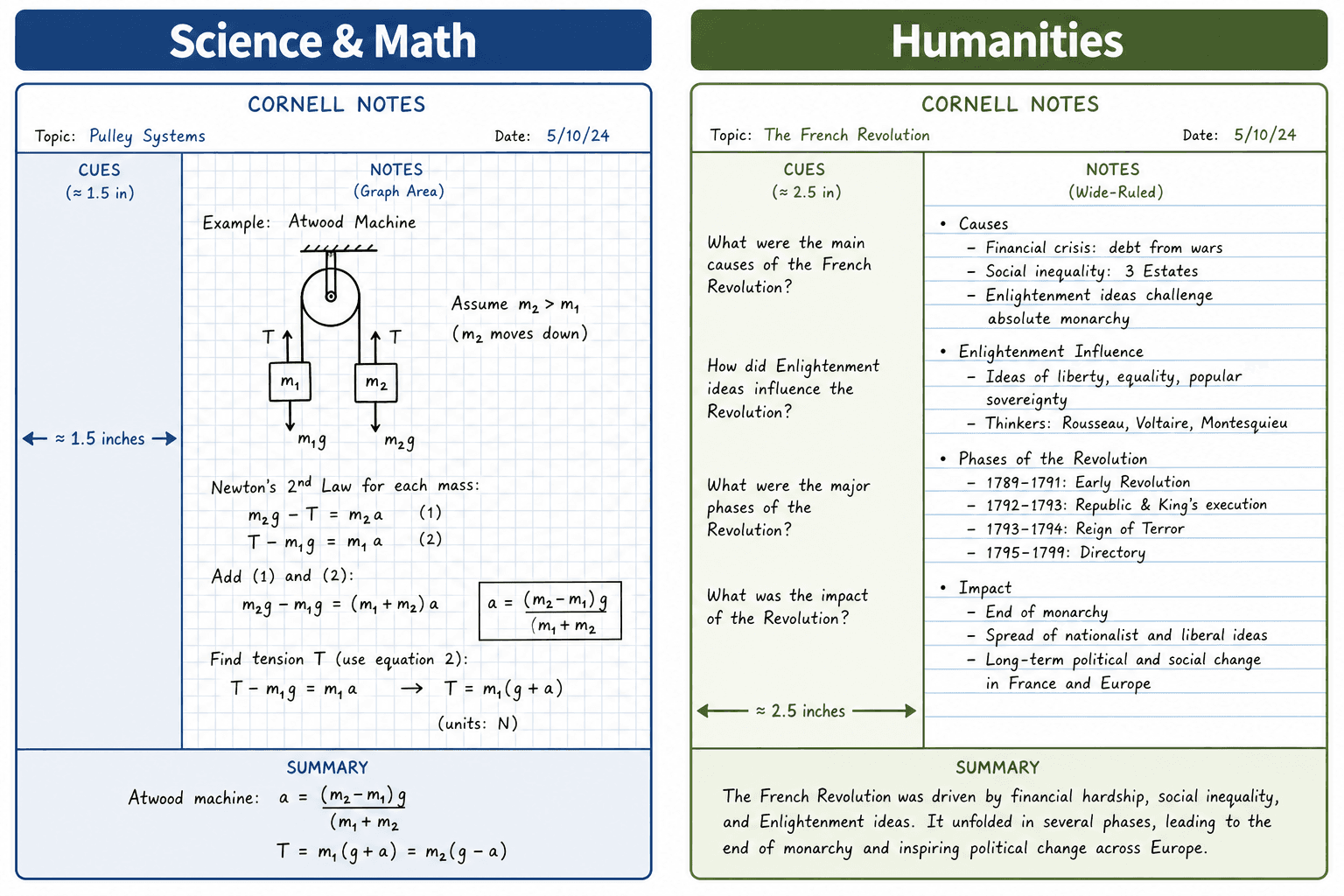
Science and Math: Blank or Dotted Note Area, Narrow Cue Column
Science and math courses demand diagrams, equations, graphs, and molecular structures alongside written explanations. A ruled-line note area forces you to squeeze chemical reactions or free-body diagrams between horizontal lines, which slows you down and often results in messy, hard-to-read notes.
For these subjects, choose a template with a blank or dotted (dot grid) note area. A blank page gives you full freedom to sketch, draw arrows, and align equations without fighting pre-printed lines. A dot grid offers subtle alignment guides for straight lines and scaled diagrams without the visual clutter of full grid lines. TemplateLab offers a specific Cornell Notes Template For Science that uses a blank note area — one of the few subject-labeled templates available.
Keep the cue column on the narrower side (around 2 inches). In STEM lectures, the cue column primarily holds short labels — "Newton's Second Law," "mitosis phases," "redox reaction" — rather than extended questions. A narrow column saves space for the note area where the real work happens.
Humanities: Wide-Ruled Lines, Wider Cue Column
Humanities courses — history, literature, philosophy, political science — are driven by arguments, interpretations, and thematic connections. Your notes will be text-heavy, and your cue column will carry substantive questions like "What evidence does the author use to support this claim?" or "How does this event connect to the broader theme of nationalism?"
For these classes, select a template with wide-ruled lines (larger line spacing) and a cue column of at least 2.5 inches. The wider spacing makes dense text blocks easier to read during review, and the larger cue column gives you room to write meaningful questions rather than single keywords. The note area should still be ruled, but choose a template with generous line height to avoid cramped handwriting.
Language Learning: Extra Summary Space, Vocabulary Cue Column
Language learning presents a unique challenge for the Cornell format. You need to record new vocabulary, grammar rules, example sentences, and cultural context — often in a mix of your native language and the target language. The standard summary section (2 inches) is rarely enough to synthesize everything from a single lesson.
Look for a template with a deeper summary section — at least 3 inches — where you can write a consolidated vocabulary list or a grammar rule summary after class. Use the cue column for new words or phrases in the target language, and the note area for definitions, example sentences, and usage notes. A ruled note area works well here because most language notes are text-based, but a dotted grid can also help with writing practice for scripts like Arabic, Mandarin, or Russian.
Lecture-Heavy Courses: Narrow Cue Column, Large Note Area
Some courses — introductory psychology, survey courses, large lecture halls — move fast and cover a lot of ground. In these settings, your primary goal is to capture as much information as possible during the lecture. The cue column becomes a secondary tool that you fill in during review, not during class.
For lecture-heavy courses, choose a template with a narrow cue column (2 inches or less) and a large, ruled note area. The narrow cue column minimizes the time you spend deciding where to place information during the lecture, and the ruled lines keep your handwriting legible at speed. After class, you can use the cue column to add keywords and questions as part of the review process.
Decision Matrix: Ruled vs. Blank vs. Dotted vs. Grid Note Areas
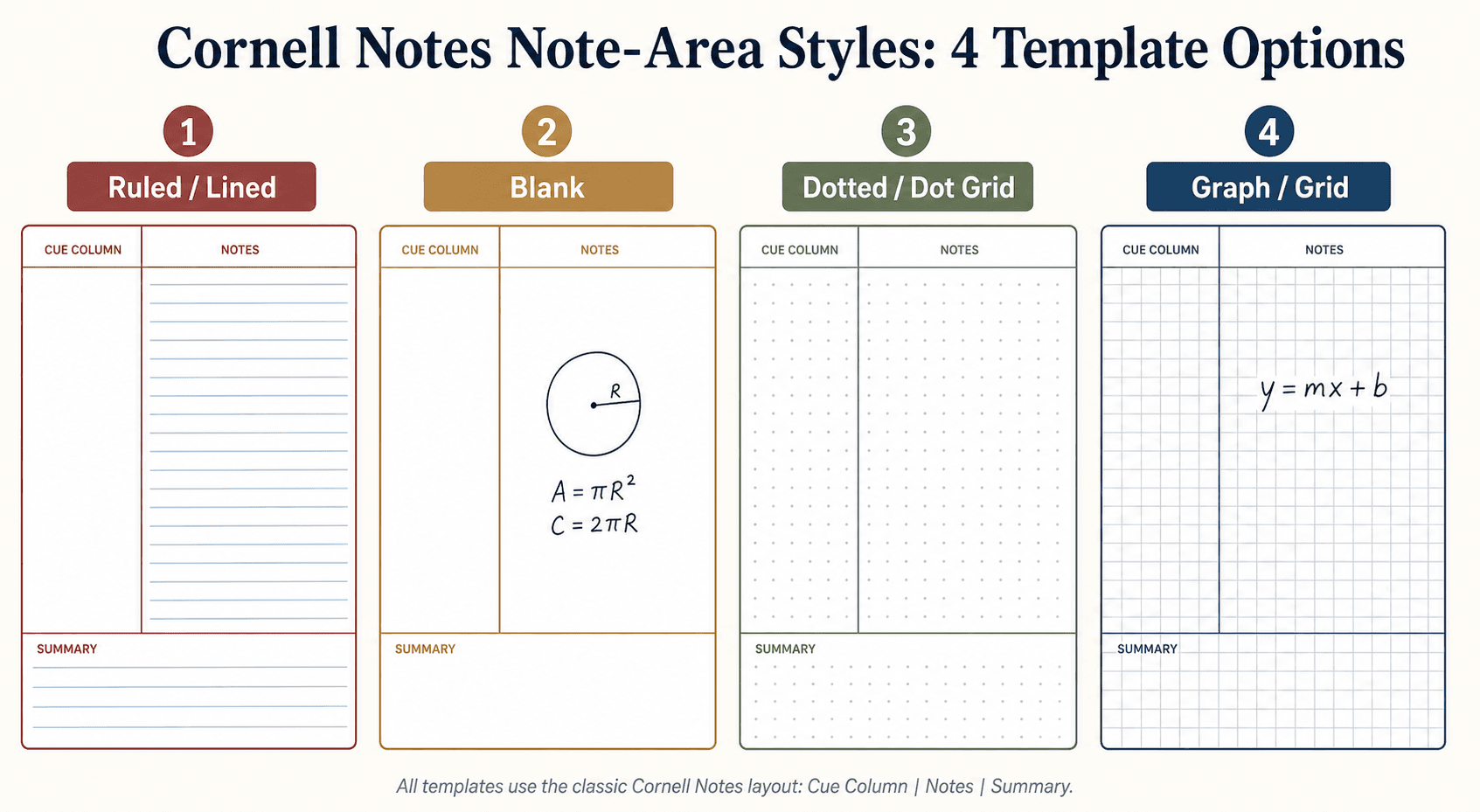
The note area is the largest section of any Cornell template, and its ruling style has the biggest impact on how you use the page. The table below summarizes the four common styles and their best applications.
| Style | Best For | Pros | Cons |
|---|---|---|---|
| Ruled (Lined) | Humanities, lecture-heavy courses, language learning | Keeps handwriting aligned; familiar format; works for most text-based notes | Interferes with diagrams, equations, and sketches |
| Blank | Science, math, engineering, art history | Full freedom for diagrams, graphs, and spatial layouts; no visual noise | Handwriting can drift without guides; requires more effort to keep organized |
| Dotted (Dot Grid) | Science, math, mixed subjects | Subtle alignment guides without full grid lines; supports both text and diagrams | Less common in free template collections; dots can be too faint for some users |
| Graph (Grid) | Engineering, physics, data-heavy courses | Precise alignment for graphs, tables, and scaled drawings; great for plotting data | Can feel visually busy for text-heavy notes; grid lines may distract some learners |
Paper Size Options: US Letter vs. A4
Most free Cornell notes templates are available in two paper sizes: US Letter (8.5" x 11") and A4 (210mm x 297mm). The difference matters for printing.
- US Letter is the standard size in North America. It fits most three-ring binders and file folders designed for the US market.
- A4 is the standard size in most other countries. It is slightly taller and narrower than US Letter, which can affect how the three Cornell sections fit on the page.
When downloading templates, check the size before printing. Printing an A4 template on US Letter paper (or vice versa) will crop or distort the layout. Most major template sources — Printabulls, TemplateLab, and InkPx — offer both sizes. InkPx, for example, provides templates in PDF, PNG, and JPG formats with explicit A4 and US Letter options.
Where to Find the Best Free Printable Templates for Each Category
Most free template collections offer a wide variety of designs, but few organize them by subject. Here is where to find templates that match the recommendations above.
- Printabulls: Offers 15 free Cornell notes templates in PDF format. The collection includes a range of styles (ruled, blank, and some with decorative borders), but none are labeled by subject. Best for general use and for students who want to browse multiple designs quickly.
- TemplateLab: Provides 16 printable templates, including a dedicated Cornell Notes Template For Science and a High School Cornell Notes Template. The science template uses a blank note area, making it one of the few subject-specific options available. Good for STEM students.
- InkPx: Offers templates in PDF, PNG, and JPG formats with both A4 and US Letter sizes. The designs are clean and minimal. Best for students who need a specific file format or paper size.
- Goodnotes Blog: Provides a free printable template along with a detailed explanation of the method. The template is clean and standard. Best for students who want a single, reliable template and an explanation of how to use it.
- University of Auckland: Offers a PDF and Word template as part of their learning essentials resources. The templates follow the standard Cornell layout. Best for students who prefer a university-affiliated source.
DIY Customization Tips
If you cannot find a template that matches your exact requirements, you can customize an existing one or build your own. Most templates are created in Microsoft Word, Google Docs, or a design tool like Canva, and the adjustments are straightforward.
- Adjust the cue column width: In Word or Google Docs, place the cursor on the table border that separates the cue column from the note area and drag it to your desired width. A good starting point is 2.25 inches for general use, 2 inches for STEM, and 2.5 inches for humanities.
- Change the note area ruling: If your template uses ruled lines but you need a blank or dotted area, you can overlay a transparent shape or use a table cell with no borders. For a dot grid, insert a small table with many rows and columns, set the borders to a light gray dotted line, and merge the cells into a single note area.
- Add hole-punch marks: If you use a binder, add small circle markers in the left margin of your template so you know where to punch holes without guessing. Place them 0.5 inches from the left edge, with the top mark 0.5 inches from the top and the bottom mark 0.5 inches from the bottom.
- Create a master template with multiple styles: Design a single document with three pages — one with a blank note area for science, one with wide-ruled lines for humanities, and one with a deep summary section for language learning. Save it as a single PDF and print only the page you need for each class.
For a detailed walkthrough of creating a Cornell template in Word, the TimeAtlas tutorial provides step-by-step instructions, including how to set up the cue column, note area, and summary section using Word's table tools.
Quick-Reference Template Picker
Use the table below to find your recommended template style in seconds. Match your primary subject type to the column, and you will know exactly which template features to look for.
| If You Study... | Note Area Style | Cue Column Width | Summary Depth | Best Free Source |
|---|---|---|---|---|
| Science or Math | Blank or Dotted | 2 inches (narrow) | 2 inches (standard) | TemplateLab (Science template) |
| Humanities (History, Literature, Philosophy) | Wide-Ruled Lines | 2.5 inches (wide) | 2 inches (standard) | Printabulls (browse for wide-ruled) |
| Language Learning | Ruled or Dotted | 2.25 inches (medium) | 3 inches (deep) | InkPx (customize summary depth) |
| Lecture-Heavy Courses | Ruled Lines | 2 inches (narrow) | 2 inches (standard) | Goodnotes Blog (standard template) |
| Mixed Subjects | Dotted (Dot Grid) | 2.25 inches (medium) | 2.5 inches (medium-deep) | Printabulls or InkPx (dot grid option) |
Apply This Method
Related Methods
- Weekly Study Planner Template for Students: 5 Must-Have Sections, Format Options, and How to Make It Stick
Most students abandon study planners within three weeks — not from lack of discipline, but because their template is missing key structural sections. This guide walks high school and college students through the five sections every effective weekly study planner needs, how to choose the right format for their situation, and a simple Sunday reset routine that turns a template into a lasting habit.
- The Science-Backed Weekly Study Schedule Template: How to Build a Template Around How Memory Actually Works
Most study schedules are just time management. This guide shows you how to build a weekly template that embeds spaced repetition intervals, the forgetting curve, and active recall into the layout itself — so your schedule works with your brain, not against it.
- How to Build a Weekly Study Schedule That Actually Sticks (Evidence-Based Guide)
Most study schedule templates fail within a week. This evidence-based guide walks you through the foundational steps — auditing your real week, mapping subjects to energy windows, and building in buffer time — so your schedule works with your brain, not against it. Includes a free downloadable template.
Comments
Join the discussion with an anonymous comment.