
How to Use ChatGPT Study Mode for Real Learning
This practical guide shows students exactly how to prompt ChatGPT Study Mode for different subjects and goals. Learn the prompt templates, file-upload workflows, and active-learning strategies that turn one-off Q&A into a real study system.
Updated:
The first message you send in ChatGPT Study Mode usually decides whether the session becomes tutoring or just another vague AI answer. If you type, “Explain photosynthesis,” you will probably get a clean explanation. If you type your course level, what your teacher expects, what you already tried, where you are stuck, and the file or problem you are working from, Study Mode has something to tutor.
Last reviewed: July 10, 2026. AI accuracy caveat: ChatGPT Study Mode can make mistakes, miss context, or reinforce a wrong assumption if you lead it there. Verify important facts, formulas, citations, and assignment requirements against your course materials. Pricing, plan access, and product features can change.

Start With the First Message, Not the Tool Tour
OpenAI’s official instructions are short: turn on Study Mode from Tools > Study and learn or go to chatgpt.com/studymode. For the first message, OpenAI recommends including your grade level, subject, goal, current understanding, and any files you want it to use.[1]
That advice sounds basic until you watch what happens when one piece is missing. “Help me study calculus” gives the model almost no boundary. “I’m in first-semester college calculus, I understand the power rule but get lost on related rates word problems, and I have a quiz on setting up equations from scenarios” gives it a place to begin.
I’m using ChatGPT Study Mode for [course/grade level].

Subject/topic: [specific topic]
My goal today: [learn a new concept / solve problems / prepare for a quiz / review a draft / practice speaking / build flashcards]
What I already understand: [be honest]
Where I’m stuck: [the exact step, term, equation, source, or question that breaks down]
Materials I’m using: [uploaded notes/slides/problem set/rubric/draft, or paste the relevant excerpt]

Please tutor me instead of just giving the answer. Start by checking what I know, ask one question at a time when useful, and adjust if I say it’s too easy, too hard, too fast, or too vague.
Keep that prompt somewhere you can reuse it. The point is not to sound formal. The point is to stop making Study Mode guess the class, the level, the goal, and the missing step.
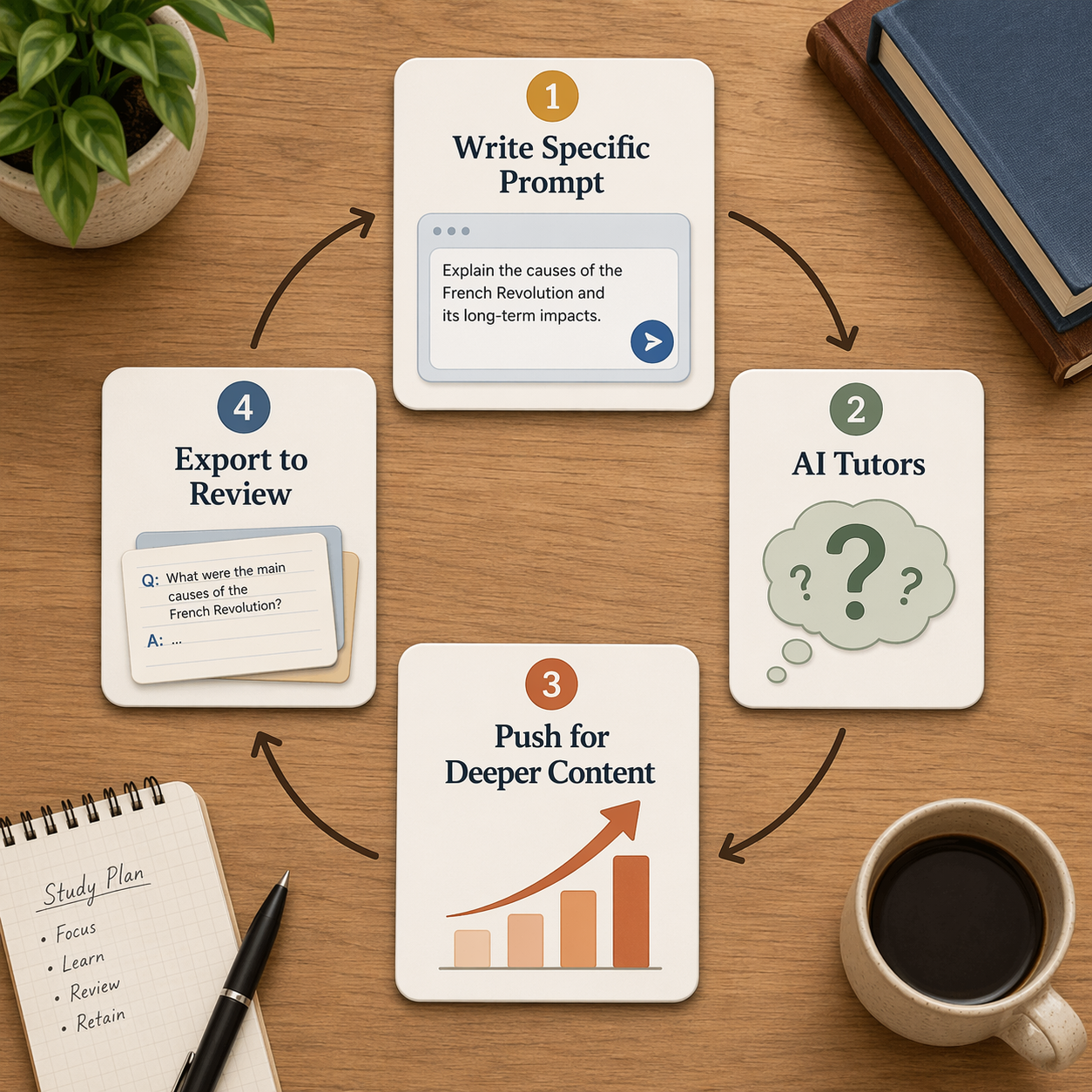
The Session Only Gets Better When You Push Back
A common disappointment with ChatGPT Study Mode is that it can feel too gentle. Trey Conatser’s testing for Inside Higher Ed found that Study Mode tended to aim around a “college freshman in a gen ed course” level unless prompted toward harder or more specific work.[2] That is useful if you are actually lost. It is not enough if your professor expects multi-step reasoning, source comparison, proof writing, or board-style exam discrimination.
OpenAI’s FAQ says users can ask Study Mode to slow down, speed up, use simpler language, or give harder questions.[1] Use those controls while the session is happening. Do not wait until the end to decide it was unhelpful.
- If it is too easy: “Make this harder. Ask me questions at the level of my upcoming exam, not an intro overview.”
- If it is too vague: “Use the attached lecture slides and quiz format. Tie each explanation to those materials.”
- If it moves too fast: “Slow down and check one step at a time before continuing.”
- If it gives too much away: “Don’t solve it yet. Ask me leading questions until I can set up the next step.”
- If it confirms a shaky answer: “Challenge my reasoning. Tell me what assumption might be wrong.”
Prompt Templates for the Jobs Students Actually Bring
BYU’s Generative AI guide gives practical Study Mode prompt examples for Socratic learning, file-upload sessions, memory-connected review, and open-ended feedback.[3] The best way to use those examples is not to memorize a magic sentence. Match the prompt to the job you are asking Study Mode to do.
| Study job | What to include | How to continue |
|---|---|---|
| Learn a new concept | Course level, topic, what you know, where the explanation loses you | Ask for one check question, then a harder example |
| Work through a problem | Problem text or image, your attempt, the exact step that failed | Ask for hints before solutions and error diagnosis after |
| Prepare for discussion or essay | Prompt, rubric, source excerpts, tentative claim | Ask it to test your argument and point out weak evidence |
| Practice a language | Target language, level, grammar point, vocabulary set, correction preference | Ask for a short exchange, corrections, then a new version using the same pattern |
| Review for an exam | Topics, exam format, date, weak areas, materials | Ask for mixed retrieval questions and a spaced review plan |
| Build flashcards | Notes, slides, objectives, terms, mistakes from practice | Ask for concise cards, CSV formatting, and review grouping |
Learning a New Concept
Use Study Mode for a new concept when you need more than a definition but less than a full lecture. The trap is asking for the whole topic at once. Start with your current mental model, even if it is incomplete.
I’m in [course level] and I’m learning [concept].

Here’s what I think it means: [your current explanation].
Here’s where I get confused: [specific term, step, graph, theorem, relationship, or example].

Use Study Mode to tutor me Socratically. First, ask me 2–3 diagnostic questions to find the gap. Then explain only the missing piece, give one example, and ask me to apply it before moving on.
The important phrase is “Here’s what I think it means.” That gives Study Mode something to compare against. If your explanation is half-right, the session can fix the half that matters instead of re-teaching the entire chapter.
- When the answer is too broad: “Use a smaller example and make me explain the next step.”
- When the example is too easy: “Give me a borderline case where students usually mix this up with a nearby concept.”
- When you think you understand: “Quiz me without using the same wording you just used.”
STEM Problems: Make It Watch Your Reasoning
For math, chemistry, physics, statistics, coding, and similar courses, the best Study Mode sessions start with your attempt. A polished final answer is less useful than the messy line where you chose the wrong equation, forgot a unit, or skipped a condition. OpenAI’s first-message guidance explicitly includes attaching files when relevant, and Study Mode can work from materials you provide.[1]
I’m in [course] studying [topic]. I uploaded/pasted a problem and my attempt.

Please do not solve it immediately. First:
1. Identify the type of problem.
2. Ask me what principle or formula I think applies.
3. Check my setup before any calculation.
4. If I make an error, give the smallest hint that would help me correct it.
5. After I finish, give me one similar problem with changed numbers or conditions.
If you are using an image of handwritten work or an equation from a slide, add a verification step: “Before tutoring me, restate the problem you see so I can confirm you read it correctly.” That keeps a bad image read from quietly poisoning the whole session.
For coding practice, replace “formula” with “approach” and ask Study Mode to inspect your logic before it rewrites your code. If the assignment forbids AI-generated code, keep the session at the planning, debugging-concept, or explanation level and follow your course policy.
Humanities and Social Science: Test the Argument, Not Just the Topic
For literature, history, philosophy, sociology, political science, and similar courses, Study Mode is strongest when you give it the actual claim, prompt, rubric, or source excerpt. “Explain this reading” often turns into summary. “Test whether my claim answers the prompt and uses the source well” turns into tutoring.
I’m preparing for [essay/discussion/exam] in [course].

Prompt or discussion question: [paste it]
My tentative claim: [your claim]
Source/material I’m using: [paste excerpt or describe uploaded file]
Rubric or professor emphasis: [if available]

Use Study Mode to question my argument. Ask me where my evidence is strongest, where it is thin, what counterargument I need to handle, and whether my claim is specific enough for this prompt. Do not write the essay for me.
That last sentence matters. If Study Mode writes the paragraph, you may leave with a smoother draft and no better control over the material. If it asks you to defend the claim, you find out before class whether you actually have an argument.
Languages: Build Correction Loops
Language practice works best as a loop: attempt, correction, explanation, repeat. Tell Study Mode your level and whether you want corrections during the exchange or after. If you are using vocabulary from class, paste the list so it does not drift into unrelated words.
I’m studying [language] at [level]. Today I need to practice [grammar point / vocabulary set / speaking scenario].

Use only mostly familiar vocabulary plus these required words: [list].
Have a short conversation with me. After each of my replies, correct my grammar, explain the correction briefly, and ask a follow-up question that makes me use the same pattern again.
If you are preparing for an oral exam, add the format: “Ask one question at a time, wait for my answer, then rate my response for accuracy, complexity, and whether I answered the question.” Keep the rating simple enough that you can act on it.
Medical, Nursing, and Certification-Style Review
For medical, nursing, accounting, IT, and other certification-style exams, the goal is often discrimination: telling apart two plausible answers, not recognizing one term. Use Study Mode for knowledge checks, but do not let it become your only authority. High-stakes material needs verification against your official course, textbook, standards, or exam-prep source.
I’m preparing for [exam/course] and reviewing [topic].

Use the attached notes/objectives if available. Quiz me with one question at a time. After I answer:
- Tell me whether my reasoning is correct.
- Explain why the correct answer is better than the closest distractor.
- Track topics I miss during this session.
- After 10 questions, make a short review plan for my weak areas.
Ask for distractor explanations. Students often think they missed a question because they “forgot the fact,” when the real issue is that they could not separate two similar conditions, rules, or procedures.
Use Uploaded Materials Like a Tutor Packet
A tutoring session changes when the student brings the worksheet. Study Mode is the same. Your notes, slides, equations, rubric, essay draft, vocabulary list, and practice questions tell the model what your class actually values. OpenAI’s FAQ includes files as part of the recommended first-message context.[1] BYU’s examples also emphasize Study Mode prompts that work from uploaded course material.[3]
A reliable file-upload routine looks like this:
- Upload or paste the smallest useful set of material: the lecture slides for one topic, one problem set, one rubric, or one section of notes.
- Ask Study Mode to summarize what the file appears to contain before tutoring you.
- State your goal for that material: understand, solve, compare, memorize, apply, or revise.
- Have it question you from the material instead of rephrasing the material.
- Turn misses, confusions, and key terms into review items before ending the session.
I uploaded [notes/slides/problem set/rubric/draft].

First, tell me what kind of material you see and the main topics it covers. Then use it to tutor me for [goal]. Do not just summarize.

Start by asking me 5 questions from the material, one at a time. When I miss something, explain the gap and save it for a review list. At the end, create:
1. A short weak-area summary.
2. 10 active-recall questions.
3. Flashcards for the items I missed.
4. A review plan for the next [time period].
That workflow prevents the most common “AI helped me study” illusion: reading a neat summary and feeling familiar with it. Familiarity is not retrieval. If you can answer questions without looking, explain why an answer is wrong, or solve a changed version of the problem, the session is doing more useful work.
Turn a Chat Into Review Cards and a Schedule
OpenAI’s FAQ says Study Mode can export flashcard data in CSV format for tools such as Anki and Quizlet.[1] DataStudios also describes using Study Mode for spaced-repetition review plans and exam preparation workflows, while some of its specific interface claims are not confirmed in OpenAI’s official materials.[4] The safe takeaway is straightforward: use Study Mode to generate review material, then move the durable pieces into the system you actually review.
Based on this Study Mode session, create flashcards only for:
- Concepts I missed or hesitated on.
- Formulas, rules, or distinctions I need to recall.
- Mistakes I made and the correction.

Format them as CSV with columns: Front, Back, Topic, Difficulty.
Keep each card atomic: one idea per card.
Avoid cards that only ask me to recognize a paragraph of text.
Bad flashcards are just tiny notes. Good ones make you retrieve one specific relationship, definition, procedure, or contrast. “Explain mitosis” is too large. “What happens to sister chromatids during anaphase?” is closer to something you can review.
For scheduling, keep the prompt tied to your real calendar instead of asking for a generic study plan.
My exam is on [date]. I can study on [available days/times].

Use the weak areas from this session to make a spaced review plan. Include:
- What to review each day.
- When to redo missed questions.
- When to test without notes.
- When to move flashcards into Anki or Quizlet.
Keep the plan realistic for the time I listed.
If you already use a study system, plug Study Mode into it instead of replacing it. For a broader setup, the site’s guide to building a 3–4 app study stack can help you decide where ChatGPT fits beside flashcards, notes, calendars, and practice platforms.
When the First Answer Is Wrong, Shallow, or Too Helpful
Do not grade Study Mode only on its first answer. Grade the tutoring loop. A human tutor also adjusts when you say, “I don’t get that step,” or “Ask me something harder.” The difference is that Study Mode will often keep going unless you interrupt it.
| Problem in the session | What to type next |
|---|---|
| It explains instead of tutoring | Stop. Ask me one question at a time and wait for my answer. |
| It gives the final answer too early | Hide the solution and give me the next hint only. |
| It assumes I know a term | Define that term using my course level, then ask me to use it in context. |
| It is too basic | Raise the difficulty to my exam level and include a tricky variation. |
| It agrees with weak reasoning | Challenge my answer and identify the most likely misconception. |
| It may have made an error | Show the source of that step from the uploaded material or tell me what I should verify elsewhere. |
That last line is not optional in courses where precision matters. Study Mode can help you practice, but it is not your professor, lab manual, statute book, style guide, or exam board.
Use Study Mode Without Outsourcing the Learning
The boundary is usually visible in the verb. “Question me,” “check my reasoning,” “give me a hint,” “compare these sources,” and “turn my mistakes into flashcards” keep you doing the thinking. “Write my essay,” “solve this entire problem set,” or “give me the final answer only” moves you toward outsourcing.
That distinction also matters for class rules. Some instructors allow AI for brainstorming or tutoring but not for submitted wording, code, calculations, or citations. If you need a fuller boundary-setting guide, read how to use AI for studying ethically before you build Study Mode into an assignment workflow.
Limitations Worth Taking Seriously
Study Mode is designed to make tutoring-style interaction easier, not to force learning. Inside Higher Ed noted that students can bypass it by toggling Study Mode off mid-conversation.[2] Linewize similarly warns that Study Mode can be manipulated into giving direct answers, carries standard ChatGPT data privacy limitations, and was primarily designed for college-level use.[5]
There is also no formal peer-reviewed outcome evidence showing that Study Mode itself improves learning. Some broader research and commentary about ChatGPT use in education may be relevant to the surrounding debate, but it should not be treated as proof that this specific mode produces better exam scores or deeper understanding.
Accuracy is the other hard limit. Modern Descartes argues from testing that an LLM can eagerly encourage incorrect thinking instead of reliably correcting it.[6] That risk is especially uncomfortable because a confident tutor voice can make a weak idea feel approved. Ask Study Mode to challenge you, but still verify important material elsewhere.
Privacy deserves the same plain treatment. Do not upload sensitive personal information, confidential clinical details, private student records, unpublished research you are not allowed to share, or anything your school or workplace policy forbids putting into a third-party AI tool.
A First Study Mode Session You Can Run Today
If you have twenty minutes, do not spend fifteen of them asking for the perfect prompt. Run a small session and make it active from the first minute.
- Turn on Study Mode from Tools > Study and learn, or open chatgpt.com/studymode.[1]
- Paste the starter prompt with your course level, topic, goal, current understanding, and stuck point.
- Upload or paste one real course item: a problem, slide, rubric, note section, source excerpt, or draft.
- Ask Study Mode to question you before explaining.
- Push once for adjustment: harder, slower, simpler, more specific, or less answer-giving.
- End by asking for missed items, active-recall questions, and flashcards or a short review plan.
That is enough to separate real tutoring from answer collection. For a more complete study routine around active recall and spaced repetition, use the site’s evidence-based AI study workflow guide. If you are comparing Study Mode with other options, the guides to free AI study tools in 2026 and the best study tools for college students can help place it in a wider toolkit.
References
- ChatGPT Study Mode FAQ, OpenAI Help Center
- Understanding the Value of Learning Fuels ChatGPT’s Study Mode, Inside Higher Ed, August 7, 2025
- ChatGPT Study Mode, BYU Generative AI
- How to Use ChatGPT’s Study Mode for Deep Learning, Spaced Repetition, and Exam Preparation, DataStudios
- ChatGPT Launches Study Mode: What K-12 Leaders Need to Know, Linewize
- Study Mode, Modern Descartes
Related Resources
- ChatGPT Study Mode vs Regular ChatGPT: When to Use Each for Studying →
This comparison helps students decide when to use ChatGPT Study Mode for active learning and when regular ChatGPT is better for quick tasks, based on hands-on testing and pedagogical design principles.
- NotebookLM Study Guide for Students: Features, Pricing, and Best Use Cases in 2026 →
This comprehensive profile shows how Google's NotebookLM helps students study smarter by grounding every AI output in their own uploaded sources — a unique reliability advantage. Learn about the free tier, study features (flashcards, quizzes, mind maps), pricing plans, ethical use guidelines, and how it compares to ChatGPT and other tools.
- How to Use AI for Studying Ethically (Even When Your Professors Disagree) →
University AI policies are fragmented, leaving students unsure where the line is. This guide introduces the Learning Test — a repeatable method to decide whether an AI use deepens your learning or bypasses it — so you can study ethically no matter what rules your classes follow.
Comments
Join the discussion with an anonymous comment.