
How to Create a Quizlet Study Set: Manual, Import, and AI Methods
Accuracy Warning — Quizlet
This tool's exam-prep accuracy has not been fully characterized.
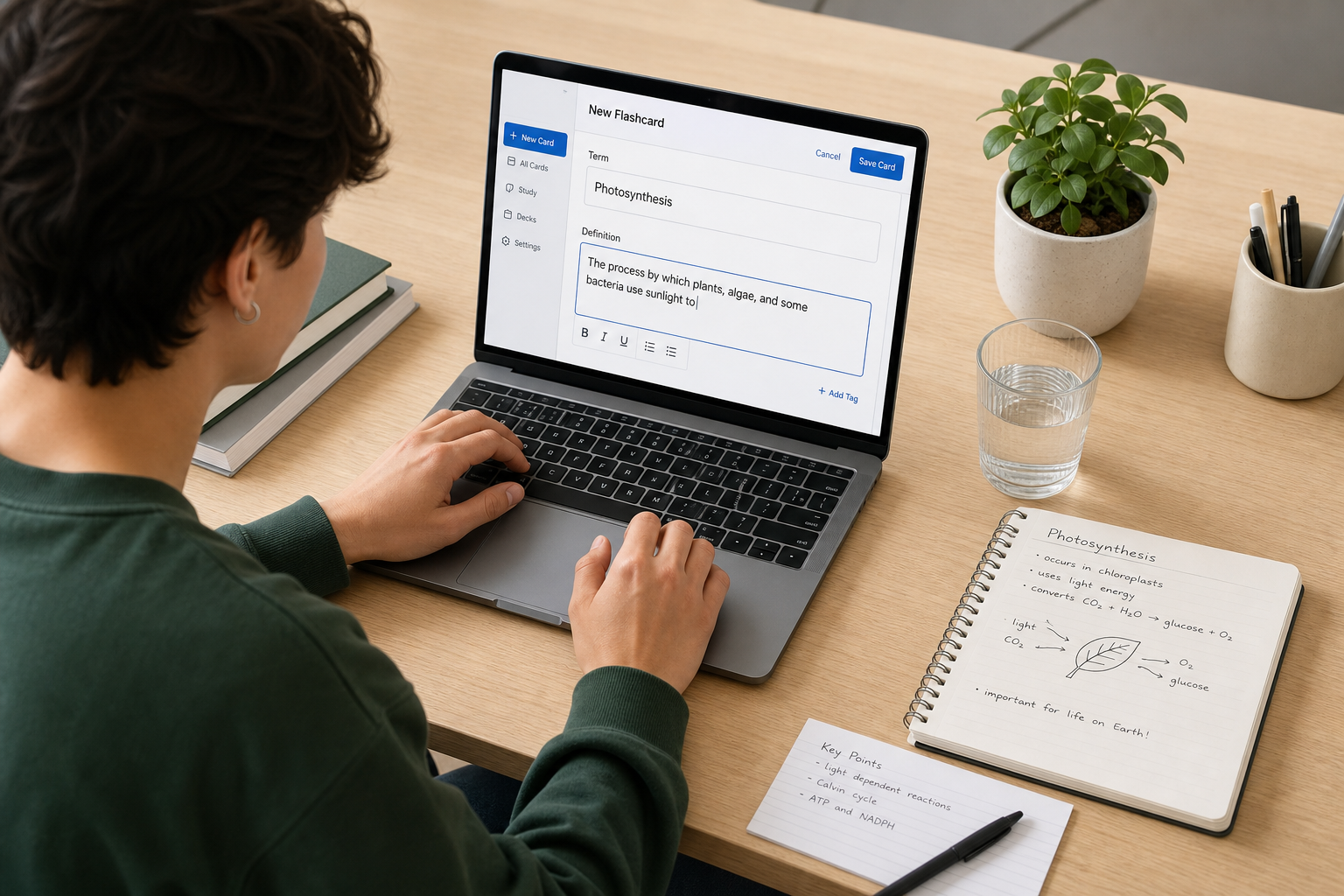
Why Building Your Own Set Beats Using Someone Else's
Searching Quizlet for a pre-made set feels efficient until you actually start studying. Someone else's cards may cover a different textbook edition, skip the topics your professor emphasized, or define terms in ways that don't match your course notes. Worse, errors in borrowed sets are invisible until an exam reveals them.
Creating your own set fixes all three problems. You control exactly what goes in, the wording matches your notes, and the act of writing each card is itself a form of encoding — you are processing the material, not just copying it. Research on retrieval practice consistently shows that generating your own study material produces better retention than passively reviewing someone else's.
- Your cards match your professor's phrasing, not a generic textbook definition.
- You catch gaps in your understanding while writing, not during the exam.
- No risk of inheriting another student's errors or outdated content.
This guide covers three ways to build a set: typing cards manually, importing formatted notes in bulk, and generating cards from longer notes using AI. If you want a full breakdown of Quizlet's features and pricing before you start, the Quizlet Flashcard App Review covers that in detail.
Before You Start: What You Need
You only need two things: a free Quizlet account and a browser or the Quizlet app. All three creation methods described in this guide work on the free plan. Where a step requires Quizlet Plus, it is flagged clearly.
If you are on mobile and plan to use the bulk import method, note upfront that import is web-only. You will need to open Quizlet in a mobile browser or switch to a computer for that step. Manual card entry and the app's built-in file/text upload options work fine in the iOS and Android apps.
Method 1: Manual Card Entry (Web and Mobile)
Manual entry is the most straightforward method and works everywhere. The steps differ slightly between web and mobile.
On the Web
- Log in to your Quizlet account.
- Click Create in the top navigation, then select Flashcard set. (Or go directly to quizlet.new.)
- Enter a title for your set. Specific beats generic — "Bio 201 Chapter 4: Cell Signaling" is more useful than "Biology Flashcards" when you have multiple sets.
- Click into the first card and type your term in the left field and your definition in the right field.
- Press Tab or click + Add card to add the next card.
- If your subject uses a non-English language or special characters, click the language selector below each field to set it. Chemistry and Math/Symbols are available as options for science and math courses.
- When you are done, click Create to publish the set.
On iOS and Android
- Open the Quizlet app and log in.
- Tap the + button (bottom of the screen on iOS; varies slightly on Android).
- Select Flashcard set.
- Enter your set title at the top.
- Tap into the term and definition fields on each card and type your content. Tap + Add card to continue.
- Tap Done (iOS) or the checkmark (Android) when finished to publish.
Method 2: Bulk Import from Your Notes (Web Only)
If you already have a list of terms and definitions in a Word document, Google Doc, or spreadsheet, the Import tool lets you paste them all at once instead of typing each card individually. This is the fastest method when your notes are already structured as a vocabulary list.
Format Your Notes First
The import tool needs consistent separators to know where each term ends and each definition begins. Before pasting, make sure your notes follow this structure:
- Between term and definition: use a tab, a comma, or a dash — pick one and use it consistently throughout.
- Between cards: use a new line or a semicolon.
| Before formatting | After formatting (tab delimiter) |
|---|---|
| Mitochondria - powerhouse of the cell Nucleus - contains DNA Ribosome - makes proteins | Mitochondria powerhouse of the cell Nucleus contains DNA Ribosome makes proteins |
Import Steps on Web
- Go to Quizlet and click Create → Flashcard set.
- Enter your set title.
- Click Import (usually visible as a button or link near the card editing area).
- Paste your formatted text into the import field.
- Set the delimiters to match your formatting — select the separator you used between term and definition, and the separator you used between cards.
- Preview the parsed cards to confirm the split looks correct, then click Import.
- Set the language if needed, then click Create to publish.
Method 3: AI Generation from Notes or a PDF
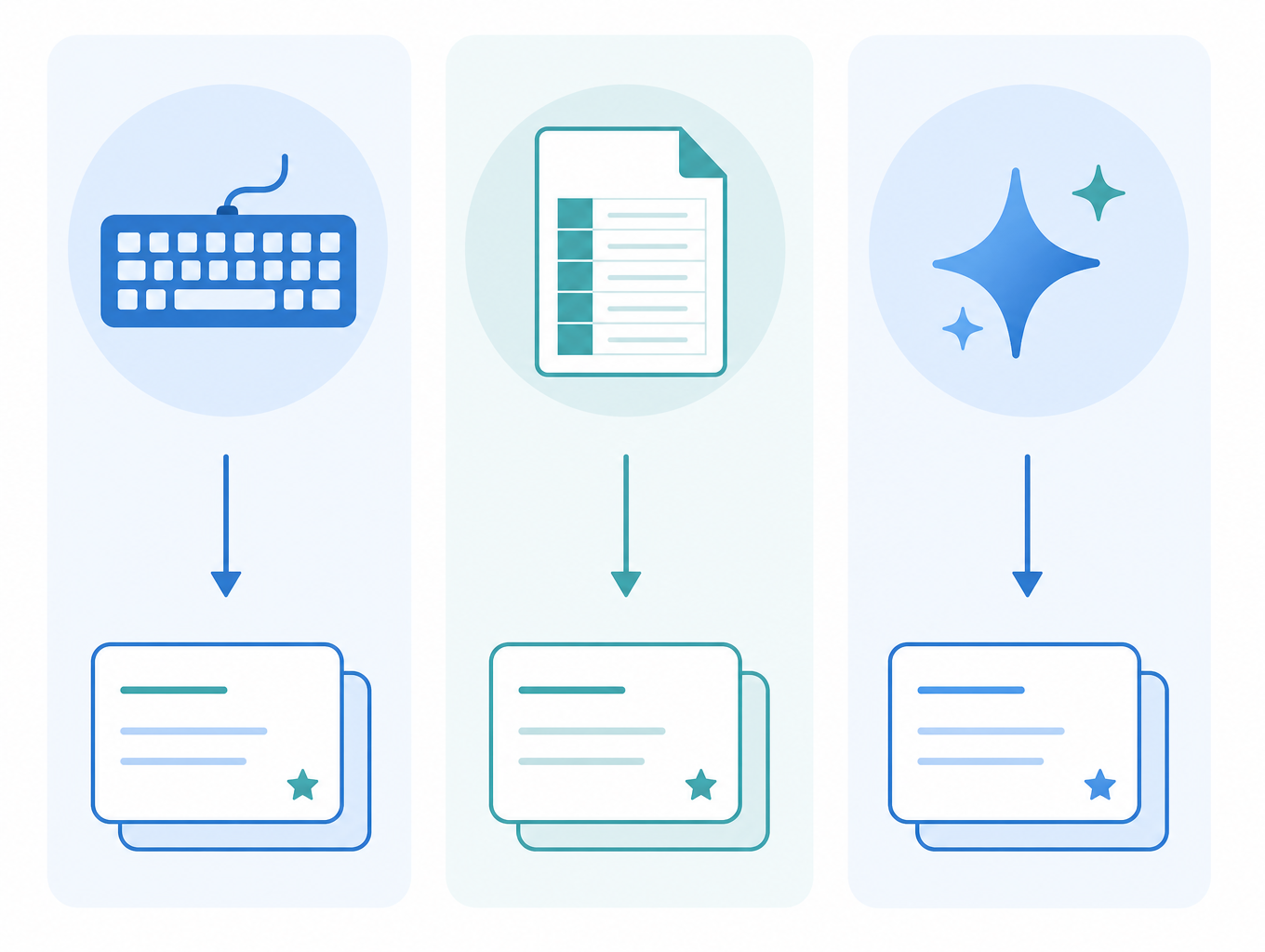
When you have several pages of lecture notes and no existing term list, AI generation can save significant time by drafting cards you then review and edit. There are two paths: Quizlet's own built-in tool, and a bridge workflow using third-party AI tools.
Path A: Quizlet's Study Guides Upload Feature
Quizlet has a Study Guides feature that accepts pasted text or uploaded files and uses AI to generate questions and answers from longer note blocks. This is designed specifically for the situation where you have dense lecture notes rather than a clean term list.
- From your Quizlet dashboard, look for the Study Guides option (entry point may vary — check the Create menu or your library).
- Paste your lecture notes directly into the text field, or upload a supported file (PDF, .docx, or .pptx).
- Quizlet's AI will generate a set of questions and answers from the content.
- Review every generated card against your source notes before studying. Edit, delete, or rewrite cards that are inaccurate, oversimplified, or missing context.
Path B: Third-Party AI Tools via the Import Bridge
If you prefer a free workflow or want more control over how cards are generated, you can use a third-party AI tool to create the cards and then import the output into Quizlet using Method 2. Tools like Revisely and QuizWhiz can export flashcard content as tab-separated text, which maps directly to Quizlet's import format.
- Upload your PDF, paste your notes, or describe your topic in the third-party AI tool.
- Export the generated cards as tab-separated or CSV text. (Look for a "Download for Quizlet" or "Export" option.)
- Open Quizlet on the web, create a new Flashcard set, and click Import.
- Paste the exported text, set the delimiters to match the format, and import.
- Review every card before publishing.
For a broader comparison of AI flashcard generators beyond Quizlet's built-in tools, see the AI Flashcard Generator Guide.
Set Settings: Title, Visibility, and Special Characters
Before you publish, take a minute to configure these settings. They are easy to overlook and harder to fix after your set is live and shared.
- Title: Use a specific, descriptive title that will still make sense three months from now. "Chem 101 Exam 2 — Bonding and Molecular Geometry" is more useful than "Chemistry."
- Description: The optional description field is useful for noting the source (textbook chapter, lecture date) or the exam this set covers. It helps when you are searching your own library later.
- Visibility: Sets are public by default. Change to Just me or People with a password if the set contains personal notes, sensitive content, or material you simply do not want indexed publicly.
- Language and special characters: Each card field has a language selector. For science courses, choose Chemistry or Math/Symbols to access Greek letters, subscripts, and other special characters without copy-pasting.
Card Design Tips That Actually Build Memory
A set full of "Term: Definition" cards is better than nothing, but small changes to how you write each card make a significant difference in how well the material sticks.
Keep Cards Atomic
One card, one fact. If a definition has three distinct parts, split it into three cards. Long definitions are hard to recall cleanly and make it difficult to identify exactly which part you are uncertain about.
Frame the Front as a Question
Cards with question-framed fronts force your brain to retrieve an answer rather than recognize a match. Compare:
| Weaker format | Stronger format |
|---|---|
| Mitochondria: powerhouse of the cell | What is the primary function of the mitochondria? |
| Krebs cycle: occurs in the mitochondrial matrix | Where in the cell does the Krebs cycle take place? |
| Osmosis: movement of water across a membrane | What process moves water across a semipermeable membrane from high to low concentration? |
Add Images from the Free Gallery
Quizlet includes a built-in image library you can search and add to any card at no cost. For anatomy, geography, or any visual subject, pairing a diagram with a definition reinforces the concept through a second channel. Uploading your own custom images requires Quizlet Plus, but the free gallery covers most common educational visuals.
If you are building a vocabulary set for a standardized test, the GRE Vocabulary Flashcards guide covers additional strategies for high-stakes vocabulary learning.
Organizing Sets with Folders
Once you have more than a few sets, folders are the cleanest way to keep them organized by course, semester, or exam. A folder can hold as many sets as you need, and you can add sets to multiple folders.
Creating a Folder
- Click Create → Folder.
- Enter a folder title (e.g., "BIO 201 — Spring 2026").
- Click Create folder.
Adding Sets to a Folder
- Open the set you want to add.
- Click Save → Add to folder.
- Select the folder from the list.
Each Quizlet set has a 2,000-term cap. For large courses, split content across multiple sets — one per chapter or unit — and group them in a single folder. You can also use tags within folders to add a secondary layer of organization by topic or exam date.
Frequently Asked Questions
- What is the term limit per set? 2,000 terms per set. If you need more, create additional sets and organize them in a folder.
- How do I combine two existing sets? Open one of the sets, click the three-dot menu, and select Combine. Choose the second set to merge and Quizlet creates a new combined set. The original sets remain unchanged.
- How do I keep a set private? Open the set, go to the settings (cog icon), find the Visible to option, and change it to Just me or People with a password. You can do this before or after publishing.
- Can I edit a set I have not published yet? Yes. Quizlet autosaves drafts. Unpublished sets appear in your library and can be resumed and edited at any time.
- Why can I not use Import on my phone? The full delimiter-based bulk import is web-only. Open Quizlet in your phone's browser to access it. The mobile app does offer limited options (Paste text, Select file) that may feed into AI generation, but these are different from the full import tool.
- Is Quizlet good for spaced repetition? Quizlet's Learn mode includes some scheduling logic, but it is more limited than dedicated spaced repetition tools. If you are preparing for a high-stakes exam and want a stronger SRS algorithm, the Quizlet vs. Knowt comparison covers the trade-offs between the two.
Authoritative source
No specific exam hub matched
Browse the exam hubs directory for the authoritative plan on any of the five exams.
Report an error in this tool's output
Found something this tool got wrong beyond what's documented above? Report it so the accuracy log stays current.
Comments
Join the discussion with an anonymous comment.