
How to Generate Flashcards from PDF Notes in NotebookLM
Learn how to upload your PDF notes into Google NotebookLM and generate source-grounded flashcards in under a minute, with customization options for difficulty and focus, plus tips for exporting to other tools.
Updated:
NotebookLM can turn PDF notes into flashcards quickly because it builds the deck from the sources you upload to a notebook, rather than pulling study material from the open internet. For students working from lecture slides, textbook chapters, professor-made study guides, or assigned articles, that source boundary is the point: the cards stay tied to the class materials you will actually be tested on. Google’s help documentation says flashcards and quizzes are generated from the sources in your notebook, and the same workflow lets you adjust difficulty, card count, and focus before generating the set.[1]
That does not make NotebookLM a complete exam-prep system by itself. Its built-in review tools are useful for a first pass through a deck, but they are not a spaced repetition scheduler. If the exam is next week, NotebookLM may be enough to clean up messy notes into something studyable. If the exam is cumulative, high-stakes, or weeks away, use NotebookLM to create and verify the cards, then export them to Anki or another spaced repetition app.
If you want a broader study loop after making the cards, pair this tutorial with How to Use NotebookLM Quizzes and Flashcards for College Study. If your main concern is whether AI will invent facts, read the AI Hallucination Checklist for Students before trusting any generated deck.
What You Need Before You Start
For the cleanest workflow, use NotebookLM on desktop. The mobile app supports flashcards, and Google announced app support for building flashcards and quizzes from uploaded materials, but uploading, checking sources, and downloading files is still easier when you can see the source panel and Studio panel side by side.[2]
- A PDF or a small set of PDFs: lecture slides, class notes, textbook chapters, exam review sheets, or assigned readings.
- A Google account with access to NotebookLM.
- A new or existing NotebookLM notebook for that course, unit, or exam.
- The Studio panel, where NotebookLM’s Flashcards option appears after sources are uploaded.
- A few minutes after generation to check the cards against citations instead of studying them blindly.
NotebookLM’s free-tier limits matter if you are trying to dump an entire semester into one notebook. A 2026 overview from DigitalOcean describes limits of up to 50 sources per notebook and 500,000 words per source, so very large textbook PDFs may need to be split by chapter or unit before upload.[3]
| Stage | What You Do | What You Check |
|---|---|---|
| Upload | Add your PDF notes to a NotebookLM notebook. | Make sure the PDF is the version your professor assigned or posted. |
| Generate | Open Studio, choose Flashcards, then set difficulty, card count, and focus. | Make sure the deck is aimed at the exam topic, not the whole course by accident. |
| Verify | Use Explain and citations on weak or surprising cards. | Confirm the answer is actually supported by the uploaded source. |
| Study | Mark cards Got It or Missed It. | Review missed cards, but do not confuse that with spaced repetition. |
| Export | Download the deck as CSV if you need scheduled review elsewhere. | Import into a tool that can resurface cards over days or weeks. |
Step 1: Upload Your PDF Notes to a Notebook
Create a notebook for the smallest useful study unit. For an exam on four lecture modules, make one notebook for those modules rather than one giant notebook for the entire course. That makes the generated cards easier to steer and easier to audit.
- Open NotebookLM.
- Create a new notebook, or open the notebook for your course.
- Add your PDF as a source.
- Wait for NotebookLM to finish processing the file.
- Repeat for the other PDFs that belong in the same exam unit.
Use the professor’s wording when choosing sources. If your instructor posted a review sheet, upload it with the lecture slides. If a textbook chapter uses one term and the lecture slides use another, include the source your professor emphasizes most. Source-grounding helps only when the right sources are inside the notebook.
Step 2: Generate Flashcards from the Studio Panel
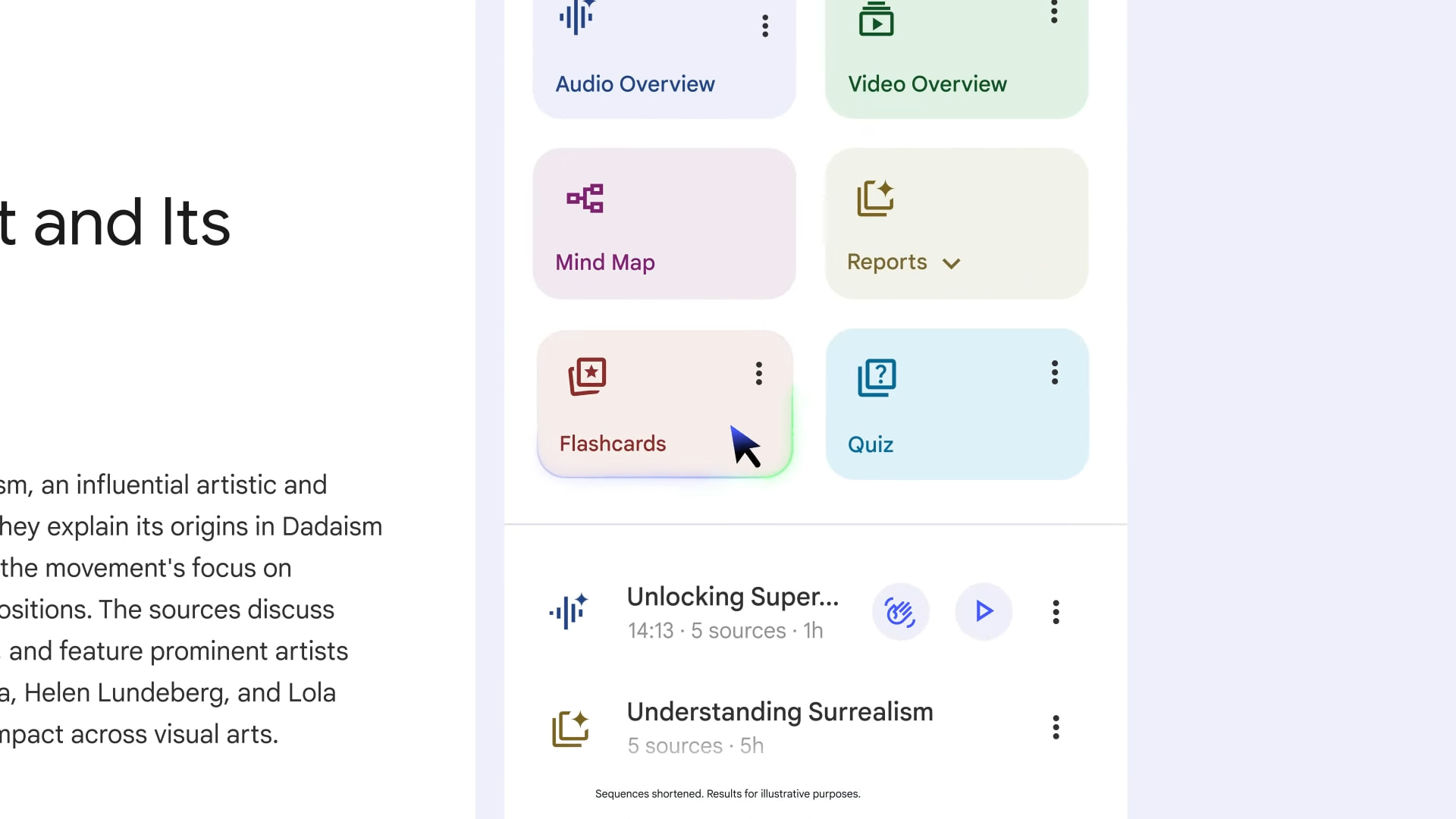
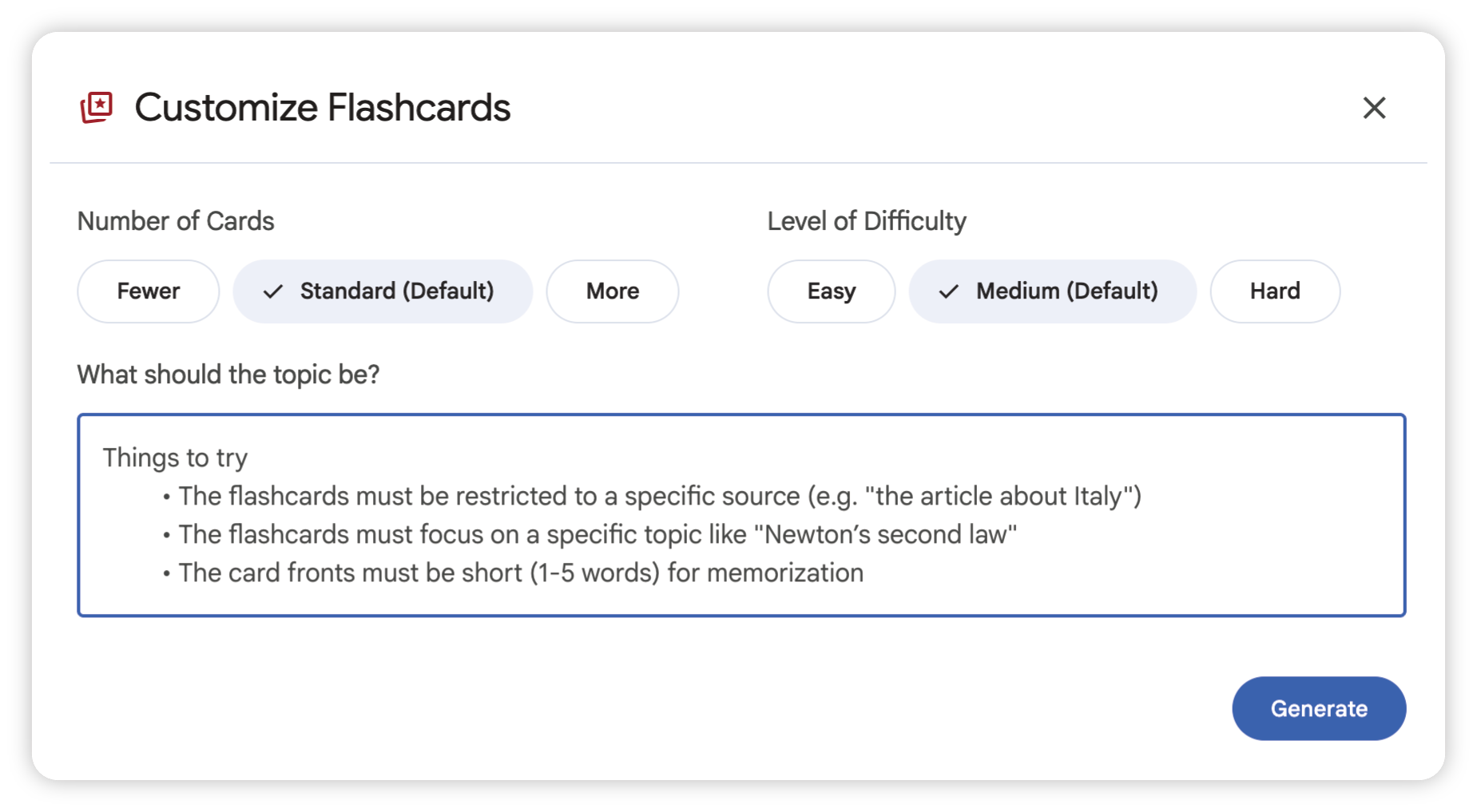
Once the PDFs are loaded, open the Studio panel and choose Flashcards. NotebookLM’s flashcard tool gives you three controls before generation: difficulty, card count, and an optional prompt that tells it what to focus on.[1]
- Open the notebook that contains your PDF notes.
- Find the Studio panel.
- Select Flashcards.
- Choose Easy, Medium, or Hard.
- Choose Fewer, Default, or More.
- Add a focus prompt if you want the deck to target a specific exam topic.
- Generate the deck.
The difficulty setting changes the kind of recall you are asking for. Easy is better when you are still building vocabulary and basic recognition. Medium is the safest default for most lecture exams because it tends to push beyond terms without turning every card into a trap. Hard is useful when you need comparisons, mechanisms, or applied distinctions, but it also deserves more checking afterward.
Use the Focus Prompt Like an Exam Filter
The focus prompt is where a decent deck becomes an exam-relevant deck. Without it, NotebookLM may cover the uploaded PDFs broadly. That can be useful for a first pass, but it is not always what you want the night before a midterm.
A good focus prompt names the material, the kind of recall you need, and anything the professor emphasized. It should not ask NotebookLM to invent likely exam questions from nowhere. Keep it anchored to the PDF.
| If You Need | Use a Prompt Like |
|---|---|
| Basic terms | Create flashcards for the key terms and definitions in these lecture slides. |
| Exam review | Focus on concepts listed in the study guide and connect them to the lecture slides. |
| Comparisons | Make cards that distinguish similar theories, models, or processes in these PDFs. |
| Application | Create cards that test how to apply the concepts explained in the uploaded notes. |
| Weak area review | Focus only on the section about photosynthesis mechanisms from the uploaded chapter. |
For a class with professor-specific terminology, use that terminology in the prompt. If the slide deck says “working memory model,” do not prompt for a generic “memory unit.” The output is usually more useful when the instruction sounds like the course.
Step 3: Check the Cards Before You Study Them
The first deck is a draft. That is not a criticism; it is how flashcards should be treated even when a human makes them. Look for cards that are too broad, too obvious, oddly phrased, or disconnected from the way your instructor tests.
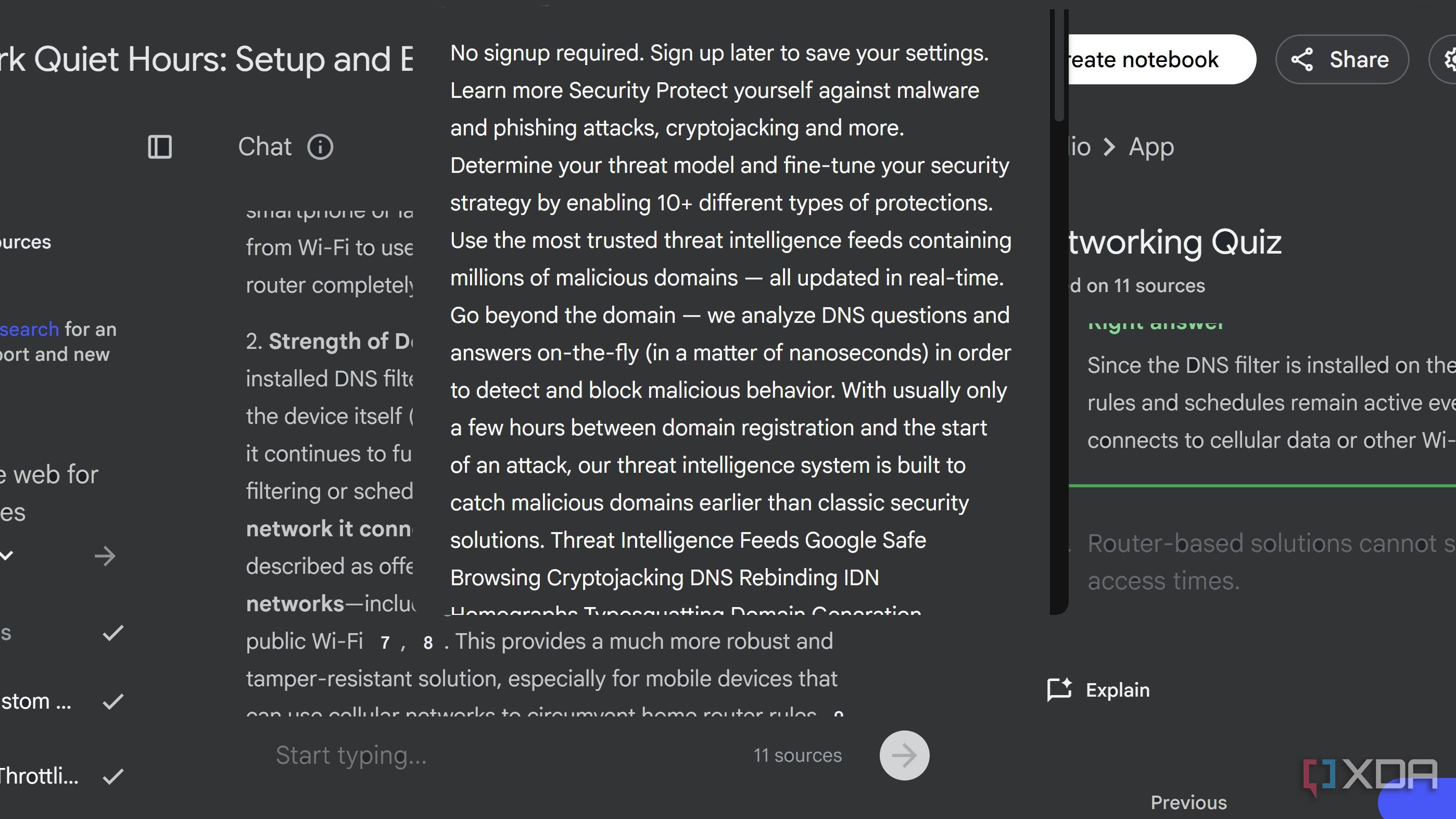
NotebookLM’s Explain button is the main reason the generated deck is worth trusting more than a generic AI flashcard set. The app can provide explanations for flashcards, and the interface can show citation-linked support from the uploaded source, so you can inspect where the answer came from instead of accepting it on faith.[1][2]
Spend your checking time where it matters most:
- Open Explain on any card whose answer surprises you.
- Follow the citation back to the PDF if the wording seems too broad.
- Delete or ignore cards that ask about tiny details your professor never emphasized.
- Regenerate with a narrower prompt if the deck is mostly off-target.
- Keep cards that test one clear idea at a time.
A weak card is not always inaccurate. Sometimes it is merely unhelpful. “What is Chapter 4 about?” might be supported by the PDF, but it will not help much on an exam. “How does X differ from Y in the lecture model?” is usually closer to what students need to retrieve under pressure.
Step 4: Study Inside NotebookLM, But Know What the Tracking Means
When you review a NotebookLM flashcard deck, you can mark cards as Got It or Missed It. NotebookLM can remember those markings and let students focus review on missed cards.[4]
That is useful. It tells you which cards failed today. It does not decide that a card you missed today should return tomorrow, then three days later, then a week later. That distinction matters because a missed-card filter is short-term triage, while spaced repetition is a schedule.
- Do one full pass through the deck.
- Mark cards honestly as Got It or Missed It.
- Review missed cards only.
- Use Explain on missed cards where the answer feels unclear.
- Decide whether the deck is good enough to export or needs another generation pass.
For a quiz tomorrow, this may be plenty. For a licensing exam, cumulative final, board exam, or language course, it is not enough by itself. That is where export matters.
Step 5: Export the Deck When You Need Long-Term Review
NotebookLM includes a Download as CSV option for flashcard decks, which lets you take the generated cards out of NotebookLM and use them offline or import them into another study tool.[1] That is the practical bridge: NotebookLM is strong at creating source-grounded cards from PDF notes; a dedicated spaced repetition tool is stronger at deciding when those cards should come back.
- Open the generated flashcard deck.
- Use Download as CSV.
- Open the CSV to check that fronts and backs are separated correctly.
- Import the CSV into Anki or another flashcard app that supports scheduled review.
- Keep the NotebookLM notebook available so you can return to citations when a card needs checking.
If you are deciding whether NotebookLM should replace your current flashcard app, compare the workflows in Quizlet vs NotebookLM for Flashcards or scan Best Flashcard Apps in 2026. The right answer may be split: NotebookLM for generation and verification, Anki or another SRS app for retention.
When to Regenerate Instead of Editing
Do not spend twenty minutes fixing a deck that came from a vague prompt. If most cards are too general, regenerate with a narrower focus. If only a few cards are weak, keep the deck and ignore or edit those cards after export.
| Problem | Best Move |
|---|---|
| The deck covers too much of the course | Regenerate with a unit, chapter, or exam-topic prompt. |
| The cards are too easy | Regenerate at Medium or Hard. |
| The cards ask about minor details | Prompt for concepts, mechanisms, comparisons, or professor-emphasized topics. |
| A few answers seem ambiguous | Use Explain and citations before studying or exporting. |
| The deck is good but needs scheduled review | Download as CSV and move it into a spaced repetition tool. |
For students comparing AI generators, this is also the point where source-grounding should carry more weight than a prettier interface. A tool that makes attractive cards from vague internet knowledge can still send you into the exam with the wrong vocabulary. For a broader comparison, see The Best AI Flashcard Generator for Lecture Notes and AI Study Tools That Teach Instead of Just Giving Answers.
Caveats Before You Build Your Whole Study System Around It
NotebookLM’s flashcard feature was announced for educators and students in September 2025, with Google positioning it as a way to help students check their understanding of uploaded sources.[5] As of Q3 2026, it is a useful study workflow, but there are a few limits worth keeping visible.
- No built-in spaced repetition: Got It and Missed It tracking helps you sort today’s review, but it does not replace an SRS schedule.
- Large PDFs may need splitting: reported free-tier limits include 50 sources per notebook and 500,000 words per source.[3]
- Daily generation caps are uncertain: one third-party report discussed limits around flashcard set generation, but Google’s official help page does not confirm a specific daily number.[6]
- Pricing can change: NotebookLM’s 2026 tiering has included Google AI Plus, Pro, and Ultra options, so check the current plan page if you depend on higher limits.
- Third-party export extensions are optional: they may add convenience, but native CSV download is the safer baseline because browser extensions can break when interfaces change.
The practical rule is simple: use NotebookLM to generate flashcards from PDF notes quickly, use Explain and citations to catch weak cards, and export to CSV when the material needs scheduled review over weeks.
References
- Generate Flashcards or Quizzes in NotebookLM — NotebookLM Help
- NotebookLM app now lets you build flashcards and quizzes — Google Blog
- What Is NotebookLM? Features and How to Use It in 2026 — DigitalOcean
- NotebookLM's new feature beats Quizlet at its own game — XDA
- Educators and students can now create Flashcards, Quizzes and new Reports in NotebookLM — Google Workspace Updates, September 2025
- This Chrome extension fixes NotebookLM's biggest study pain point — XDA
Comments
Join the discussion with an anonymous comment.