GENERAL Planner
Google Docs link sharing settings students should know
A study-group document can become editable by everyone with the link. A finished practice log can remain open to last week's tutor. A shared SAT study plan can expose the owner's name and email to people who were never meant to see them. Google Docs sharing is useful precisely because a link can travel quickly, so the setting should be chosen before the link travels.
Use Restricted by default. Choose Viewer for work that is finished or submitted, Commenter when someone should give feedback without rewriting the document, and Editor only for people actively building it with you. Treat Anyone with the link as effectively public.
Match the Setting to the Situation
| Student situation | General access | Role to use | Why |
|---|---|---|---|
| Sharing study-group notes with named classmates | Restricted | Viewer or Commenter | Only invited people receive access; use Commenter when they should suggest corrections. |
| Sending a completed practice log or final study plan to a teacher | Restricted | Viewer | The teacher can read the submitted work without changing it. |
| Building a group-project document together | Restricted | Editor | Named collaborators can add, revise, and organize the document. |
| Letting a tutor review an SAT or ASVAB practice log | Restricted | Commenter | The tutor can leave feedback while the original work remains intact. |
| Publishing a reusable study template | Anyone with the link | Viewer or Commenter | Use this only when the document is suitable for people outside the named group and the chosen role matches the intended interaction. |
Google Drive provides three broad general-access states: Restricted, Anyone with the link, and Public on the web. Restricted means access is limited to people who have been granted permission. Anyone with the link allows access through the link, and Public on the web makes the file available more broadly through the web. The exact options shown can depend on the account and organizational settings. [1]
For ordinary student work, the practical difference is whether you are naming recipients. A restricted study-plan document gives the owner a list of people whose access can be reviewed or removed. A link-access document relies on the link itself as the gate. That may be reasonable for a public revision template, but it is a poor default for personal notes, unfinished essays, or a teacher submission.
What the Four Roles Actually Permit
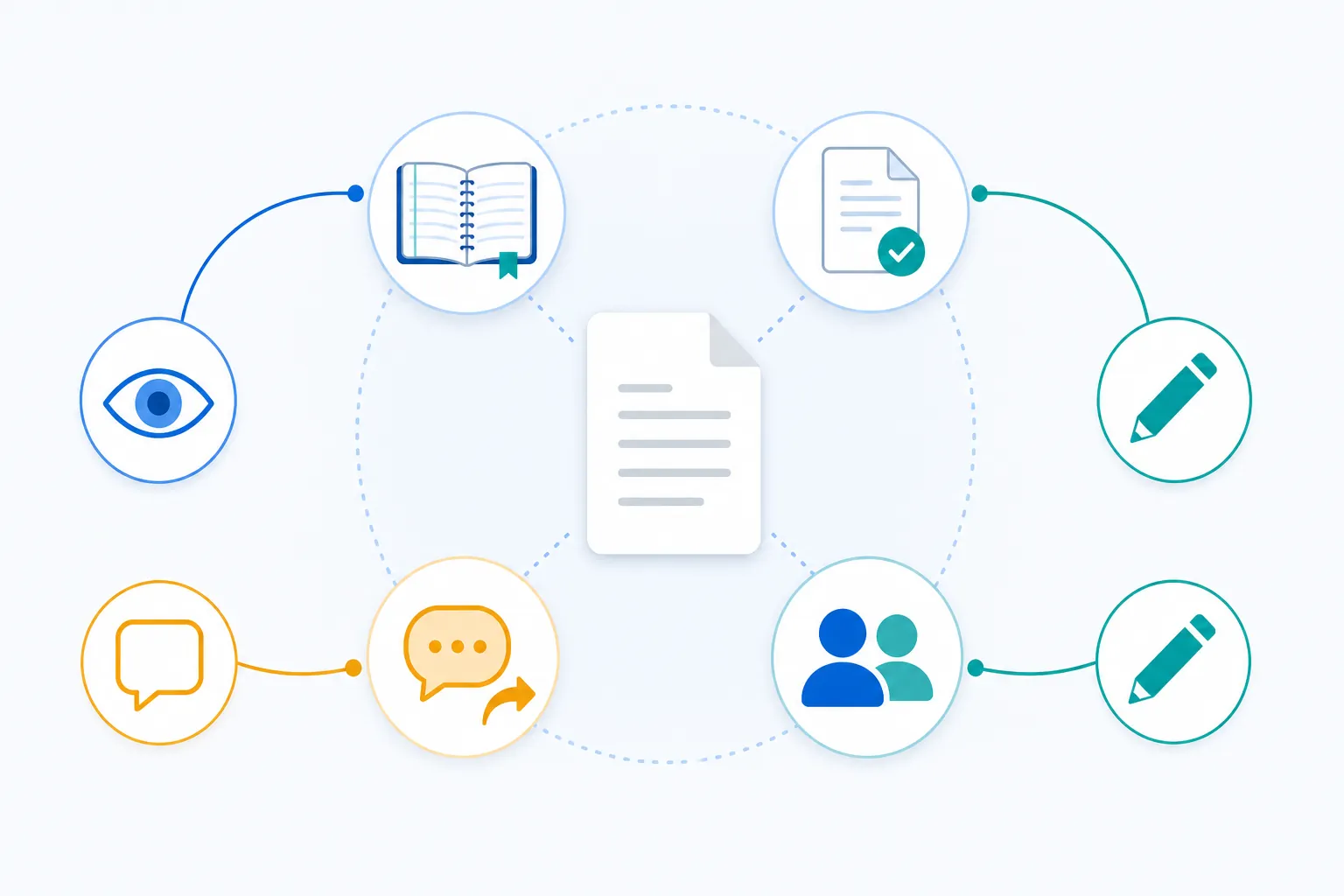
The general-access setting answers who can reach the file. The role answers what an allowed person can do after reaching it. Google Docs uses Viewer, Commenter, and Editor for ordinary access, with Owner representing control of the file itself. [1][4]
- Viewer: can read the document. This is the right role for a finished exam-review plan, a submitted assignment, or notes you want classmates to consult without changing.
- Commenter: can read and leave comments or suggestions, but is not meant to rewrite the document directly. Use it for a tutor checking an ASVAB practice log or a classmate reviewing your exported exam notes.
- Editor: can make substantive changes. This role belongs on a live group-project file or a study schedule that several students are still constructing, not on work already submitted.
- Owner: controls the file and can manage its sharing. Transferring ownership is a significant handoff, not a convenient way to give someone temporary editing access.
These roles are capabilities, not labels for trust. A helpful classmate may still need Commenter rather than Editor because the task is feedback. An active collaborator may need Editor for one document but only Viewer access to your private reference notes. The role should follow the work they need to perform.
Editors may have options to share or change permissions, depending on the file and account configuration. Folder permissions can also affect what is possible at the file level. Google Drive permissions inherited from a folder may therefore leave a document more accessible than its individual sharing dialog suggests. [1] Check the actual link state and the people listed in the sharing panel before assuming the document is locked down.
Why “Anyone With the Link” Is Not Private
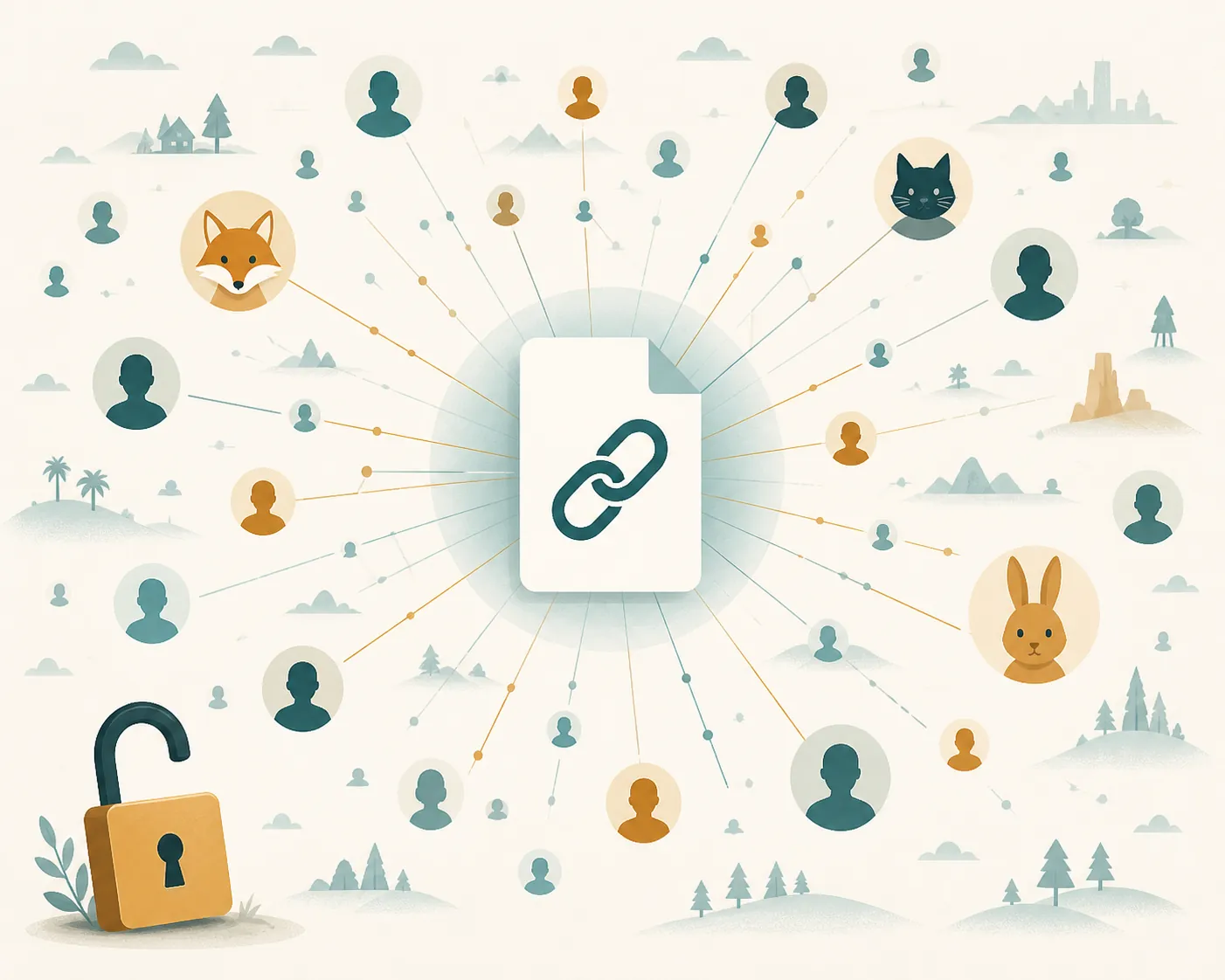
The phrase sounds narrower than it is. Anyone with the link does not mean “only the people I had in mind.” It means that a person who obtains the link can open the file without signing in to a Google account. Signed-out viewers may appear as anonymous animal avatars rather than as identifiable Google accounts. [2]
That creates two separate privacy issues. First, you may not know who is looking at the document. A link pasted into a class chat, forwarded in an email, or included in another document can reach beyond the original study group. Second, the owner's identity remains visible to recipients even when viewers are anonymous. The viewer may not be named, but the document still carries information about who owns it. [2]
Use link access for material designed to circulate, such as a general study template or a resource you intentionally publish. Before using it for notes, remove private comments, personal contact details, teacher feedback, and unfinished answers. A document meant for a broad exam-prep audience should be prepared as a public-facing copy rather than turning a personal working file into a public link.
A sharing audit is worthwhile because files can remain available after the original task is over, and a broad link setting is easy to overlook among many Drive documents. Stanford's guidance specifically warns that Google Drive sharing can be broader than users realize and recommends checking sharing details rather than relying on memory. [3]
Account and School-Workspace Details
Some Google Workspace features depend on an eligible school or work account. Access expiration dates, external-sharing labels, and organization-specific audiences such as “Your Organization” are not universal settings for free personal Gmail accounts. School administrators can also configure domain sharing differently, so a school account may show controls that a personal account does not, or may restrict options described in general instructions. [1]
Do not select an organization audience simply because it sounds safer. Confirm who that audience includes in your school account, especially when a tutor, teammate, or teacher uses an outside address. When the option is unavailable, Restricted access with named email addresses is the clearer choice.
Limits That Matter for Large Groups
Most individual study plans will never approach Google's sharing limits. A single file can be edited on up to 100 open tabs or devices at once, and a file can be shared with up to 600 individual email addresses. [1] Those limits matter more for a large class, a broad study group, or a template that has been distributed widely than for a four-person project.
If many people need the same reference material, Viewer access or a deliberately published template is usually easier to manage than giving every person Editor access. Large numbers do not change the basic rule: access and role still need to match the task.
The Pre-Share Check
Before sending a Google Docs link, open the file's Share dialog and verify the setting that is actually applied:
- Check General access. Confirm that the file is Restricted, Anyone with the link, or Public on the web as intended.
- Check the role. Use Viewer for finished work, Commenter for feedback, and Editor only when the recipient is actively contributing.
- Check the recipient list. Remove old tutors, classmates, or project partners who no longer need access.
- Check the containing folder. An inherited folder permission can affect the document's effective access.
- Check the document itself. Make sure the file is suitable for the audience and does not contain private notes, identifying details, or unresolved feedback.
For account security, incident recovery, and version-history problems after a document has been compromised, see Google Docs hacked study notes. The sharing decision itself is complete when the file's real access state, role, and folder context have been checked against the work you are sending.
References
- Share files from Google Drive — Google Docs Editors Help
- Understand the basics of privacy in Google Docs, Sheets, Slides & Vids — Google Docs Editors Help
- Is Your Google Drive Sharing More Than You Realize? — Stanford University IT
- Google Drive Permission Levels: What Viewer, Commenter, Editor, and Owner Can Actually Do — Overdrive
Fill in this timeline
This is a skeleton schedule, not a performance claim — for section-by-section strategy to fill in each slot, read the exam hub. For evidence that a similar timeline worked, compare against real outcome logs.