
Anki Settings for Beginners: The 5 Changes That Actually Matter (FSRS Edition)
Accuracy Warning — Anki
This tool's exam-prep accuracy has not been fully characterized.
Why Default Anki Settings Aren't Optimized for You
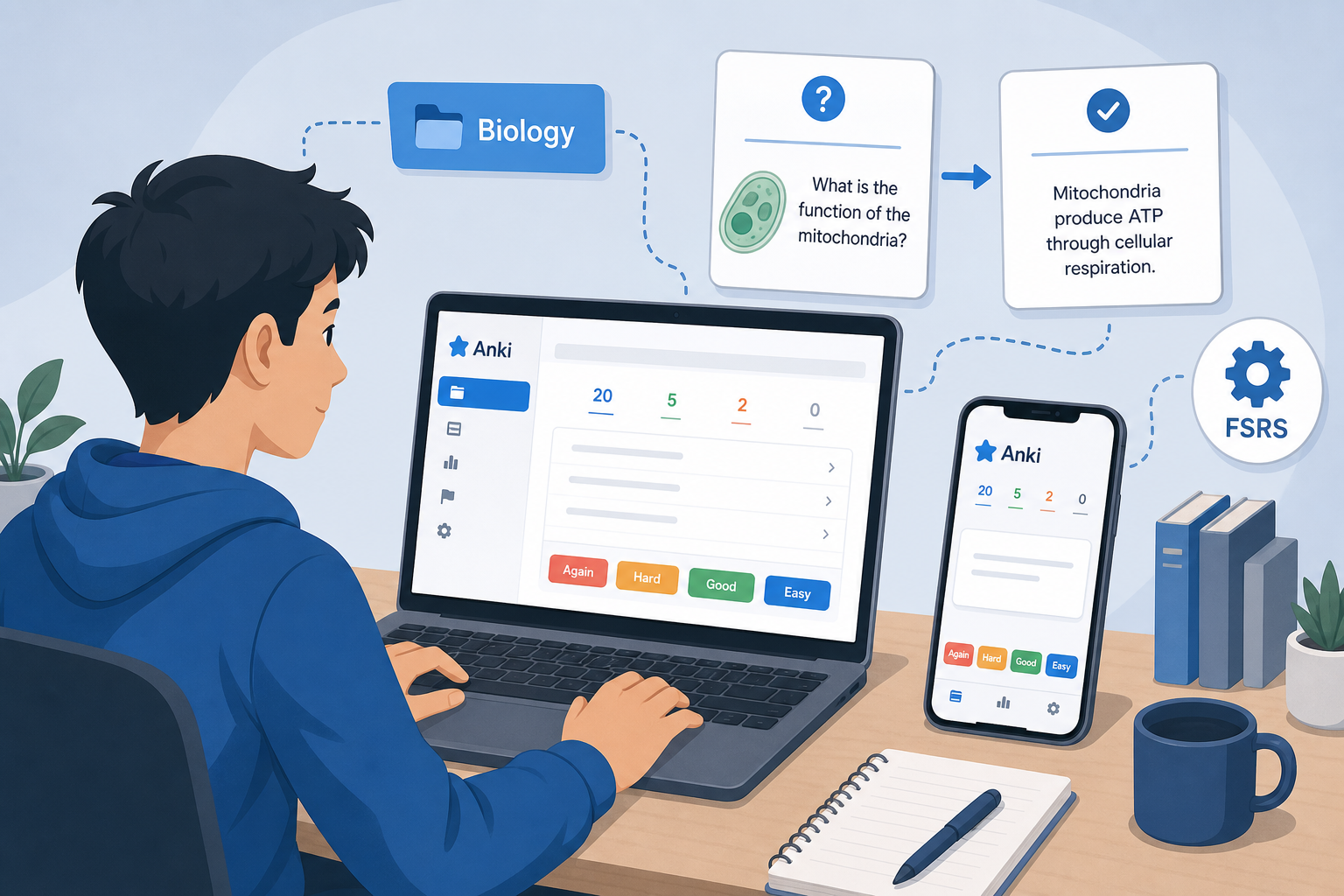
Anki's default settings were designed around the SM-2 algorithm, which dates back to 2006. That algorithm worked well for its time, but it was a one-size-fits-all approach. It didn't learn from your actual performance. In 2026, the landscape has shifted. The modern Anki ecosystem is built around the Free Spaced Repetition Scheduler (FSRS), an algorithm that adapts to your specific memory patterns.
Here's the problem: when you first open Anki, you're confronted with dozens of settings spread across multiple panels. It's easy to feel like you need to understand every slider and dropdown before you can start studying. That's not true. The vast majority of those settings are fine at their defaults. Tinkering with them before you have a baseline of reviews is a fast track to confusion and, in some cases, to what the community calls "ease hell" — a state where cards get stuck at frustratingly short intervals.
This guide is built on a different premise: change exactly five things, and leave everything else alone. These five changes will give you a modern, efficient, and low-stress study system. You can spend the rest of your time actually studying instead of configuring.
The 5 Settings Changes (In Order of Importance)
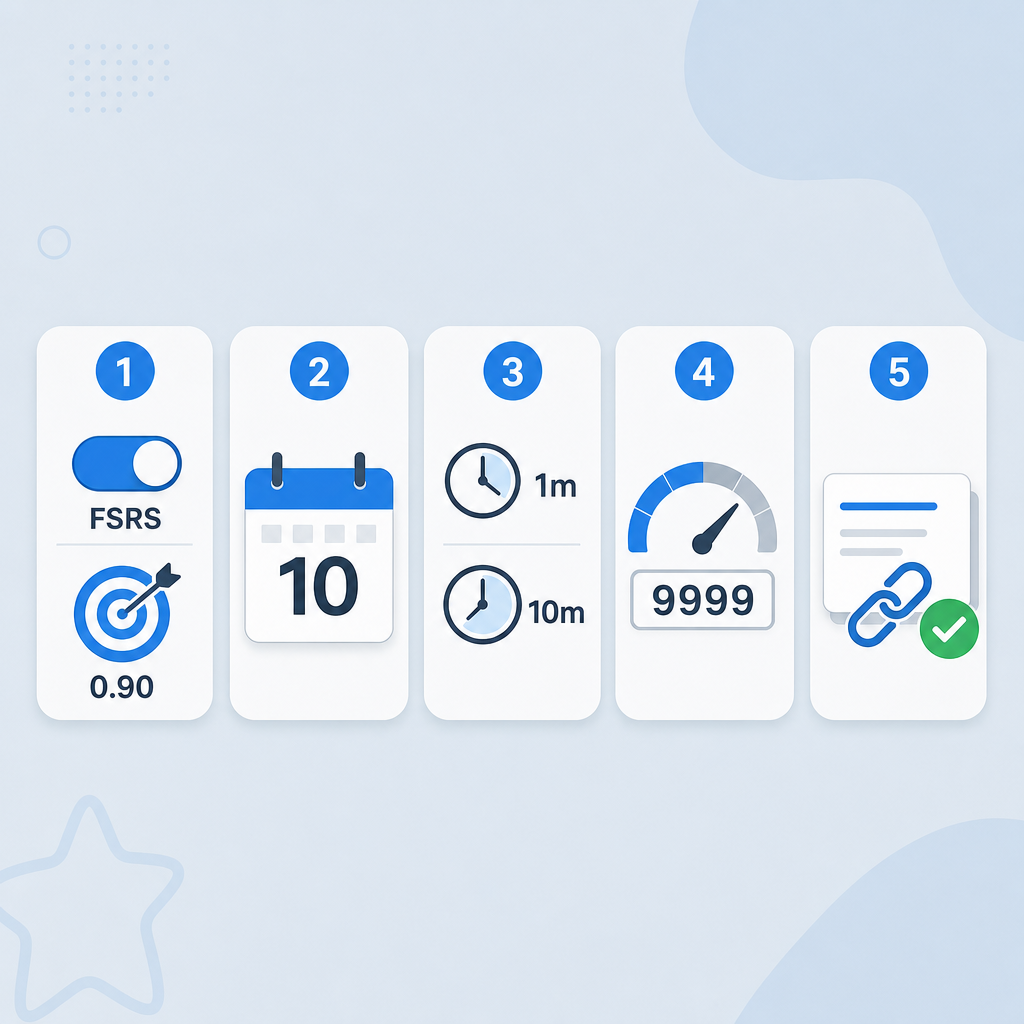
Below are the five changes you need to make, listed in the order you should make them. Each change builds on the previous one. Follow this sequence exactly, and you'll have a solid foundation.
| # | Setting | Recommended Value | Menu Path |
|---|---|---|---|
| 1 | Enable FSRS & Set Desired Retention | FSRS: On, Retention: 0.90 | Deck Options → FSRS section → Toggle on → Set retention |
| 2 | New Cards Per Day | 10 | Deck Options → Daily Limits → New cards/day |
| 3 | Learning Steps | 1m 10m (or 1m 10m 1d for dense material) | Deck Options → Steps (in minutes) |
| 4 | Maximum Reviews Per Day | 9999 | Deck Options → Daily Limits → Maximum reviews/day |
| 5 | Bury Related Cards Until Next Day | On | Deck Options → Bury → Bury related new cards until the next day |
1. Enable FSRS and Set Desired Retention to 0.90
This is the single most impactful change you can make. FSRS is a modern algorithm that replaces the old SM-2. It uses your review history to predict the optimal time to show you each card again. The key parameter is "desired retention" — the percentage of cards you want to remember when they come up for review.
Setting this to 0.90 (90%) is the sweet spot for most learners. It's high enough to ensure strong recall, but not so high that the algorithm forces you into an unsustainable review load. According to a 2026 guide from StudyCards AI, students using optimized FSRS settings achieve 85-90% retention rates, compared to 65-75% with the default SM-2 settings.
To do this: Open the deck you want to configure. Click the gear icon next to the deck name and select "Options." Scroll down to the "FSRS" section. Toggle it on. A new field will appear for "Desired retention." Enter 0.90.
2. Set New Cards Per Day to 10
The default is 20 new cards per day. This might not sound like a lot, but it creates a compounding review backlog that overwhelms most learners within two weeks. Every new card you learn today becomes a review card tomorrow, the day after, and at increasingly longer intervals. Starting with 20 new cards a day can quickly lead to 200+ daily reviews, which is unsustainable for a beginner.
Setting this to 10 is a safe, manageable starting point. It gives you a gentle introduction to the review rhythm. You can always increase it later once you've built the habit and know your capacity. To change this: Deck Options → Daily Limits → New cards/day → Set to 10.
3. Choose Your Learning Steps
Learning steps are the intervals at which you see a new card before it "graduates" to a review card. The default is often 1 minute and 10 minutes. This is a solid choice for most subjects. It gives you two quick checks to ensure the information has moved from short-term to long-term memory.
However, if you are studying dense, conceptual material — like medical school content or complex scientific theories — you might benefit from adding a third step: 1 day. This forces you to recall the information the next day, which significantly improves early retention. To change this: Deck Options → Steps (in minutes). Enter "1 10" for two steps, or "1 10 1440" (1440 minutes = 1 day) for three steps.
4. Set Maximum Reviews Per Day to 9999
This is the most counterintuitive setting on the list. The default is often 100 or 200 reviews per day. It seems reasonable — you don't want to be overwhelmed. But here's the problem: if you cap your reviews, Anki will simply stop showing you cards that are due. Those cards don't disappear. They accumulate in a hidden backlog. The next day, you'll have even more due, and the cap will prevent you from catching up. This backlog grows silently and can become a source of major stress.
Setting the maximum to 9999 effectively removes the cap. This doesn't mean you'll do 9999 reviews a day. It means Anki will show you every card that is due, and you'll do as many as you have time for. The algorithm will naturally adjust your workload based on your performance. If you consistently do all your reviews, the intervals will stabilize. To change this: Deck Options → Daily Limits → Maximum reviews/day → Set to 9999.
5. Bury Related Cards Until the Next Day
If you have multiple cards from the same note (e.g., a front/back card and a cloze deletion card), Anki can show them on the same day. This can create a false sense of mastery — you might remember the answer simply because you just saw a related card. Burying related cards ensures that you see them on different days, forcing true recall.
To enable this: Deck Options → Bury → Check "Bury related new cards until the next day" and "Bury related review cards until the next day." This is a small change that has a surprisingly large impact on the quality of your reviews.
What NOT to Touch (And Why)
Now that you've made the five changes, it's time to talk about what to leave alone. These are settings that beginners often feel compelled to adjust, but doing so can cause more harm than good.
- Starting Ease (250%): This is the multiplier that determines how much the interval increases after you answer "Good." The default is 250%. Lowering it is the primary cause of "ease hell" — a situation where cards get stuck at very short intervals because the ease factor has dropped too low. Leave it at 250%.
- Interval Modifier: This is a global multiplier for all review intervals. Changing it is a blunt instrument that can destabilize your entire schedule. If you feel your intervals are too short or too long, adjust your desired retention instead.
- Easy Bonus: This setting controls how much extra time the "Easy" button adds. The default is fine. Overusing Easy is a common beginner mistake anyway, so there's no need to tweak this.
- Hard Interval: This is the multiplier applied when you answer "Hard." The default is 1.2 (120%). Changing it can create awkward interval jumps. Leave it alone.
What the Answer Buttons Actually Mean
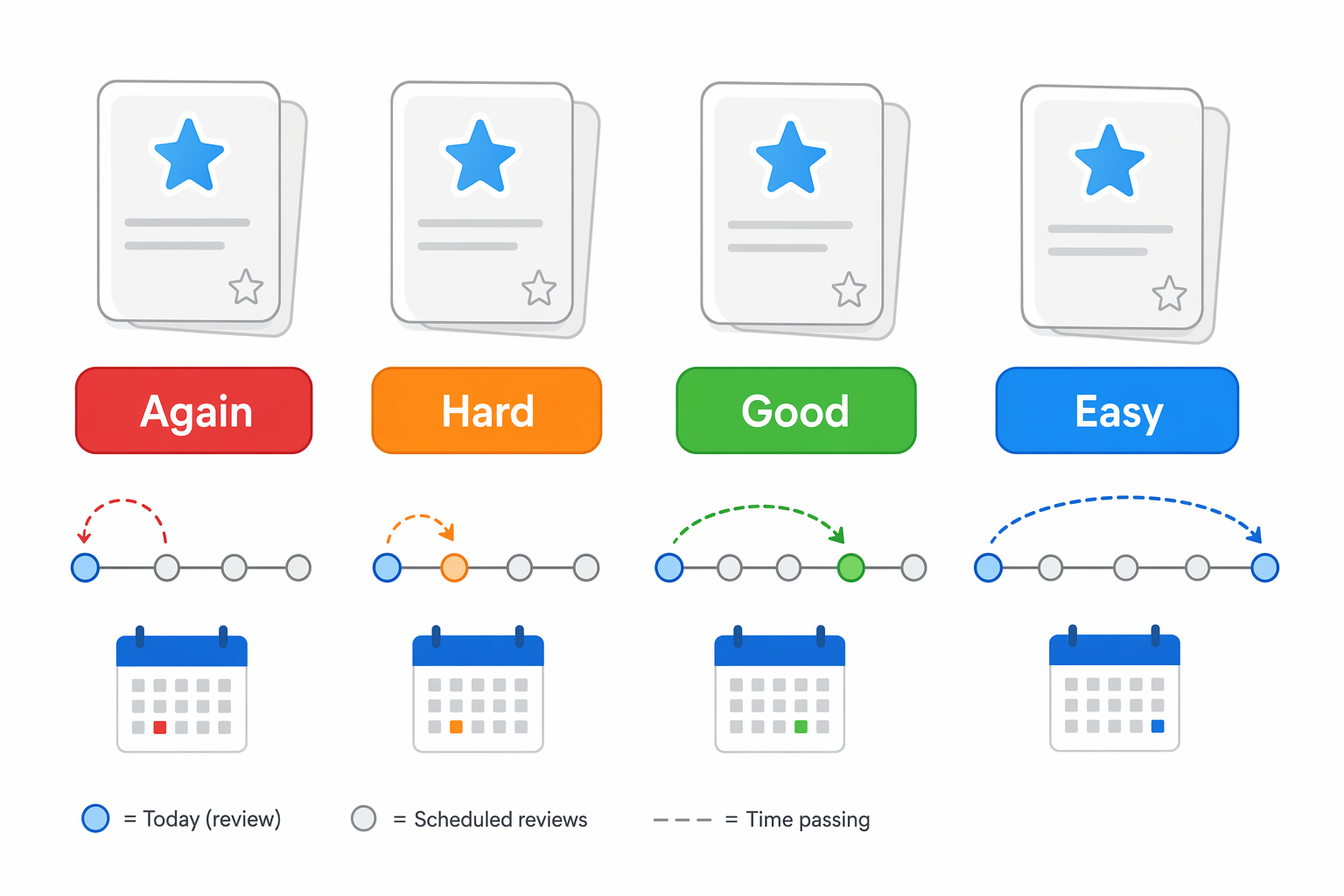
Understanding the four answer buttons is critical to using Anki effectively. Each button tells the algorithm something different about your memory state. Here's what they mean and when to use them.
| Button | When to Use | Resulting Interval Behavior |
|---|---|---|
| Again (Red) | You completely forgot the answer or got it wrong. | The card is reset to the first learning step. It will appear again very soon (e.g., in 1 minute). |
| Hard (Orange) | You remembered the answer but with significant difficulty or hesitation. | The interval increases by a small amount (e.g., 1.2x the previous interval). Use sparingly. |
| Good (Green) | You remembered the answer correctly with some effort. | The interval increases by the normal multiplier (e.g., 2.5x). This is your default button. |
| Easy (Blue) | You remembered the answer instantly and effortlessly. | The interval jumps significantly. The card is pushed far into the future. Use rarely. |
As a beginner, your default button should be "Good." Use "Again" when you get a card wrong. Avoid "Hard" and "Easy" unless you have a clear reason. Overusing "Easy" is a common mistake — it inflates the ease factor and pushes cards out too far, leading to long gaps before you see them again. Overusing "Hard" can have the opposite effect, keeping cards stuck in a short cycle.
How to Check Your True Retention Rate
Once you've been using Anki for a week or two, you'll want to verify that your settings are working. The best way to do this is to check your true retention rate — the percentage of review cards you answered correctly.
Anki doesn't show this by default, but you can install a free add-on called "True Retention" (add-on code: 613684242). To install it:
- Open Anki on your desktop.
- Go to Tools → Add-ons → Get Add-ons.
- Enter the code 613684242 and click OK.
- Restart Anki.
After installing, you'll see a new "Stats" button or a retention percentage displayed in your deck list. A healthy retention rate is around 85-90%. If your rate is significantly lower than 85%, you might consider slightly lowering your desired retention (e.g., to 0.85). If it's above 90%, you're in great shape — leave everything as is.
When to Start Tweaking Further
Stick with these five changes for at least two to three weeks of consistent daily use. During this time, focus on building the habit of reviewing every day and on creating good cards. Don't be tempted to change settings just because you had a bad review session. A single day's performance is not a reliable signal.
After you have a baseline of reviews and understand your own study habits, you can start exploring more advanced settings. For a deeper walkthrough of each individual setting, see our full settings guide. And once your settings are dialed in, the next step is to populate your decks with high-quality cards. If you have PDFs of your study materials, our guide on how to generate flashcards from a PDF can help you create cards quickly and efficiently.
Authoritative source
No specific exam hub matched
Browse the exam hubs directory for the authoritative plan on any of the five exams.
Report an error in this tool's output
Found something this tool got wrong beyond what's documented above? Report it so the accuracy log stays current.
Comments
Join the discussion with an anonymous comment.