
How to Choose and Set Up a Notion Student Dashboard Template
This guide helps you select a Notion student dashboard template that fits your academic level and walk through a simple setup — without falling into the over-customization trap that causes most students to abandon their dashboard within two weeks.
Available Formats
Access links are provided in the guide below.
If you searched for a Notion student dashboard template, you probably do not need another list of 50 pretty workspaces. You need to know which one will actually help when homework, readings, lab deadlines, club meetings, and exam prep all land in the same week.
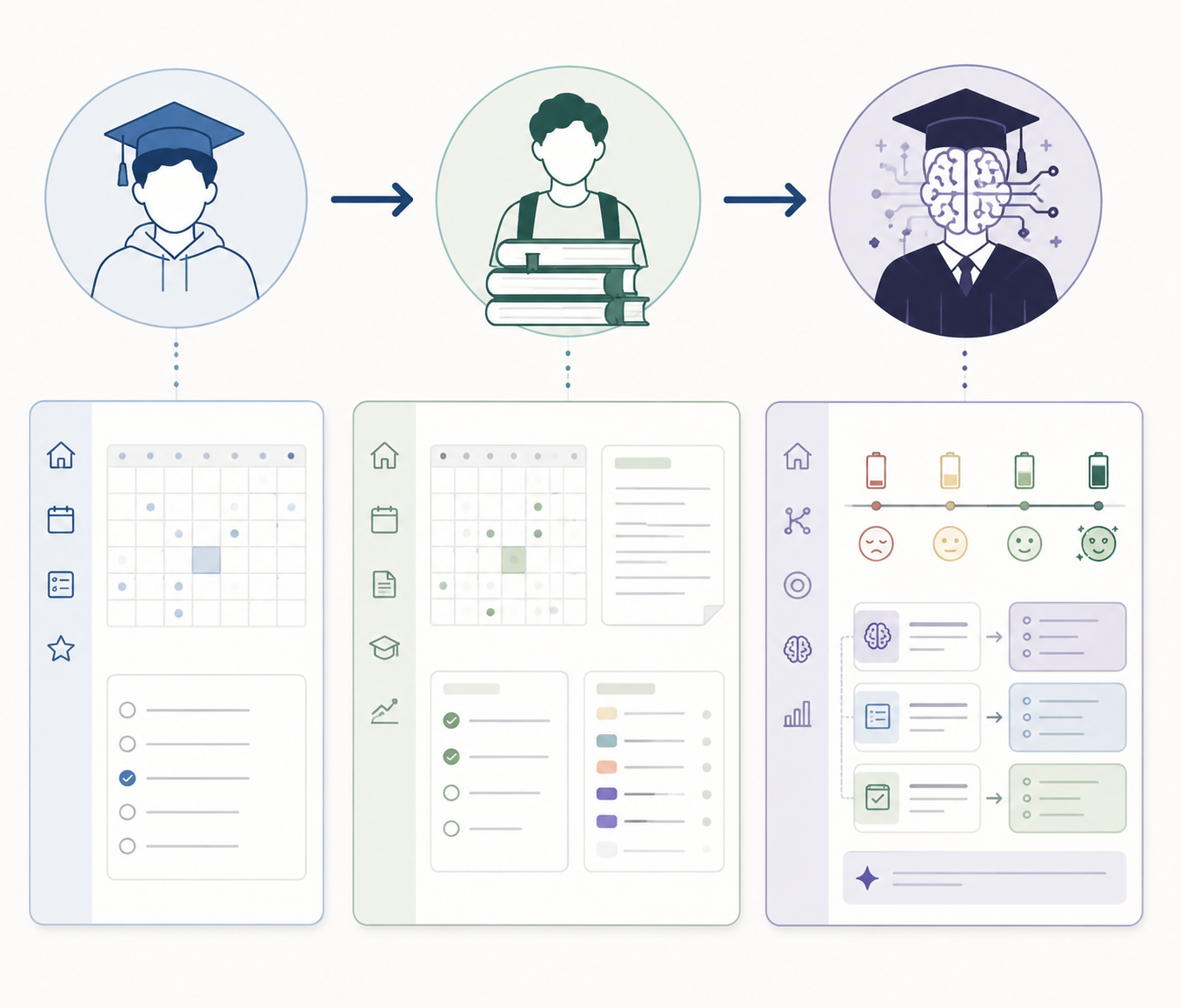
The short version: high school students usually need a simple course-and-homework tracker; college students often benefit from an all-in-one class, calendar, notes, and assignment hub; grad students and students with ADHD may need a more specialized system if it solves a real routing problem. The wrong template can make you feel organized for one afternoon and then quietly become another abandoned tab.
Choosing feels harder than it should because the marketplace is crowded. One Notion dashboard roundup notes that the Notion Marketplace listed more than 1,000 student dashboard templates in 2026, with options ranging from free minimalist planners to paid systems around $45; that count was observed in a specific marketplace context and can fluctuate by locale and time.[1] That is enough variety to be useful, and enough variety to become procrastination with icons.
Choose by the Work You Actually Have
A useful student dashboard does one boring job well: it makes the next academic action easier to see and complete. That might mean a single homework list. It might mean a database that connects courses, assignments, readings, grades, and notes. It should not begin with a three-hour redesign session before you have entered your current deadlines.
| Student situation | Best template type | What to avoid |
|---|---|---|
| High school student with several classes and nightly homework | Minimalist course schedule or homework tracker | A university-style hub with databases you will not maintain |
| College student balancing lectures, assignments, readings, exams, and clubs | All-in-one student dashboard with courses, tasks, calendar, and notes | A template that separates tasks and notes so much that you still need three apps |
| Grad student managing research, seminars, teaching, or long projects | Project-aware academic workspace with notes, deadlines, and research areas | A simple homework planner that cannot hold longer academic threads |
| Student with ADHD or recurring task-routing friction | Specialized system with clear prioritization, energy-level, or next-action views | A beautiful dashboard that requires constant manual sorting |
That table matters more than any individual template name. A high school student who checks a plain course schedule every day is in a better position than a college student who bought a cinematic dashboard and never entered Wednesday's problem set.
For high school: keep the dashboard almost boring
If your work is mostly class periods, homework, quizzes, tests, and a few projects, start with a minimalist template such as Notion's free Course Schedule. The point is not to recreate your school portal. The point is to have one place where you can see your classes, the next due item, and maybe a simple notes page for each subject. Course Schedule is one of the free student template examples highlighted in student template roundups, alongside more complex options.[2]
At this level, the best fields are usually plain: class, assignment, due date, status, and priority if you actually use priority. Grade trackers, habit trackers, reading databases, and exam dashboards can wait. If you add every possible view on day one, you have built a second school system that now needs its own homework.
For college: use an all-in-one hub only if it replaces app-switching
College is where an all-in-one Notion student dashboard template starts to make sense. You may have a syllabus in one place, lecture notes in another, a calendar app for due dates, a task app for reminders, and a random document for exam topics. A good dashboard pulls those pieces close enough that assignments do not disappear between tools.
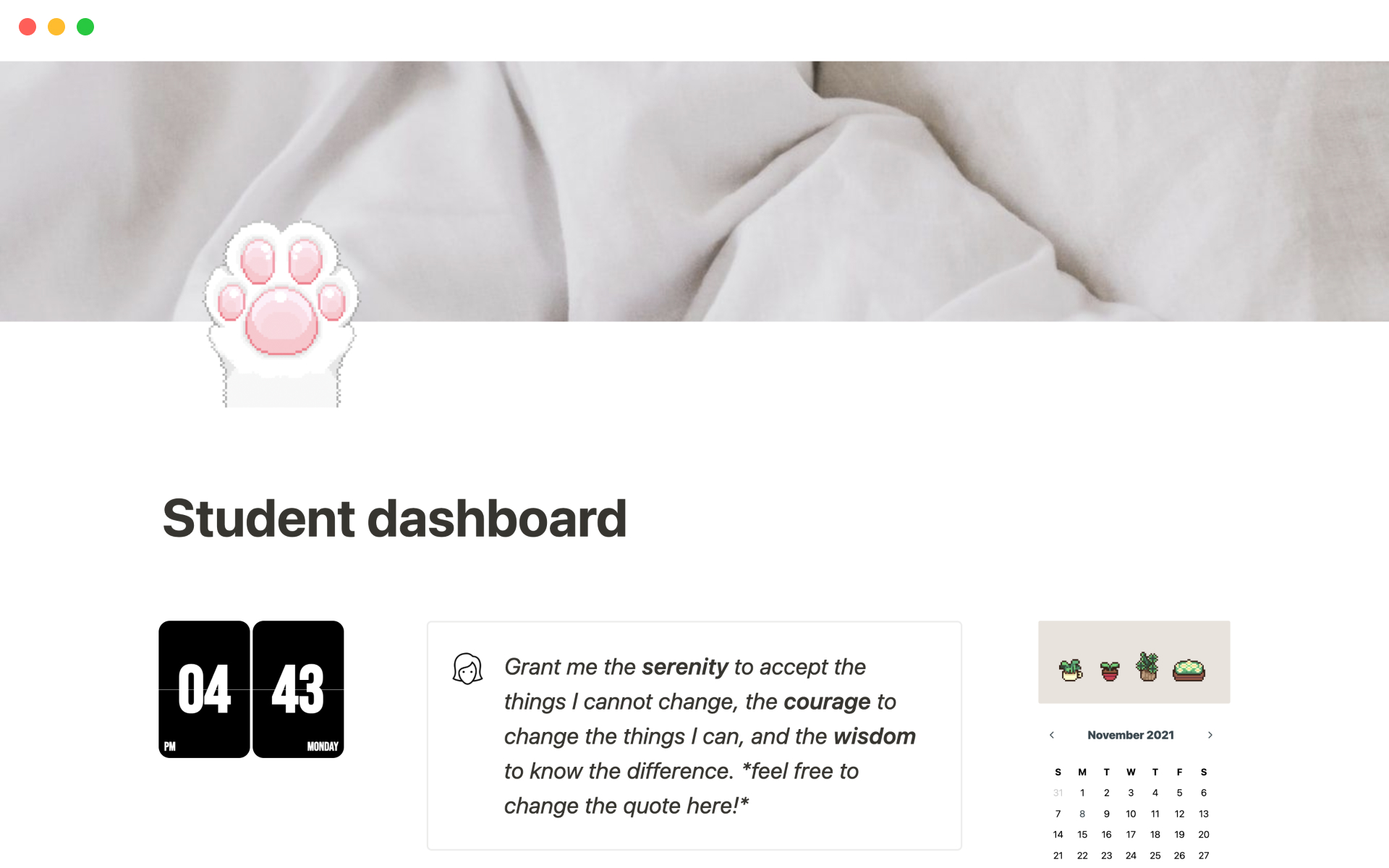
Free all-in-one examples such as Janice Studies' Student Dashboard and university-heavy templates such as University Hub by Emma show the two useful directions: one gives you a broad class-and-task workspace, while the other leans into the extra structure of university life.[2][3] Premium all-in-one systems such as Gridfiti's Student OS, listed at $19 in the cited template roundup, may be worth considering if the structure is meaningfully better than what you would build yourself.[2]
The paid-versus-free decision should be less emotional than most template pages make it. Pay for a dashboard if it removes setup work you were genuinely going to do, gives you views you understand immediately, and matches your semester. Do not pay because the demo page looks like a calmer version of your life.
For grad school or ADHD: specialize only around a real friction point
Specialized systems earn their keep when ordinary task lists fail in a specific, repeated way. A grad student may need to separate seminar prep, research notes, advisor feedback, teaching work, and long project milestones. A student with ADHD may need a dashboard that routes work by energy level or immediate next action, not just by due date.
Your ADHD Mynd, a $45 ADHD-specific system cited in student template roundups, is the kind of template that should be judged by routing, not decoration: does it help decide what to do when your attention is uneven, or does it simply give you more boxes to organize?[2] A specialized template can be worth it, but only when the specialization reduces the moment where you would otherwise freeze, avoid, or start rebuilding the system.
What a Good Student Dashboard Needs—and What It Does Not
Before duplicating anything, inspect the template like you are the person who has to maintain it during a bad week. Because you are.
- Courses: one page or database item per current class, not every class you might take someday.
- Assignments: a task database with due date, class, status, and a view for what is due soon.
- Calendar: either a calendar view inside Notion or a simple way to mirror dates from your main calendar.
- Notes: a place for class notes that connects back to the course, not a maze of folders.
- Review view: one view that answers, "What do I need to do next?" without scrolling through the whole dashboard.
That is enough for most students. A dashboard can include grade tracking, reading logs, habit trackers, exam pages, project boards, and goal dashboards, but each one adds maintenance. If a field will not change what you do today or this week, leave it out at first.
There is some support for the idea that organized digital dashboards may reduce assignment-completion friction: OS Dashboard HQ cites research suggesting students using organized digital dashboards complete assignments roughly 25% faster. The underlying study is not named in the source, so treat that as a directional claim, not proof that installing a template improves grades.[4]
The safer conclusion is narrower and more useful: when a dashboard reduces app-switching, makes deadlines visible, and gives you a reliable next-action view, it can remove some of the drag around starting and finishing assignments. It still cannot read the chapter, solve the equation, write the essay, or quiz you on the material.
Set Up a Free Notion Student Dashboard Today
Use a free, simple template for the first setup unless you already know you need something more advanced. Janice Studies' Student Dashboard is a reasonable all-in-one starting point for college students; Notion's Course Schedule is a cleaner fit for high school students or anyone who wants less structure.[2]
If you are eligible, Notion's education offer can remove the pressure to choose a paid workspace immediately. As reviewed on July 4, 2026, Notion offers a free Plus Plan for students and educators, with student eligibility tied to school email and institutional requirements; pricing and eligibility rules can change, so check the current Notion education page before relying on it.[5]
1. Duplicate the template, then stop browsing
Open the template, duplicate it into your Notion workspace, and close the template roundup tab. This sounds minor, but it is the first real fork in the road. If you keep comparing templates after duplicating one that fits your level, you are still shopping, not setting up.
Do not change the theme yet. Do not replace every icon. Do not rename every database. The first goal is to make the template hold your real semester, not your ideal study personality.
2. Add only your current courses
Create one entry for each class you are taking now. Include the course name, teacher or professor, meeting time if useful, and link to the syllabus or school portal if you use one. Skip future courses, dream electives, and elaborate archive structures.
For a high school dashboard, this may be the entire backbone. For a college dashboard, each course page can hold lecture notes, reading lists, assignments, exam information, and professor contact details. Keep the course pages uneven if your courses are uneven. A lab class may need more structure than a lecture course; that is normal.
3. Enter active assignments, not the whole semester
Add assignments that are currently open, due soon, or already on your syllabus and likely to matter in the next few weeks. If entering the entire semester helps you relax and you can do it quickly, fine. If it turns into data entry theater, stop after the active work.
- Use a status field with simple options such as Not started, In progress, Waiting, and Done.
- Use one due date field; avoid separate date fields unless you truly need draft, submission, and presentation dates.
- Connect each assignment to a course so you can view work by class or by deadline.
- Add a notes field only if it captures something actionable, such as "submit as PDF" or "requires three sources."
The main view should show what is due soon. A second view by course is useful. A calendar view is useful if you actually look at calendars. Six views on day one is usually not useful.
4. Decide how calendar sync fits your life
Calendar integration is attractive because students already live across different scheduling surfaces. 2sync reports that students are the top profession among its 127,000-plus users across 202 countries, and that 88% of its users start with Google Calendar sync; those numbers are self-reported by a company that sells a sync product, so they are useful as a signal of demand, not independent proof of effectiveness.[6]
The practical test is simple: where do you already check your time? If Google Calendar is where classes, shifts, appointments, and club meetings live, then your Notion dashboard should either sync with it or avoid pretending to replace it. If Notion is where you plan assignments but your calendar app is where you notice time, keep both roles clear.
For a low-maintenance setup, put due dates in Notion and keep fixed events in your calendar. If you later find yourself missing deadlines because the two systems are disconnected, then explore sync. Do not start with sync because a template demo makes it look sophisticated.
5. Build one notes area, not a second library
Create a notes database or use the one in your template. Connect each note to a course. That connection is more important than the note's visual format because it lets you return to all material for a class without remembering where you put it.
For lecture-heavy classes, use one note per lecture or topic. For problem-based classes, a note might hold formulas, mistake patterns, or links to worked examples. For writing classes, notes may be source summaries and essay ideas. Not every course deserves the same note style.
This is also where Notion's limit shows. It is a strong organizer, but it is not a dedicated revision platform. If you need spaced repetition, exam-style practice, flashcards, past-paper drilling, coding practice, language audio, or math problem sets, keep using tools built for those jobs. Put links to them in your course pages so the dashboard becomes a launchpad, not a weak substitute.
6. Lock the setup for two weeks
Once your courses, active assignments, calendar approach, and notes area are in place, stop editing the structure for two weeks. You can add assignments. You can mark tasks done. You can take notes. You cannot redesign the dashboard because you found a better button style.
This rule is not anti-customization. Some students enjoy building systems, and that enjoyment can make them more likely to use the workspace. The line is whether customization happens after the dashboard is carrying real coursework. If the design work delays the first assignment entry, it is not helping yet.
Notion itself is capable enough for this kind of hub: one student-focused review notes a 4.6 out of 5 Google Play rating based on more than 360,000 reviews, while also highlighting student warnings about over-customization as a common pitfall.[7] App quality and study quality are related only if you keep the system small enough to use.
A Quick Template Check Before You Commit
Before you choose, run the template through this check. If it fails several items, pick a simpler one.
- Can you enter all current courses in under 15 minutes?
- Can you see assignments due this week without opening multiple pages?
- Does every required field change what you do, or is it just extra sorting?
- Can you connect notes to classes without maintaining a complicated filing system?
- Does the template match your academic level instead of someone else's ideal semester?
- Would you still use it on a tired Wednesday night?
That last question catches more bad templates than any feature comparison. A dashboard that only works when you are motivated is not your system; it is your decoration project.
Where to Land
Choose the simplest Notion student dashboard template that fits your current academic level. Set up only the courses you are taking and the assignments you actually need to track. Use calendar sync only if it reduces missed work or app-switching. Keep notes connected to classes, but use subject-specific revision tools where Notion is weak.
Then leave the structure alone for two weeks. If the dashboard helps you start work faster, find deadlines sooner, and stop hunting across apps, keep it. If it asks for more maintenance than it saves, make it smaller.
References
- 21+ Notion Dashboard Templates to Manage Everything in Notion [2026], NotionEverything
- Notion Templates for Students, Gridfiti
- Notion Student Templates, PathPages
- Notion Dashboards for Students: Features to Look For, OS Dashboard HQ
- Notion for Education, Notion
- Best Notion Templates for Students, 2sync
- Notion Review for Students, SaveMyExams
Related Guides & Templates
- AI Study Schedule Apps in 2026: Do Smart Scheduling Features Actually Help Students Study Better? →
AI-powered study schedulers like Shovel, Motion, and Fhynix promise to eliminate planning overload with auto-generated schedules and workload calculations. This guide evaluates whether those features are worth the subscription cost, what they can and can't do for your grades, and how to combine them with active recall tools for real results.
- The Best Study Schedule Apps for ADHD & Neurodivergent Students (2026 Guide) →
Traditional study planners assume neurotypical executive function. This guide reviews apps designed for (or adaptable to) ADHD brains — using visual timelines, flexible rescheduling, body doubling, and gamification — and provides setup strategies that work with, not against, how neurodivergent students process time and tasks.
- How to Build a Study Timetable That Actually Works — The 5-Step System (App + Template Combo) →
Most study schedules fail not because you're lazy, but because you miss deadlines, underestimate time, and skip review cycles. This guide walks you through a simple 5-step system to build a timetable that sticks, with quick-start options for apps and templates.
Comments
Join the discussion with an anonymous comment.