
SAT Exam Hub
Best USB4 Docks for Dual Monitor Study Setups
Exam prep students with USB4 laptops need a dock that drives two 4K monitors without overspending. This comparison identifies the top three USB4 docks for study desks, with evidence-backed verdicts on value, compatibility, and real-world trade-offs.
- SAT
- ACT
- GRE
- MCAT
- ASVAB
- digital-sat
- adaptive-testing
- registration-fee
- content-outline
- score-target
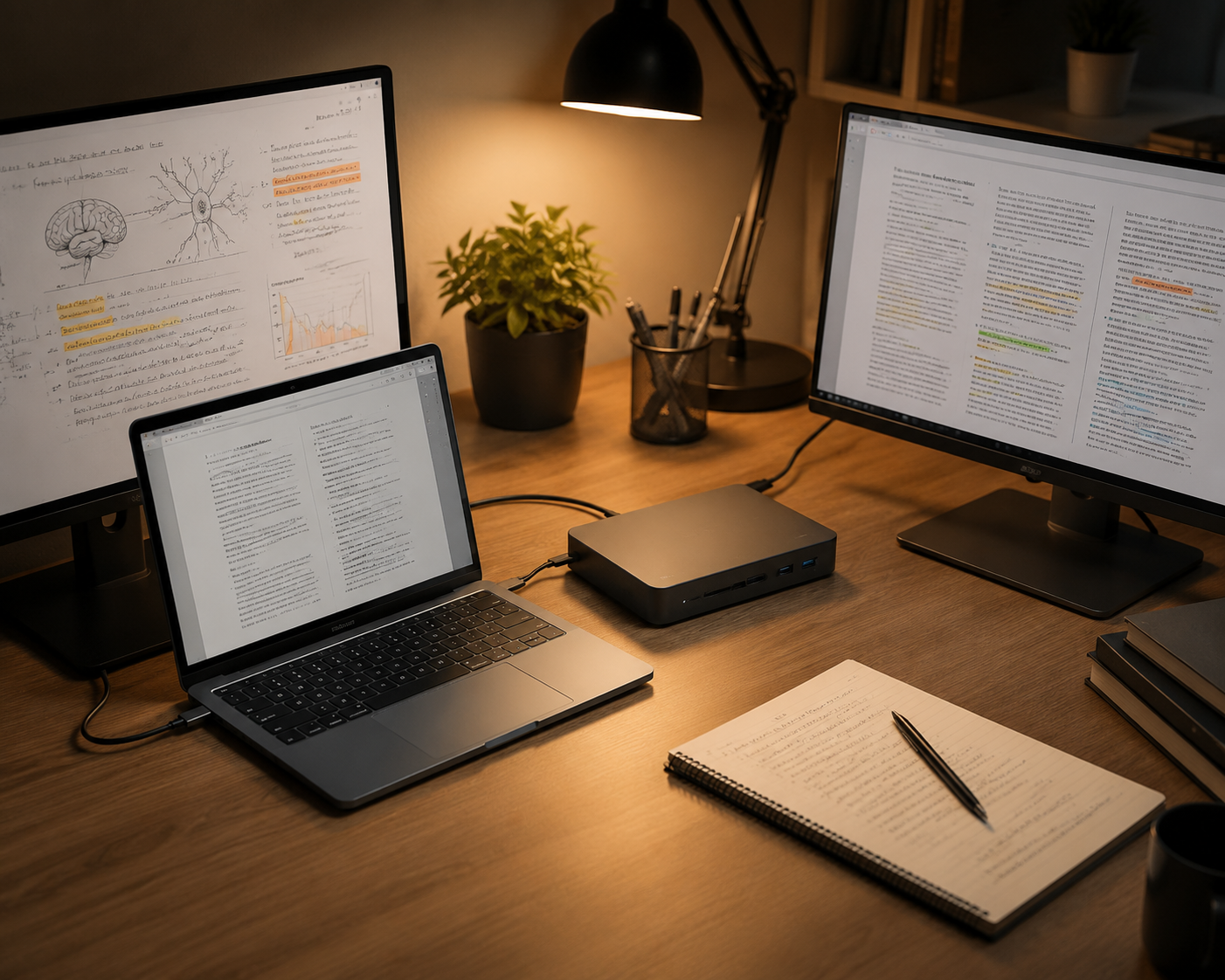
For a dual-monitor study desk, the best USB4 dock is usually not a Thunderbolt 5 dock. If your laptop has USB4 and your target is two 4K monitors at 60Hz, a $200–260 USB4 dock is already in the right performance class: enough display bandwidth, enough charging for most student laptops, and enough ports for a keyboard, mouse, webcam, headset, or external drive. USB4 and Thunderbolt 4 both operate at up to 40Gbps, and both can support dual 4K@60Hz when the dock implements native video output correctly.[1]
That matters because the study-desk problem is not glamorous. You want your laptop to become a workstation with one cable, wake cleanly before a timed practice block, charge while you work, and not punish you for owning an AMD Ryzen, Intel Core, or Qualcomm Snapdragon laptop. Thunderbolt 5 is still a niche buy for this use case; PCWorld reported in October 2025 that Thunderbolt 5 was not integrated into Intel’s Lunar Lake or Panther Lake laptop CPUs, keeping TB5 docks mostly relevant to a narrower premium-gaming-laptop ecosystem rather than ordinary student setups.[2]
The Short Verdict
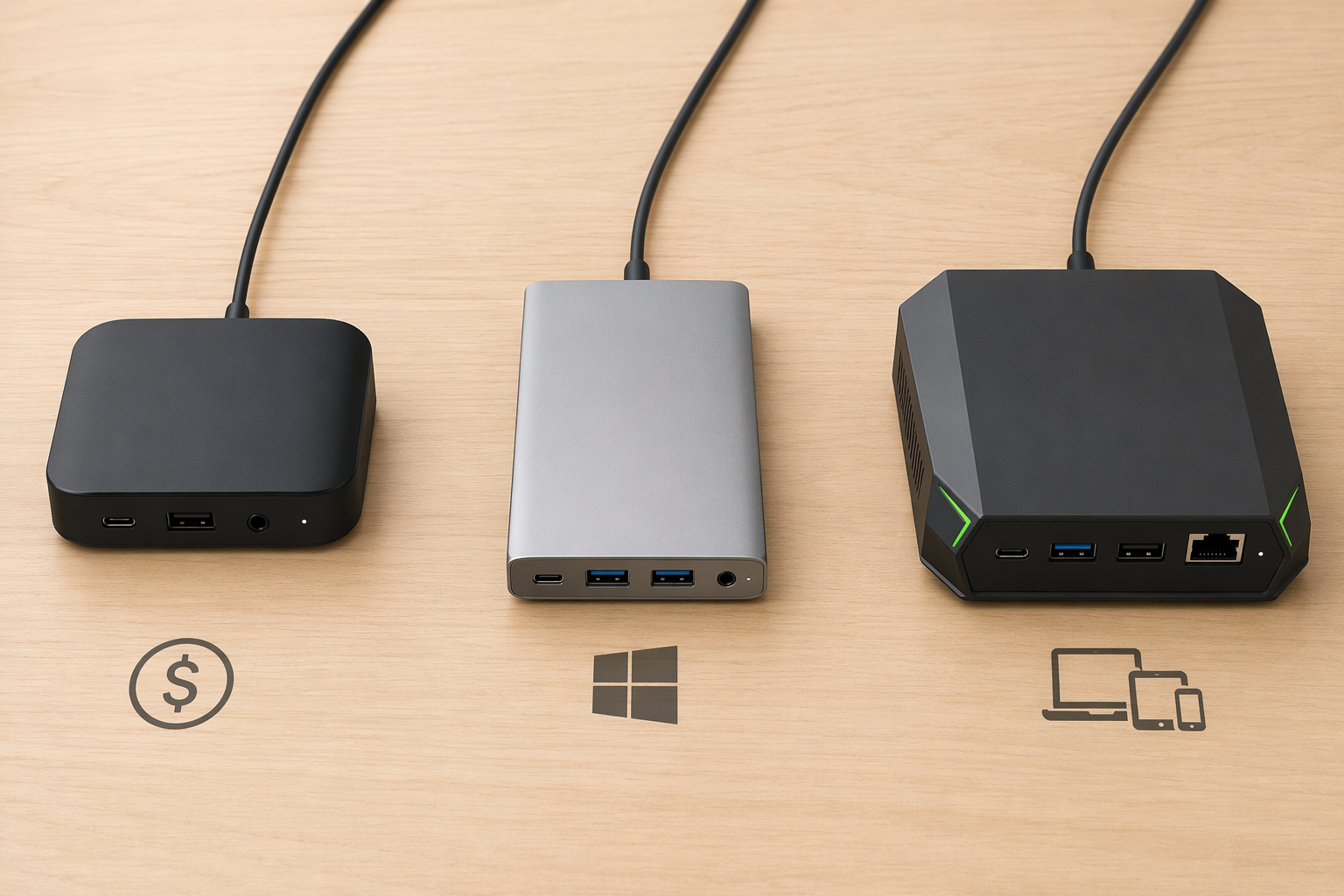
| Pick | Best For | Key Specs | Price, Last Reviewed July 2026 | Evidence Label |
|---|---|---|---|---|
| Plugable UD-4VPD | Best value if your workload is documents, browser tabs, video lessons, and notes | Dual HDMI 2.1, dual 4K@60Hz, 65W charging | About $200 | High for specs and reviewer testing; caveat on heat |
| Surface USB4 Dock | Best low-friction choice for Windows-first and Surface-heavy study desks | USB-C + HDMI 2.1 display outputs, dual 4K@60Hz, 65W charging | About $199 MSRP; about $117 refurbished | High for official product documentation |
| Razer USB4 Dock | Best compatibility-first choice across Thunderbolt and non-Thunderbolt laptops | 14 ports, HDMI 2.1, DisplayPort 1.4, 100W charging | About $260 | High for published specs and roundup coverage |
If you want the cheapest reasonable answer, buy the Plugable UD-4VPD and read the thermal caveat before you check out. If you use a Surface Laptop or want the most Windows-native dock experience, buy the Surface USB4 Dock. If you move between laptops or do not want to think about whether the host machine is Thunderbolt-certified, buy the Razer USB4 Dock.
The common floor is the important part: each recommendation targets native dual-monitor output, not a cheap USB video workaround. Some products marketed around USB-C or USB4 can still disappoint if they depend on DisplayLink compression, lack the right DisplayPort alt-mode implementation, or silently limit external displays. For exam prep, that distinction is more useful than another logo comparison.
Why Dual Monitors Are Worth Paying For, Within Limits
A second monitor will not raise an MCAT, GRE, SAT, ACT, or ASVAB score by itself. There is no first-party evidence from AAMC, ETS, College Board, ACT Inc., or the ASVAB program showing that dual monitors directly improve test scores. The better-supported claim is narrower: dual monitors can reduce friction in multi-window work, which is exactly what exam prep often becomes.
Jon Peddie Research reported in 2017 that, among more than 1,000 survey respondents, multi-monitor users expected an average productivity increase of 42%.[3] That is Moderate evidence, not a lab result: it measures reported expectations rather than controlled score gains. Still, the direction fits the desk reality. A student can keep a practice passage open on one screen, an answer review or formula sheet on the other, and the laptop screen reserved for notes or a timer.
Other productivity claims should be kept in the same box. A Dell-commissioned white paper reported a 44% boost for text tasks and a 29% boost for spreadsheet tasks when moving from one monitor to two, and an older study cited by The New York Times found dual monitors helped users complete tasks up to 52% faster, saving up to 2.5 hours per day.[4] Those are also Moderate evidence: one is commissioned by a monitor vendor, and the other is older and secondhand. They justify buying a sensible dock; they do not justify overbuying the dock.
The Technical Ceiling: USB4 Is Already Enough
Dual 4K@60Hz uses roughly 26Gbps of a 40Gbps USB4 or Thunderbolt 4 link, leaving room for ordinary USB peripherals and power delivery.[1] That is the practical ceiling for most study desks. You are not editing multiple 8K streams between practice-test sections. You are switching between PDFs, browser tabs, lectures, flashcards, spreadsheets, notes, and timed question banks.
The laptop side matters more than the dock label. Intel laptops may advertise Thunderbolt 4. AMD Ryzen and Qualcomm Snapdragon laptops commonly advertise USB4 instead, because Thunderbolt certification is tied to Intel’s certification program. For this use case, that difference should not force a more expensive purchase. A properly implemented USB4 dock can do the job.
Charging is the other ceiling. A 65W dock is fine for many thin-and-light laptops used for study work. A 100W dock is safer if your laptop draws more power, runs warmer under load, or shares the desk with non-study workloads. Either way, the point is to match the laptop you own, not buy the fastest standard currently appearing in dock roundups.
Best Value: Plugable UD-4VPD
The Plugable UD-4VPD is the value pick at about $200, Last reviewed: July 2026. It offers dual HDMI 2.1 outputs, dual 4K@60Hz support, and 65W charging, which covers the core student setup without asking you to pay for ports you may never use.[5]
The caveat belongs right next to the recommendation: PCWorld’s Mark Hachman documented thermal trouble in review testing, including an overheating shutdown after about 90 minutes of gaming.[5] That is High-quality evidence for the caveat because it comes from published hands-on testing, not a forum rumor.
For study workloads, the caveat is serious but scoped. Gaming loads stress a dock differently from a night of PDF reading, question review, browser research, lecture playback, and note-taking. If your study desk is exactly that, the Plugable remains the cleanest budget answer. If you also expect the dock to sit under sustained graphics or high-throughput accessory load for long sessions, the thermal note should push you toward another option.
- Buy it if: you want the lowest sensible price for native dual 4K@60Hz.
- Think twice if: your laptop needs more than 65W or you expect heavy sustained loads beyond normal studying.
- Evidence grade: High for specs and reviewer-tested caveat; narrower confidence for how often heat appears in ordinary study use.
Best Windows Fit: Surface USB4 Dock
The Surface USB4 Dock is the least dramatic choice for a Windows-first desk, especially if the laptop is already a Surface. It is about $199 MSRP, with refurbished units around $117, Last reviewed: July 2026. Microsoft documents dual 4K@60Hz support through USB-C and HDMI 2.1 outputs, along with 65W charging.[6]
This is not the dock to buy because it has the loudest spec sheet. It is the dock to buy when the routine matters more than tinkering: plug in one cable, attach two displays, keep the Windows laptop charged, and avoid spending a study evening diagnosing whether the dock or the host laptop is the awkward part.
The refurbished price is the interesting number if it is available when you shop. At about $117, it undercuts many USB4 and Thunderbolt 4 options while staying inside the official Surface support lane. Pricing is volatile, so treat that as a July 2026 snapshot rather than a guarantee.
- Buy it if: you use a Surface or Windows laptop and want the lowest-friction supported setup.
- Think twice if: you need 100W charging or broader port variety.
- Evidence grade: High for official specifications; practical fit is strongest for Surface-heavy desks.
Best Compatibility Buffer: Razer USB4 Dock
The Razer USB4 Dock is the compatibility-first pick at about $260, Last reviewed: July 2026. It is not the cheapest choice and not the quietest-looking one, but it gives you a wider safety margin: 14 ports, HDMI 2.1, DisplayPort 1.4, 100W charging, and published support across Thunderbolt and non-Thunderbolt laptops.[7]
That makes it the best fit for the student who does not fully control the laptop ecosystem. Maybe you study on an AMD laptop now, borrow an Intel work machine occasionally, and may replace your laptop before the dock. Maybe one machine is Thunderbolt-certified and another is USB4-only. The Razer costs more because it reduces mismatch anxiety, not because a study desk needs a gaming-brand dock.
The 100W charging headroom is also useful if your laptop is more power-hungry than a typical ultrabook. That does not make it automatically better for everyone. If your current laptop is happy at 65W and will stay on your desk until test day, the extra cost may be unnecessary.
- Buy it if: you want the safest pick across USB4, Thunderbolt, AMD, Intel, and mixed-device desks.
- Think twice if: you know your exact laptop and a cheaper 65W dock already covers it.
- Evidence grade: High for published specs; value depends on whether you actually need the compatibility buffer.
What Not to Overpay For
Do not pay extra for Thunderbolt 5 unless your actual laptop ecosystem calls for it. The standard is impressive, but the current student use case is ordinary: two 4K displays, charging, and peripherals. PCWorld’s 2025 reporting on Intel’s CPU roadmap is enough to make TB5 a purchase filter rather than a requirement for most exam-bound laptop owners.[2]
Also be careful with suspiciously cheap hubs that advertise USB-C, USB4, or “dual display” without clearly stating dual 4K@60Hz over native video outputs. The cheap failure mode is not always that nothing works. Sometimes one display drops to 30Hz, one monitor fails after sleep, or the dock depends on software video compression when you expected hardware display output.
For students building around a larger prep plan, the dock should disappear into the routine. If your next three months are organized around a GRE study plan, an MCAT prep comparison, a digital SAT practice schedule, or an SAT/ACT prep decision, the hardware only has one job: keep the practice materials visible and the laptop powered without becoming another task.
The Buying Decision
Buy the Plugable UD-4VPD if the price matters most and your workload is normal studying. Buy the Surface USB4 Dock if you want the smoothest Windows or Surface fit. Buy the Razer USB4 Dock if you want the broadest compatibility across laptops and the extra charging margin.
Any of those three is enough for a dual 4K@60Hz study setup built around a USB4 laptop. Paying more for Thunderbolt 5 is not automatically better preparation; it is just a more expensive answer to a question most student desks are not asking.
References
- USB4 vs Thunderbolt 4: Understanding the differences — BenQ
- Thunderbolt 5 docks remain sidelined by Intel's Panther Lake — PCWorld, October 2025
- Jon Peddie Research: Multiple Displays can Increase Productivity by 42% — Jon Peddie Research
- Can Multiple Monitors Really Double Productivity — Plugable
- Plugable USB4 Dual HDMI dock review — PCWorld
- Use a Surface USB4 Dock — Microsoft Support
- Best Thunderbolt docks 2026: Thunderbolt 4, 5, USB4 picks — PCWorld
Related exhibits & inventory
Verified outcomes
No verified outcomes on file for this exam yet
See Methodology for how outcome evidence is disclosed once logged.
Planners
No planner filed for this exam yet
A downloadable timeline template for this exam hasn't been published yet.
Tool verdicts
AI-tool cautions
No AI tools tested for this exam yet
No hands-on AI-accuracy logs have been filed for this exam.
Questions about this plan
Ask a question about a specific section, timeline, or citation in this plan — or flag something that needs correcting.
Comments
Join the discussion with an anonymous comment.