
AI Study Tool
How to Use Apple Intelligence for Studying
Tool: How to Use Apple Intelligence for Studying
This guide walks you through every Apple Intelligence feature that can help with studying — lecture transcription, essay proofreading, math solving, summarization, and more — showing exactly how to activate and use each one on your iPhone, iPad, or Mac, all for free with no additional subscriptions.
Warning panel
- Verified against official source
- Unconfirmed — do not assume this was verified
- Last reviewed
- review date unconfirmed
If you already carry a compatible iPhone, iPad, or Mac to class, Apple Intelligence can cover a surprising amount of everyday study work before you pay for another AI subscription. The useful question is not whether Apple has “AI.” It is which built-in feature handles the thing you are trying to finish tonight: a lecture transcript, a cleaner essay draft, a math check, a Safari reading summary, or one focused hour without notification chaos.
There is a hard gate first. Apple Intelligence requires an iPhone 15 Pro or later, an iPad with M1 or A17 Pro or later, or a Mac with M1 or later. Availability also depends on having a supported current OS version, and some features rolled out across multiple updates rather than arriving all at once.[1] If your device is older, this guide can still help you decide whether Apple’s built-in tools are worth considering next time you upgrade, but you will not see the full feature set on that device.

Quick Setup Check Before You Plan Around It
On a supported device, start in Settings on iPhone or iPad, or System Settings on Mac, and look for Apple Intelligence settings. Apple frames the system around on-device processing where possible and Private Cloud Compute for requests that need larger server-based models.[1] That privacy design is one of the better reasons to try the built-in layer first, especially for messy notes, drafts, and class materials you do not want scattered through five separate apps.
That does not mean every feature is offline all the time. Apple Intelligence mixes on-device features, cloud-backed processing, and optional external integration. ChatGPT is the clearest boundary: it is opt-in, not automatic, and Apple says Siri and Writing Tools can ask before sending a request to ChatGPT.[1] For graded work, treat every AI output as a draft assistant, not a source of truth.
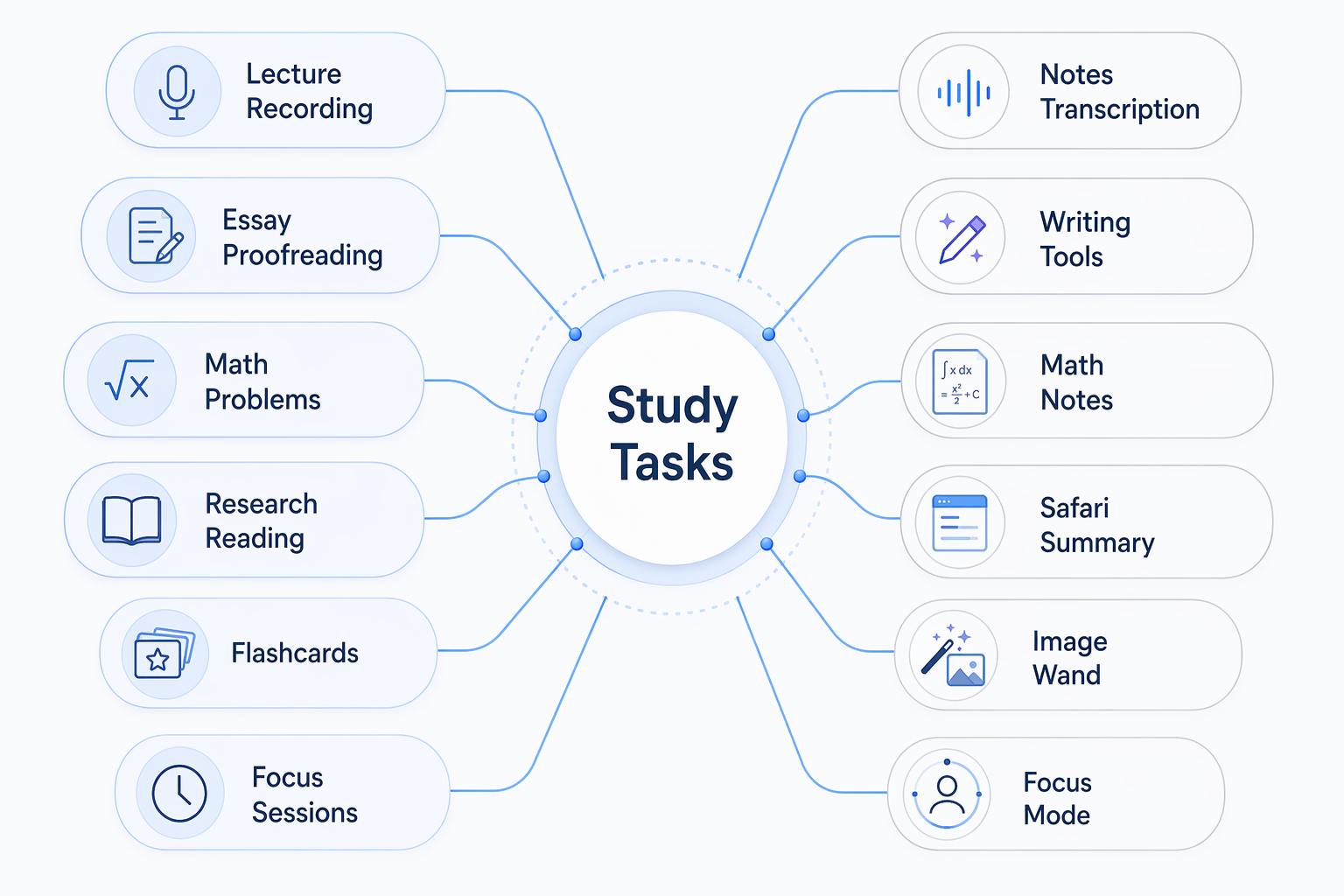
| Study task | Apple feature to try first | Best use |
|---|---|---|
| Lecture recording | Notes audio recording, transcription, summaries | Turn class audio into searchable notes and key points |
| Essay cleanup | Writing Tools | Proofread, rewrite, summarize, or turn notes into lists and tables |
| Math practice | Math Notes | Solve equations, graph expressions, and check steps |
| Research reading | Safari summaries and Writing Tools summaries | Condense long pages before deciding what deserves close reading |
| Concept questions | ChatGPT through Siri or Writing Tools | Ask for explanations when Apple’s built-in tools are not enough |
| Focused sessions | Reduce Interruptions Focus | Let through important notifications while suppressing lower-priority ones |
| Visual study aids | Image Wand or Image Playground | Create diagrams, illustrations, or memory cues |
| Finding old materials | Smart Search in Photos | Search screenshots, whiteboards, and study images by description |
| Language work | Live Translation | Translate conversations, messages, and foreign-language material |
| Repeat workflows | Shortcuts | Chain study actions after you build the automation yourself |
Use Notes to Record, Transcribe, and Summarize Lectures
Lecture capture is the Apple Intelligence feature set most likely to replace a separate student subscription for ordinary classes. In Apple Notes, students can record audio, generate a transcript, and create summaries from that material on supported devices.[2] The important part is that the workflow stays inside the same place many students already keep class notes.
A practical class setup looks like this: open the note for the course, start the audio recording before lecture begins, type or handwrite your own cues during class, then return afterward to the transcript and summary. The transcript gives you searchable language from the lecture; the summary gives you a first pass at the major points. Neither replaces listening or reviewing, but it does cut down the awful post-class job of scrubbing through an hour of audio to find one definition.
For studying, the best move is to turn the transcript into something smaller. Ask for or use the generated summary, then pull out terms, formulas, cases, dates, and “professor emphasized this” moments into your actual study notes. If the transcript says something odd, check the original audio before trusting it. AI transcription is useful because it lowers the friction of review; it is still vulnerable to accents, room noise, overlapping voices, and specialized vocabulary.
This is where comparisons to Otter.ai need to stay specific. For a student who mainly wants class recordings, transcripts, searchable notes, and summaries inside Apple Notes, the built-in workflow can remove the need for a separate transcription app. If you need cross-platform sharing, team meeting controls, advanced speaker workflows, or institution-level collaboration features, a specialist transcription tool may still be stronger.
Use Writing Tools Without Handing Over Your Assignment
Writing Tools are system-wide, so they can appear in places like Mail, Notes, Pages, and other text fields on supported Apple devices. Apple’s support instructions describe options including Proofread, Rewrite, Friendly, Professional, Concise, Summary, Key Points, List, and Table.[3] For students, that makes Writing Tools less like a separate writing app and more like a cleanup layer that follows your draft around.
Use Proofread when your ideas are already yours and you want help catching grammar, spelling, punctuation, and wording issues. Use Rewrite when a paragraph is clunky but the meaning is right. Use Concise when a discussion post, lab explanation, or scholarship paragraph is bloated. Use Key Points after a dense reading note or lecture transcript. Use Table when you are comparing theories, cases, vocabulary terms, or experiment variables.
The safe workflow is to write first, run Writing Tools second, and review every change before submitting. If the tool replaces your wording with something that sounds polished but less precise, keep your original. If it changes a technical term, citation language, or claim, verify it. A cleaner sentence is not automatically a more accurate sentence.
Macworld’s student-focused walkthrough judged Apple’s proofreading to be comparable to Grammarly’s free tier, while noting that it is not as comprehensive as Grammarly Premium.[2] That is a useful practical comparison, not a formal benchmark. In plain student terms: try Writing Tools before paying for basic proofreading, but do not assume it provides the deeper coaching, style analytics, citation-adjacent help, or advanced writing feedback that a premium specialist service may offer.
A Good Essay Workflow
- Draft the paragraph yourself before using AI help.
- Run Proofread for grammar and punctuation.
- Use Rewrite only on sections where the structure is unclear.
- Compare the AI version against your assignment prompt.
- Reject changes that add claims, weaken your argument, or erase your voice.
That last step matters. A student can get into trouble not because the grammar tool fixed a comma, but because a rewrite quietly makes the claim broader than the evidence supports. Apple Intelligence is helpful for presentation; responsibility for the argument stays with the person whose name is on the paper.
Use Math Notes for Equations, Graphs, and Step Checks
Math Notes is most useful when you are already working inside Calculator or Notes on iPad. Apple Support describes solving math expressions, assigning variables, graphing equations, and converting units in Math Notes.[4] That makes it a good fit for algebra practice, physics variables, finance formulas, chemistry calculations, and quick “did I copy this correctly?” checks.
The best use is not to paste a homework problem and copy the answer. Work the problem first, then use Math Notes to check the expression, test a variable, or graph the relationship. If you are studying for an exam, hide the answer until you have made a real attempt. The tool is strongest when it shortens feedback time without removing the thinking step.
For STEM classes, keep your handwritten reasoning next to the calculation. If the result changes when you adjust a variable, write down why. That turns Math Notes from a calculator trick into a study record you can review before a quiz.
Use Safari Summaries to Triage Research Reading
Safari summaries are useful for the first pass through long web readings, not for replacing close reading. Apple’s 2025 Apple Intelligence update describes system features that summarize and work across text, while current 2026 roundups place summarization among the mature everyday uses of Apple Intelligence across Apple apps.[1][5] For students, the practical value is deciding what deserves attention before you spend twenty minutes on the wrong page.
A workable research routine is simple: open the article, use the summary to identify the main claim, scan the headings and source quality yourself, then save or annotate only if the page actually supports your assignment. If you are using the material in a paper, go back to the original wording before quoting, paraphrasing, or citing it. Summaries can compress; they can also flatten uncertainty, omit limitations, or miss the part your professor actually cares about.
This is also a good place to use Writing Tools on your own notes. After reading, select your notes and turn them into Key Points or a Table. That is usually safer than asking an AI tool to summarize a source you barely read, because your notes already reflect what you checked.
Use ChatGPT Integration for Explanations, Not Autopilot
Apple’s ChatGPT integration can work through Siri and Writing Tools, but it is opt-in. Apple says users can access ChatGPT without creating an account, and requests are not sent automatically; the system asks before sharing information with ChatGPT in supported flows.[1] That distinction matters for students who want occasional outside help without turning every note or draft into a third-party prompt.
Use it when the built-in tool is too shallow: ask for a concept explanation, a different analogy, a practice question, or help comparing two theories. A useful prompt is specific about your level: “Explain this like I have finished the assigned reading but missed the lecture,” or “Give me three practice questions, but do not show answers until I try.”
Do not use ChatGPT integration as a citation machine or a final authority on course content. If the answer affects a grade, verify it against the textbook, lecture slides, primary source, or instructor guidance. For deeper prompting habits and active-recall workflows, a dedicated ChatGPT study guide is a better next step than trying to make Siri carry the whole study session.
Use Focus Features When the Problem Is Attention, Not Information
Reduce Interruptions Focus uses Apple Intelligence to help filter notifications so that more important alerts can still get through while lower-priority interruptions stay quiet.[1] That is not as flashy as generating a summary, but it may be more valuable during finals week than another app full of study dashboards.
Set it before the study block begins, not after you have already opened messages, email, and three social apps. Pair it with a concrete task: one problem set, one reading section, one essay revision pass, or one transcript cleanup session. If someone may genuinely need to reach you, configure the allowed people and apps instead of turning Focus into a reason to miss important messages.
Use Image Tools for Memory Aids and Diagrams
Image Wand and Image Playground can help when visual structure makes material easier to remember. Apple’s 2025 feature update describes Image Wand as a way to turn a rough sketch into a related image and Image Playground as a tool for generating images in supported styles.[1] Macworld’s student guide points to diagrams and study visuals as one of the more practical uses.[2]
This is useful for memory cues, class presentation visuals, concept maps, and rough diagrams. It is not a substitute for accurate scientific illustration unless you verify the result. If you are making a biology diagram, anatomy sketch, circuit layout, or historical map, check labels and relationships against a reliable source before studying from it.
Use Photos Search to Find the Study Material You Forgot to Name
Students collect screenshots like squirrels collect acorns: slides, whiteboards, assignment pages, lab setups, library hours, textbook pages, and random diagrams from review sessions. Apple Intelligence-era Photos search is designed to understand more natural descriptions, making it easier to find images by what is in them rather than by date alone.[5]
Try searches based on the content you remember: “whiteboard with supply and demand graph,” “chemistry lab notes,” or “screenshot of essay rubric.” It works best when the photo is clear and the visual clue is obvious. For important materials, still move them into a course folder or note afterward; search is a rescue tool, not an organization system.
Use Live Translation for Language Work and Foreign-Language Sources
Live Translation belongs in the study toolkit for language learners, international students, and anyone working with foreign-language material. Apple’s 2025 update announced Live Translation across Messages, FaceTime, and Phone, with Apple Intelligence handling translation in supported contexts.[1] By mid-2026, current feature roundups treat translation as part of the broader Apple Intelligence feature set students may encounter across devices.[5]
For coursework, use translation to understand the rough meaning, prepare questions, or compare phrasing. Do not assume it captures tone, idiom, technical vocabulary, or literary nuance. In a language class, overusing translation can also block the uncomfortable but necessary work of recall.
Use Shortcuts Only When the Repetition Is Worth the Setup
Shortcuts is the advanced layer. Apple’s 2025 announcement described new Apple Intelligence capabilities for Shortcuts, including use of the Foundation Models framework, and gave examples such as comparing a lecture transcription against a student’s notes.[1] That is promising, but it should not be read as “tap once and Apple builds a perfect study assistant.” Students still have to create, test, and maintain the shortcut.
A shortcut is worth building when you repeat the same workflow every week. For example, after each lecture you might want to collect the transcript, summarize it, extract key points, and append those points to a course note. That can save time once it works. It can also fail quietly if the input is wrong, a note title changes, or the shortcut grabs the wrong file.
- Build a shortcut only after you have done the workflow manually a few times.
- Test it on low-stakes notes before trusting it with exam material.
- Keep the output visible so you can review what changed.
- Avoid automating anything that submits, deletes, or overwrites graded work.
Where Apple Intelligence Fits Against Paid Study Apps
The best reason to start with Apple Intelligence is not that it beats every specialist app. It does not. The reason is that it is already built into the device, carries no additional subscription cost, works across familiar apps, and handles the boring daily tasks that often decide whether students actually use a tool.
For many students, Notes transcription can cover basic lecture capture, Writing Tools can cover basic proofreading and rewriting, Safari summaries can help triage readings, Math Notes can speed up practice checks, and Focus can protect study time. Educator resources from Apple’s Education Community also show AI audio-to-text and Apple Intelligence tools being used in teaching and learning workflows, which supports the idea that these features are practical classroom tools rather than only launch-demo material.[6][7]
Specialist tools still make sense when the task is deeper than Apple’s first layer. Use a dedicated grammar product if you need premium writing coaching. Use a research-focused tool if you need source-grounded synthesis across many PDFs. Use a flashcard or spaced-repetition app if exam recall is the main problem. Use a cross-platform note-taking system if your school, lab group, or device mix does not live inside Apple’s ecosystem.
The practical decision is straightforward: if you already have a compatible Apple device, Apple Intelligence should be your free first layer for lecture cleanup, writing polish, summaries, math support, visual aids, translation, and focus. Keep the parts that save time, verify anything that affects a grade, and pay for a specialist app only when the built-in tool reaches a clear limit.
References
- Apple Intelligence gets even more powerful with new capabilities across Apple devices — Apple Newsroom, June 2025
- How Apple Intelligence can turn anyone into a star student — Macworld
- How to use Writing Tools with Apple Intelligence — Apple Support
- Solve math with Math Notes in Calculator on iPad — Apple Support
- Apple Intelligence in 2026: Every New AI Feature Explained — Skycrumbs
- Apple Intelligence: 5 Tools for Educators — Apple Education Community
- How I Use AI Audio to Text Tools to Learn Faster and Remember More — Apple Education Community
Verify against your exam's official source
Applicable exams not specified — see all exam hubs.
Comments
Join the discussion with an anonymous comment.