
How to Generate Flashcards from a PDF: A Step-by-Step Guide for Students
✓ After this tutorial: A study-ready flashcard deck generated from your PDF and imported into Anki or Quizlet, reviewed for accuracy and ready to study.
A method-layered tutorial for students who want to turn lecture slides, textbook chapters, or study guides into study-ready flashcards — covering AI generator tools, LLM prompt workflows, and the Anki CSV pipeline, with guidance on handling scanned PDFs and checking card quality before you study.
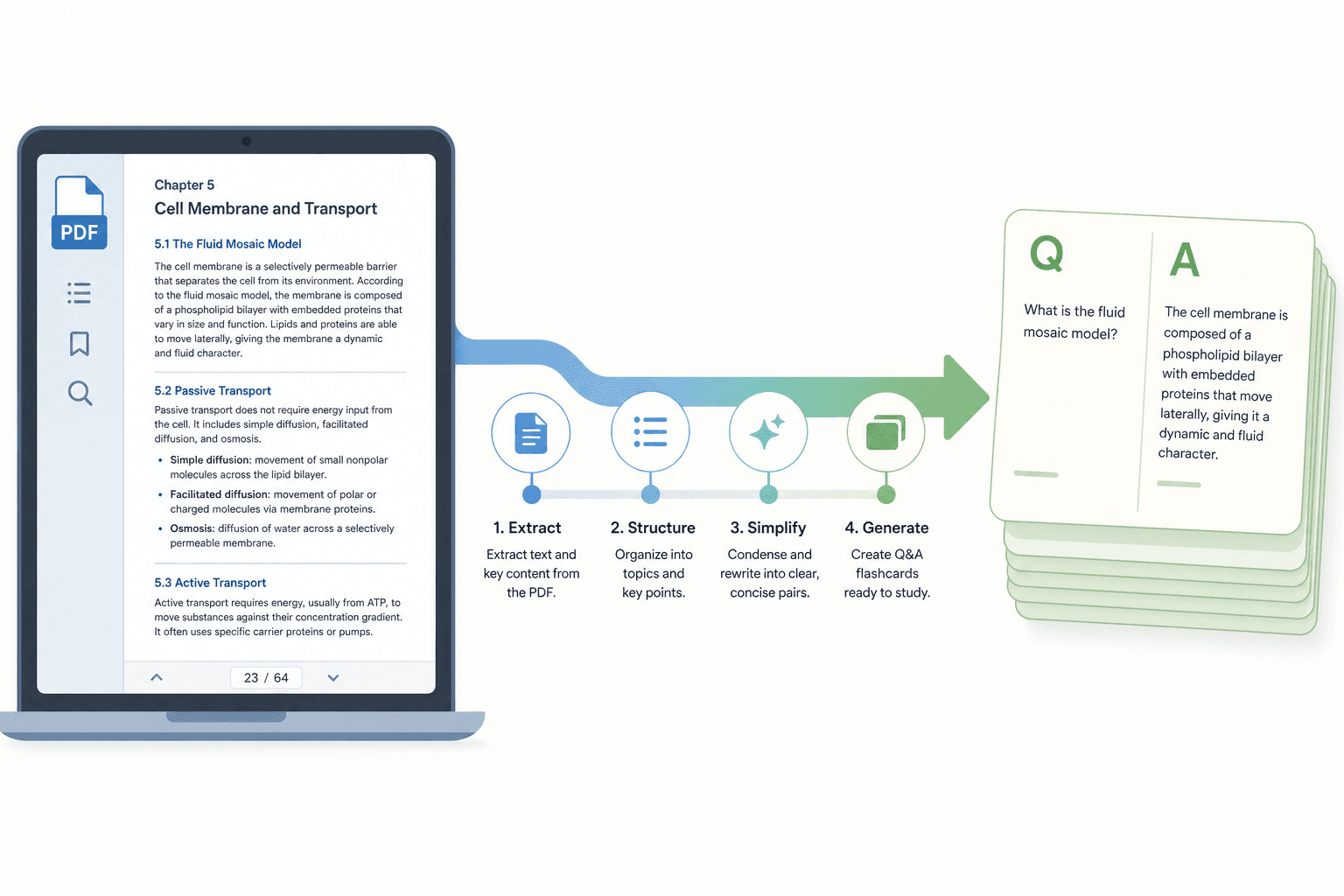
Why Turning PDFs into Flashcards Is Worth the Effort
Re-reading a lecture PDF does not help you remember it. What actually builds long-term memory is being forced to retrieve information — producing an answer from memory rather than recognizing it on a page. That is the core of active recall, and flashcards are the most direct way to practice it.
The problem is that making flashcards by hand from a 40-page lecture PDF takes hours. AI tools can compress that into minutes. When you pair fast card generation with a spaced repetition schedule, you end up studying the right cards at the right time — which compounds the retention gains. Research consistently shows that active recall through flashcards can improve long-term memory retention significantly compared to passive re-reading, and spaced repetition further multiplies that effect.
This guide gives you three working methods — dedicated AI generators, LLM prompt workflows, and a manual CSV pipeline — and helps you pick the right one based on your PDF type and your study app. Start with Step 0 before you try any of them.
Step 0: Know Your PDF Type Before You Start
Every AI flashcard tool fails silently on the same type of PDF: a scanned image. If you skip this step and upload the wrong file, the tool will either return an error, generate completely wrong cards, or produce nothing at all — and you will not know why.
There are two fundamentally different kinds of PDFs:
- Searchable text PDF — The file contains actual machine-readable text. This is what you get from exported lecture slides, downloaded textbook chapters, or PDFs created directly from Word or Google Docs. AI tools can extract and process this text.
- Scanned image PDF — The file is a photograph or scan of a physical document. The text is stored as an image, not as text data. AI tools cannot read it without an OCR (optical character recognition) step first.
How to check in five seconds: open your PDF and try to click and drag to highlight a word. If you can select individual words, it is a searchable text PDF and you are ready to proceed. If your cursor draws a rectangle over the page like you are selecting an image, it is a scanned PDF and you need to run OCR first.
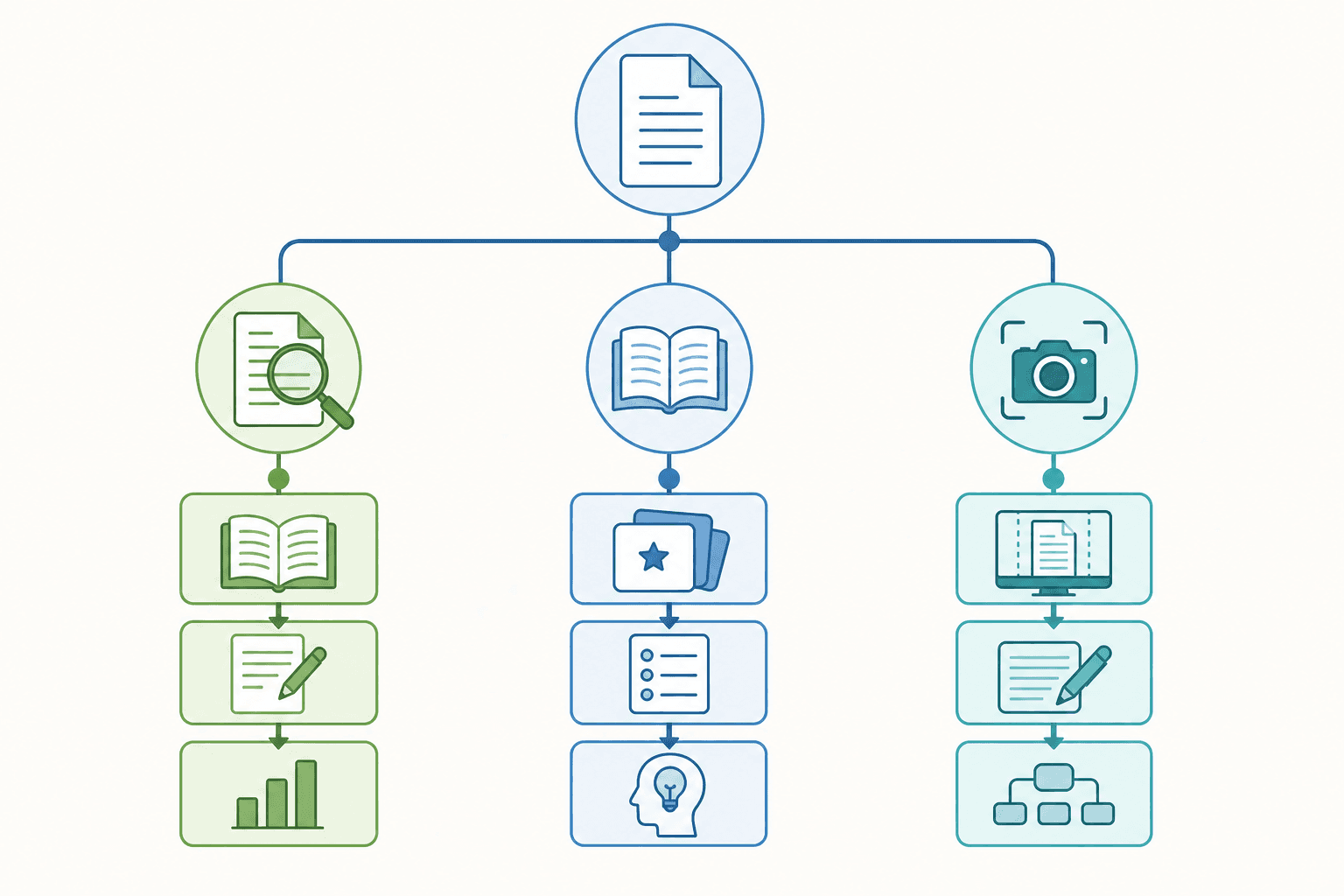
Method 1: Dedicated AI Generator Tools
If you have a searchable text PDF and want cards as fast as possible, dedicated AI generators are the right starting point. Three tools cover most student use cases: Revisely, Scholarly, and AnkiDecks. Each follows the same basic workflow — upload, generate, review, export — but they differ in free-tier limits, export formats, and built-in study features.
| Tool | Free tier limits | Export formats | Best when |
|---|---|---|---|
| Revisely | 5 pages per document; no export on free plan | Anki, PDF (paid only) | You want to preview card quality before paying; in-browser review is enough |
| Scholarly | 1 PDF per day, up to 32 pages; unlimited sets | .apkg for Anki, CSV for Quizlet | You need Anki or Quizlet export without paying; moderate PDF length |
| AnkiDecks | 4 decks per month | .apkg one-click export | You use Anki specifically and want FSRS built-in and image occlusion support |
Revisely
Revisely's free plan accepts PDFs, PowerPoints, handwritten notes, and images. The free tier caps uploads at 5 pages per document and does not include export — cards can be reviewed and studied in the browser, but you cannot send them to Anki or download them without a paid plan.
- Go to Revisely's flashcard generator and upload your PDF.
- Wait for the AI to generate cards — this typically takes under a minute for shorter documents.
- Review the generated cards in the browser. Edit any that are vague, incorrect, or poorly phrased.
- On the free plan: study in exam mode directly in the browser. On a paid plan: export to Anki or PDF.
Scholarly
Scholarly's free tier allows one PDF upload per day up to 32 pages, with unlimited flashcard sets and full export access — including .apkg for Anki and CSV for Quizlet. For most lecture PDFs, 32 pages covers a full lecture or a textbook chapter. The AI is specifically tuned on lecture slides and textbook content, which tends to produce cards that reflect what professors actually test rather than generic summaries.
- Upload your PDF at Scholarly's PDF-to-flashcards tool.
- The AI generates cards automatically. A typical 20-page lecture PDF produces roughly 30–60 cards.
- Review the cards. Delete duplicates and edit any that are too broad or factually off.
- Export as .apkg to import directly into Anki, or download the CSV to import into Quizlet.
AnkiDecks
AnkiDecks is designed specifically for Anki users. The free plan gives you 4 decks per month with one-click .apkg export. It supports PDF, PowerPoint, Word, Excel, EPUB, images, and handwritten notes up to 50MB. Two features stand out for specific use cases: image occlusion (the AI automatically detects labels on anatomy diagrams and creates occlusion cards) and support for 50+ languages, including cross-language generation — upload in one language and receive cards in another.
- Upload your PDF to AnkiDecks.
- Select your card type: Question-Answer, Cloze, or Multiple Choice.
- Review the generated deck. The built-in FSRS study mode lets you test cards before exporting.
- Click the one-click .apkg export and open the file in Anki on any platform.
Adobe Acrobat Student Spaces (Lightweight Option)
Adobe's online flashcard maker accepts PDFs, Word docs, PowerPoints, and more up to 100MB. It is free with an Adobe account and requires no download. The AI pulls out key terms, definitions, formulas, and examples. Cards can be shared with classmates via link, which makes it useful for study groups.
Method 2: ChatGPT or Claude with Subject-Specific Prompts
Generic AI generators work well for standard lecture content. They struggle with specialized subjects — medical pathophysiology, legal case law, STEM formulas, or foreign language vocabulary — where surface-level definitions are not enough. For those subjects, an LLM like ChatGPT or Claude with a structured prompt gives you more control over card depth and format.
The workflow is straightforward: open your searchable PDF, select and copy the text you want to convert, paste it into the LLM chat along with your prompt, and paste the output into your flashcard app.
Use the following prompt templates as a starting point. Paste the extracted PDF text after the prompt, then review and edit the output before importing.
Medical and Health Sciences
Law
STEM (Math, Physics, Chemistry, Engineering)
Language Learning
Once you have the LLM output, paste the cards into a two-column spreadsheet (Front in column A, Back in column B) and follow the CSV export steps in Method 3 or the export steps in the section below.
Method 3: The Manual Anki CSV Pipeline
If you want complete control over every card — or if you are building a large, carefully structured deck from multiple source documents — the manual CSV pipeline gives you that. It requires more steps than Method 1 but no subscription and no AI dependency.
The structure is simple: a two-column spreadsheet where column A is the card front (the question or prompt) and column B is the card back (the answer). Each row is one card.
- Open Google Sheets or Excel. Label column A as "Front" and column B as "Back" (these headers will be ignored during import, but they help you stay oriented).
- Enter your card content — one question per row in column A, the corresponding answer in column B.
- Export as CSV with UTF-8 encoding. In Google Sheets: File → Download → CSV. In Excel: File → Save As → choose CSV UTF-8 (Comma delimited) — not the default "CSV" option. Standard CSV silently corrupts accents, special characters, and non-Latin scripts.
- In Anki, go to File → Import and select your CSV file.
- In the import dialog, map Column 1 to "Front" and Column 2 to "Back". Set the note type to "Basic" and select or create the deck you want to import into.
- Click Import. Anki will confirm how many cards were added.
Exporting to Anki or Quizlet: Common Import Errors and How to Fix Them
Whether your cards came from a dedicated AI generator, an LLM prompt, or a manual spreadsheet, the export and import steps follow the same pattern. Here is what to expect for each destination app and how to handle the errors that come up most often.
Importing into Anki
- .apkg files (from Scholarly or AnkiDecks): Double-click the .apkg file or drag it into the Anki window. Anki imports the deck automatically with no field mapping required.
- CSV files: Go to File → Import, select your CSV, and map fields manually. If Anki shows garbled characters after import, the file was not saved as UTF-8. Delete the imported cards, re-export the CSV with correct encoding, and re-import.
- "No cards were imported" error: Usually means the field delimiter does not match. Check that your CSV uses commas, not semicolons or tabs. In Excel, this can vary by system locale — if your system uses semicolons as the default delimiter, open the CSV in a text editor and confirm the separator before importing.
Importing into Quizlet
- Scholarly exports a Quizlet-compatible CSV directly. In Quizlet, create a new set, click the import option, and paste or upload the CSV content.
- If you are importing from your own CSV, Quizlet expects tab-separated values by default (not comma-separated). Either adjust your export to use tabs, or change the import delimiter setting in Quizlet's import dialog to match your file.
- Quizlet does not accept .apkg files — those are Anki-only. If your tool only exports .apkg and you want Quizlet cards, use a CSV export instead.
Quality-Check Checklist: 5 Things to Verify Before You Study Any AI-Generated Deck
AI-generated cards are a starting point, not a finished product. Spending five minutes reviewing a deck before you start studying is far more efficient than discovering a hallucination mid-exam. Run through this checklist after any AI generation step.
- Each card asks exactly one specific question. Cards with multiple questions in the front field force you to partially answer — which defeats the purpose of retrieval practice. Split any compound cards.
- The answer is concise. A card back that is a full paragraph is not a flashcard — it is a reading exercise. If the answer is longer than two sentences, the question is probably too broad.
- Terminology matches your course materials. AI tools sometimes use textbook terminology that differs from what your professor uses in lectures. If your professor calls something by a specific name, the card should use that name.
- No hallucinations. Cross-reference any card that contains a specific number, date, drug name, legal citation, or formula against the original PDF. AI tools occasionally generate plausible-sounding but incorrect details.
- Cards test concepts, not definitions. "What is the definition of X?" is a weaker card than "What mechanism explains X?" or "In what situation would you use X over Y?" If most of your cards are definition-only, edit them toward application.
FAQ
What if I only have a scanned PDF and no OCR access?
Two free options require no software installation. First, upload the scanned PDF to Google Drive and open it with Google Docs — Drive automatically runs OCR and converts the image to selectable text, which you can then copy and paste into an AI tool or LLM. Second, use Adobe's online tools, which include a free OCR conversion step. Either way, save the result as a new PDF or copy the text directly before proceeding with any of the three methods above.
How many cards should I aim for per PDF?
Aim for 20–30 high-quality cards per 10 pages of source material. A typical 20-page lecture PDF produces roughly 30–60 cards with a well-tuned AI generator. More cards is not better — a deck of 100 vague cards will take longer to review and teach you less than a deck of 30 precise, concept-testing cards. If your AI generator produces significantly more than this ratio, the cards are probably too granular or too definition-heavy, and you should apply the quality checklist aggressively.
When should I use Anki vs. Quizlet vs. a standalone tool?
- Choose Anki if you are preparing for a high-volume, high-stakes exam (MCAT, USMLE, bar exam, language proficiency) and want a proven spaced repetition algorithm (FSRS or SM-2) to schedule your reviews. Anki has no native PDF import, so you will always need an export step from one of the methods above.
- Choose Quizlet if you are studying with classmates, want a simple interface, or need to share a set quickly. Quizlet also lacks native PDF import, but Scholarly's CSV export is Quizlet-compatible. Note that Quizlet's free tier has become more limited over time — verify current feature availability before relying on it.
- Choose a standalone tool (Revisely, Scholarly in-browser, Adobe Student Spaces) if you only need to review cards once or twice for an upcoming quiz and do not need long-term spaced repetition scheduling. These tools are faster to set up and require no additional app installation.
Next Steps
- How to Configure Anki Spaced Repetition Settings (Step-by-Step) →
Anki's default settings leave significant retention gains untapped — this guide walks students through enabling FSRS, setting desired retention, choosing learning steps, and capping daily new cards to build a sustainable, high-retention study system.
- How to Set Up Anki from Scratch: A Complete Beginner's Guide →
A step-by-step tutorial for first-time Anki users — covering installation on every platform, enabling FSRS settings, creating your first deck and cards, syncing across devices with AnkiWeb, and avoiding the six mistakes that cause most beginners to quit within the first week.
- How to Create a Quizlet Study Set: Manual, Import, and AI Methods →
A step-by-step guide for high school and college students who want to build their own Quizlet study sets from scratch — covering manual entry, bulk text import, and AI generation from notes, plus card design tips and folder organization.
Comments
Join the discussion with an anonymous comment.